Managing a service with systemctl lets you check what systemd thinks the unit is doing now, bring it online, stop it cleanly, reload supported application settings, and decide whether it should return automatically on later boots.
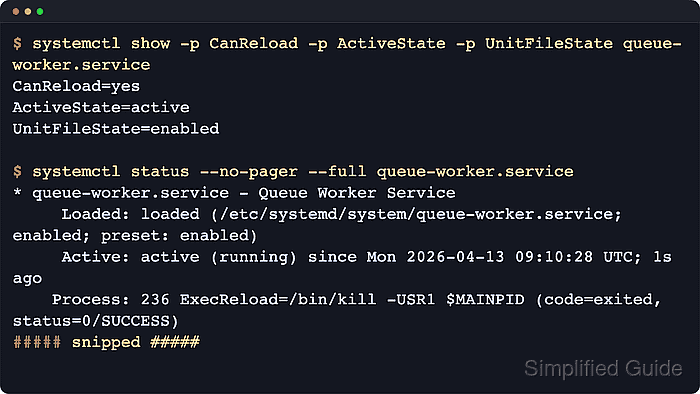
On a systemd host, service management has two separate layers: the runtime state such as active or inactive, and the unit-file state such as enabled or disabled. systemctl status gives the readable combined view, while systemctl is-active and systemctl is-enabled are the short checks that confirm each layer directly.
Examples below use queue-worker.service as a stand-in unit name so the lifecycle verbs stay easy to compare. Replace it with the real unit on the host, add sudo for system services, use systemctl --user for per-user services, and run systemctl daemon-reload first when the unit file or a drop-in was changed on disk.
| Action | Example command |
|---|---|
| Show current status | systemctl status –no-pager –full unit.service |
| Start a stopped service | systemctl start unit.service |
| Stop a running service | systemctl stop unit.service |
| Restart the service process | systemctl restart unit.service |
| Check reload support | systemctl show -p CanReload unit.service |
| Reload application configuration | systemctl reload unit.service |
| Enable and start now | systemctl enable –now unit.service |
| Disable and stop now | systemctl disable –now unit.service |
| Check runtime and boot state | systemctl is-active unit.service systemctl is-enabled unit.service |
Steps to manage a systemd service using systemctl:
- Open a terminal on the host that runs systemd with an account that can use sudo.
Use systemctl --user instead of the system manager command when the target is a per-user service.
- Check the current service status before changing anything.
$ systemctl status --no-pager --full queue-worker.service
○ queue-worker.service - Queue Worker Service
     Loaded: loaded (/etc/systemd/system/queue-worker.service; disabled; preset: enabled)
     Active: inactive (dead)
Replace queue-worker.service with the real unit name, such as nginx.service, ssh.service, docker.service, or postgresql.service. The Loaded: line shows where the unit file came from and whether it is enabled for boot, while Active: shows whether the service process is running now.
- Start the service when it is installed but not currently running.
$ sudo systemctl start queue-worker.service

$ systemctl is-active queue-worker.service
active

$ systemctl is-enabled queue-worker.service
disabled
start changes the runtime state only, so the service can be active now while still printing disabled until it is explicitly enabled for boot.
- Restart the service when the process must be replaced instead of only asked to reread its configuration.
$ sudo systemctl restart queue-worker.service

$ systemctl status --no-pager --full queue-worker.service
● queue-worker.service - Queue Worker Service
     Loaded: loaded (/etc/systemd/system/queue-worker.service; disabled; preset: enabled)
     Active: active (running) since Tue 2026-04-21 23:33:58 UTC; 9ms ago
   Main PID: 125 (queue-worker.sh)
##### snipped #####
A fresh since timestamp or a new Main PID shows that systemd stopped the old process and started a new one.
- Check whether the service supports a live reload before using the reload action.
$ systemctl show -p CanReload queue-worker.service
CanReload=yes
When CanReload=no, systemctl reload unit.service fails immediately because the service has no configured in-place reload path.
- Reload the service when it supports rereading its own application configuration without a full restart.
$ sudo systemctl reload queue-worker.service

$ systemctl status --no-pager --full queue-worker.service
● queue-worker.service - Queue Worker Service
     Loaded: loaded (/etc/systemd/system/queue-worker.service; disabled; preset: enabled)
     Active: active (running) since Tue 2026-04-21 23:33:58 UTC; 33s ago
    Process: 142 ExecReload=/bin/kill -USR1 $MAINPID (code=exited, status=0/SUCCESS)
   Main PID: 125 (queue-worker.sh)
##### snipped #####
systemctl reload asks the running daemon to apply its own supported configuration changes in place. It does not make systemd reread the unit file, so unit-file and drop-in edits still need sudo systemctl daemon-reload first.
- Stop the service when maintenance or troubleshooting requires the daemon to go fully inactive.
$ sudo systemctl stop queue-worker.service

$ systemctl is-active queue-worker.service
inactive

$ systemctl is-enabled queue-worker.service
disabled
Stopping a remote-access, proxy, database, or queue service can interrupt active clients immediately, so keep console or other out-of-band access available before stopping anything that might lock out the current session.
- Enable the service and start it immediately when it should come up now and on later boots.
$ sudo systemctl enable --now queue-worker.service
Created symlink /etc/systemd/system/multi-user.target.wants/queue-worker.service → /etc/systemd/system/queue-worker.service.

$ systemctl is-enabled queue-worker.service
enabled

$ systemctl is-active queue-worker.service
active
enable creates the unit's install links for future boots, and --now adds the start action in the same command so both states change together.
- Disable the service and stop it immediately when it should not keep running or return automatically after reboot.
$ sudo systemctl disable --now queue-worker.service
Removed "/etc/systemd/system/multi-user.target.wants/queue-worker.service".

$ systemctl is-enabled queue-worker.service
disabled

$ systemctl is-active queue-worker.service
inactive
disable removes the install links, and --now adds the stop action in the same change. A static unit has no install rules of its own, so it cannot be enabled or disabled directly.
- Read the recent unit journal when a lifecycle command fails or the service returns to failed after it seemed to work.
$ sudo journalctl -u queue-worker.service -n 12 --no-pager
Apr 21 23:34:32 server systemd[1]: Reloaded queue-worker.service - Queue Worker Service.
Apr 21 23:34:32 server queue-worker.sh[125]: queue-worker reloaded
Apr 21 23:34:43 server systemd[1]: Stopping queue-worker.service - Queue Worker Service...
Apr 21 23:34:43 server queue-worker.sh[125]: queue-worker stopping
Apr 21 23:34:43 server systemd[1]: queue-worker.service: Deactivated successfully.
Apr 21 23:34:43 server systemd[1]: Stopped queue-worker.service - Queue Worker Service.
Apr 21 23:34:51 server systemd[1]: Started queue-worker.service - Queue Worker Service.
Apr 21 23:34:51 server queue-worker.sh[180]: queue-worker started
Apr 21 23:35:01 server queue-worker.sh[180]: queue-worker stopping
Apr 21 23:35:01 server systemd[1]: Stopping queue-worker.service - Queue Worker Service...
Apr 21 23:35:01 server systemd[1]: queue-worker.service: Deactivated successfully.
Apr 21 23:35:01 server systemd[1]: Stopped queue-worker.service - Queue Worker Service.
journalctl -u is the cleaner follow-up when the short status view does not explain why a start, stop, restart, or reload behaved differently from what you expected.

Mohd Shakir Zakaria is a cloud architect with deep roots in software development and open-source advocacy. Certified in AWS, Red Hat, VMware, ITIL, and Linux, he specializes in designing and managing robust cloud and on-premises infrastructures.


