Starting a stopped service with systemctl brings a daemon online immediately instead of waiting for the next boot or for some other unit to activate it. That matters after package installation, after maintenance, or whenever an application dependency stays unavailable because its service is not running.
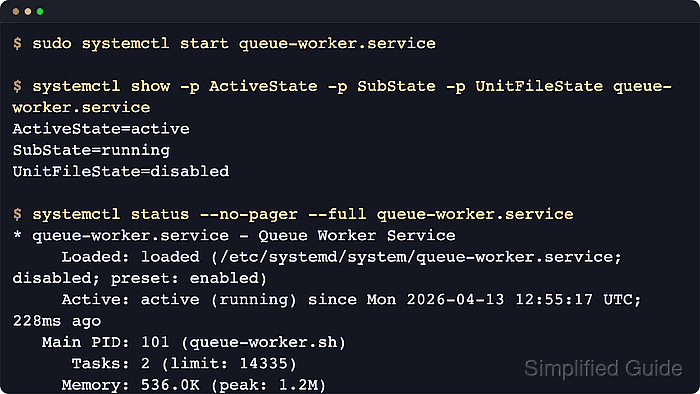
The systemctl start subcommand asks systemd to activate the target unit and track the result through the unit's runtime state. That runtime state is separate from the unit-file state, so a service can become active now while remaining disabled at boot until systemctl enable creates its install links.
Examples below use queue-worker.service as a stand-in unit name to keep the flow readable; replace it with the real service on the host. Add sudo for system services, use systemctl --user start for per-user units, run systemctl daemon-reload first when a unit file under /etc/systemd/system was just created or edited, and remember that masked units, units with RefuseManualStart=yes, and units gated by Condition…= checks may not start like a normal long-running daemon.
Steps to start a service using systemctl:
- Open a terminal on the Linux host that runs systemd.
Add sudo to the service-control commands below unless the target is a per-user unit managed with systemctl --user.
- Find the exact service unit name when it is not already known.
$ systemctl list-unit-files --type=service "queue-worker*"
UNIT FILE            STATE    PRESET
queue-worker.service disabled enabled

1 unit files listed.
Replace queue-worker with the actual service name, such as nginx, ssh, sshd, docker, or postgresql, and prefer the full unit name including .service in later commands. Use an explicit unit name instead of relying on systemctl start glob patterns, because current upstream systemd documentation notes that such patterns only expand against units already loaded in memory.
- Reload the systemd manager first when the unit file was just added or edited locally.
$ sudo systemctl daemon-reload
This rereads unit files from disk so a new or changed definition under /etc/systemd/system can be started correctly.
- Check the current load and runtime state before starting the service.
$ systemctl show -p LoadState -p ActiveState -p SubState -p UnitFileState queue-worker.service
LoadState=loaded
ActiveState=inactive
SubState=dead
UnitFileState=disabled
LoadState=loaded confirms that systemd can read the unit file, while the inactive/dead state shows the service is not running yet.
- Start the service.
$ sudo systemctl start queue-worker.service
Current upstream systemctl behavior waits for the unit start-up to complete unless --no-block is used.
- Confirm that the service is now active without changing its boot-time state.
$ systemctl show -p ActiveState -p SubState -p UnitFileState queue-worker.service
ActiveState=active
SubState=running
UnitFileState=disabled
start changes the runtime state only, so the unit can be active now while still printing disabled until it is explicitly enabled for boot.
- Inspect the human-readable status when the main PID, loaded unit path, or recent unit log lines matter.
$ systemctl status --no-pager --full queue-worker.service
* queue-worker.service - Queue Worker Service
     Loaded: loaded (/etc/systemd/system/queue-worker.service; disabled; preset: enabled)
     Active: active (running) since Wed 2026-04-22 02:29:38 UTC; 11ms ago
   Main PID: 120 (sleep)
##### snipped #####
A Type=oneshot unit with RemainAfterExit=yes can legitimately show active (exited) after a successful start, while oneshot units without RemainAfterExit can return to dead immediately after the start action finishes.
- Read the recent journal when the unit does not stay active or the start request returns an error.
$ sudo journalctl -u queue-worker.service -n 6 --no-pager
Apr 22 02:29:38 server systemd[1]: Started queue-worker.service - Queue Worker Service.
Apr 22 02:29:38 server sh[120]: queue worker online
A start blocked by unmet Condition…= checks can be skipped without moving the unit into failed, so read both the status view and the journal before retrying the command.

Mohd Shakir Zakaria is a cloud architect with deep roots in software development and open-source advocacy. Certified in AWS, Red Hat, VMware, ITIL, and Linux, he specializes in designing and managing robust cloud and on-premises infrastructures.


