Containers have their own network addresses, even when the application and model server run on the same machine. On a Linux Docker host, an AnythingLLM container needs a host-reachable provider URL to connect to a local service such as Ollama; its own localhost points back into the container.
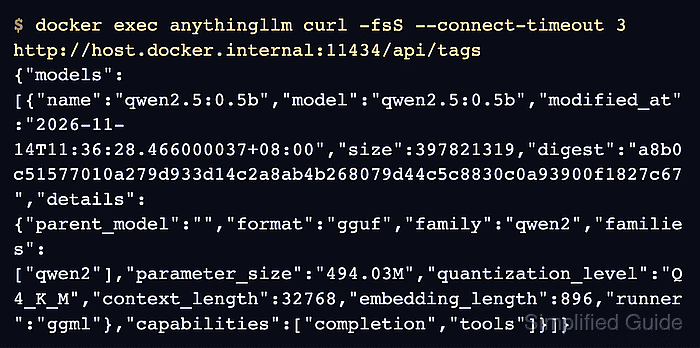
On native Linux Docker Engine, an explicit host.docker.internal mapping supplies a name for the Docker host. That name does not forward traffic to a loopback-only listener, so the provider must already accept connections on a trusted address reachable from the Docker bridge. Docker Desktop supplies the host name automatically and has different networking behavior.
The starting point is an existing AnythingLLM container with Ollama selected under Settings → AI Providers → LLM. The Ollama server must run on the Linux Docker host with a downloaded model and a bridge-reachable listener; provider selection and listener configuration are separate prerequisites. A returned model list confirms the connection without requiring a chat or document-embedding setup.
Steps to connect AnythingLLM Docker to a localhost provider on Linux:
- Confirm that the Ollama model list fails to load with the container-local provider URL.
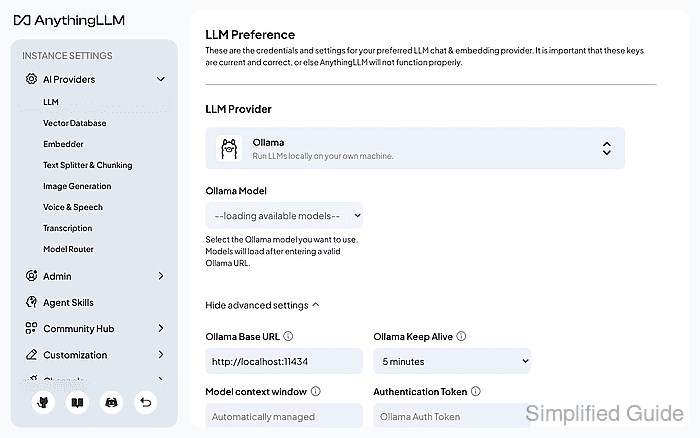
The failure shows no error message. Ollama Model stays at --loading available models-- after the page has finished loading, because AnythingLLM receives an empty model list. A URL such as http://localhost:11434 addresses the AnythingLLM container, even when the same URL works in a browser on the Docker host. The container name is anythingllm.
- Identify the default Docker bridge gateway on the Linux host.
$ docker network inspect bridge --format '{{(index .IPAM.Config 0).Gateway}}'Example output: 172.17.0.1. The value can differ on your host; it is not the IP address of a separate laptop running your browser.
- Check the host provider's API through that gateway address.
$ curl -fsS --connect-timeout 3 http://172.17.0.1:11434/api/tags
The JSON should contain your installed models. The address must match the preceding result. A refusal or timeout here means the host listener or network access needs attention before changing AnythingLLM.
Ollama's local API has no authentication. Anyone who can reach it can use the service and consume resources, so network access must already be restricted to trusted clients before a non-loopback bind. Binding only the Docker bridge address removes loopback access and needs updating if that address changes; binding 0.0.0.0 also exposes other interfaces. Restarting Ollama interrupts requests and unloads models.
Related: How to set the Ollama host address
Related: How to manage the Ollama service - Check the same API from inside AnythingLLM using its current loopback address.
$ docker exec anythingllm curl -fsS --connect-timeout 3 http://127.0.0.1:11434/api/tags
Connection refusal is expected when Ollama runs only on the host. A host-side success followed by this failure identifies the container boundary, rather than a missing Ollama model.
- Inspect the existing container's persistent mounts.
$ docker inspect --format '{{range .Mounts}}{{println .Source "->" .Destination}}{{end}}' anythingllmThe published Docker installation mounts $HOME/anythingllm at /app/server/storage and its .env at /app/server/.env. The replacement below uses that layout, the same two-CPU/4 GiB limits and port mapping. A customized deployment needs its original mount, port, environment, network, restart and resource options preserved instead of copying different defaults. The inspection intentionally omits environment values that may contain credentials.
- Record the exact local image used by the existing container.
$ IMAGE="$(docker inspect --format '{{.Image}}' anythingllm)"The remaining commands run in this same shell. Reusing the image ID avoids combining a networking fix with a software upgrade. A copy of the original launch command supplies any customized options. Because the replacement starts from this ID, docker ps lists its image as a short ID such as daf5a6ae9d36 instead of mintplexlabs/anythingllm:1.19.0, although the image is the same.
- Stop the existing AnythingLLM container.
This interrupts access to AnythingLLM. The stopped container is retained for recovery, including its writable layer; persistent application data must remain mounted in the replacement. Both containers must never run against the same storage at once.
$ docker stop anythingllm
- Rename the stopped container to retain the original deployment.
$ docker rename anythingllm anythingllm-before-host
The name anythingllm-before-host must be unused. Recovery consists of stopping and removing the replacement container, renaming this retained container back to anythingllm, then starting it. The retained container uses the same persistent files, so it is not a data backup.
- Connect AnythingLLM to the Docker host by recreating its container with the host-gateway mapping.
The original -p 3001:3001 mapping exposes AnythingLLM on every host interface. Untrusted access must remain blocked; this networking fix does not add authentication or HTTPS.
$ docker run -d \
  --name anythingllm \
  --cpus 2 --memory 4g \
  --add-host host.docker.internal:host-gateway \
  -p 3001:3001 \
  -v "$HOME/anythingllm:/app/server/storage" \
  -v "$HOME/anythingllm/.env:/app/server/.env" \
  -e STORAGE_DIR="/app/server/storage" \
  "$IMAGE"
--add-host adds the host name at container creation; restarting the old container alone does not add it. The provider port, 11434 here, needs no new Docker port publication because the connection goes from AnythingLLM to the host. Docker prints the new container ID while the application initializes.
Every later recreation of this container, including an update to a newer image, must keep --add-host host.docker.internal:host-gateway. A replacement created without it loses the host name, and the saved provider URL stops working.
Related: How to update AnythingLLM in Docker - Confirm that the host alias resolves inside the replacement container.
$ docker exec anythingllm getent hosts host.docker.internal
Example output: 172.17.0.1 host.docker.internal. Docker chooses the host-gateway address; a daemon override can change it. The provider must listen on the address actually returned.
- Request the host provider's model list from the AnythingLLM container.
$ docker exec anythingllm curl -fsS --connect-timeout 3 http://host.docker.internal:11434/api/tags
The response should contain the same model names as the host-side request. Name-resolution failure means the mapping is absent; refusal or timeout after resolution points to the listener or network access. A successful request proves container-to-host access, while AnythingLLM still needs the matching saved URL.
- Set Ollama Base URL to
http://host.docker.internal:11434in the existing LLM settings.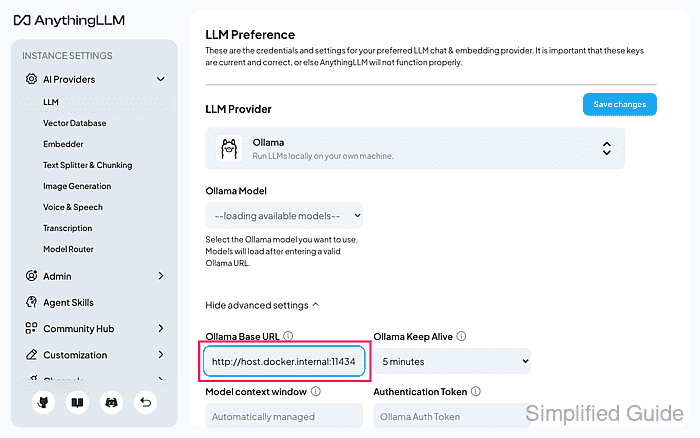
Show advanced settings reveals the field if collapsed. The native Ollama provider uses the server root, without /v1 or /api/tags. Other providers keep their own required port and API path when replacing only the host name. OLLAMA_ORIGINS=* is not a fix for this server-to-server network connection.
- Press Tab to commit the Ollama URL field.
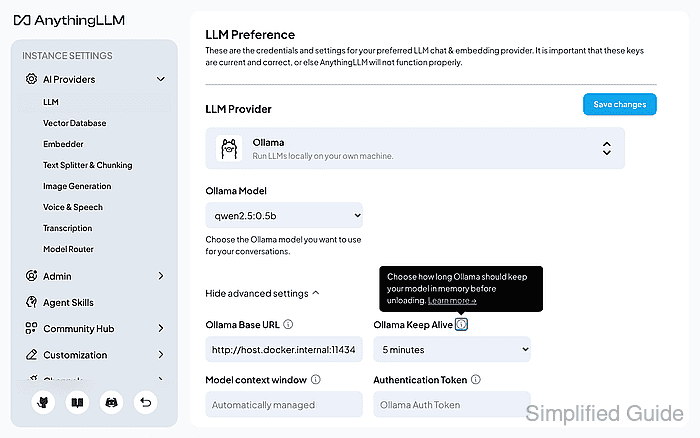
The field applies when it loses focus and AnythingLLM then requests the model list. The standard local Ollama server needs no authentication token.
- Click Save changes to persist the provider URL.
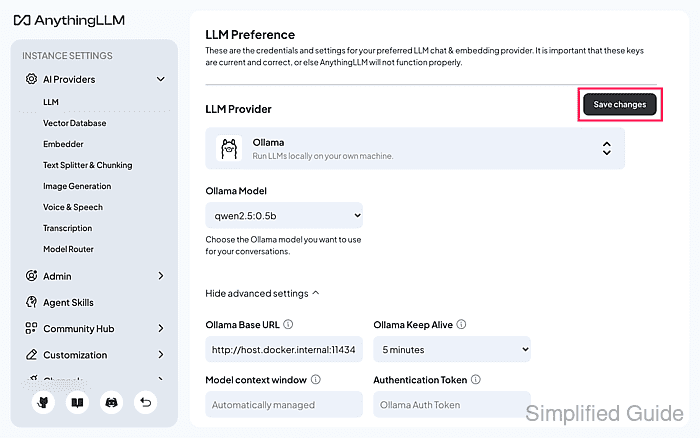
System LLM settings affect workspaces that inherit the system provider. The previous URL can be restored on this same screen.
AnythingLLM briefly shows LLM preferences saved successfully. and removes the Save changes button.
- Reload the LLM settings page.
The saved Ollama selection and host URL must remain. A reverted URL means the change was not stored.
- Confirm that Ollama Model lists a model installed on the host.
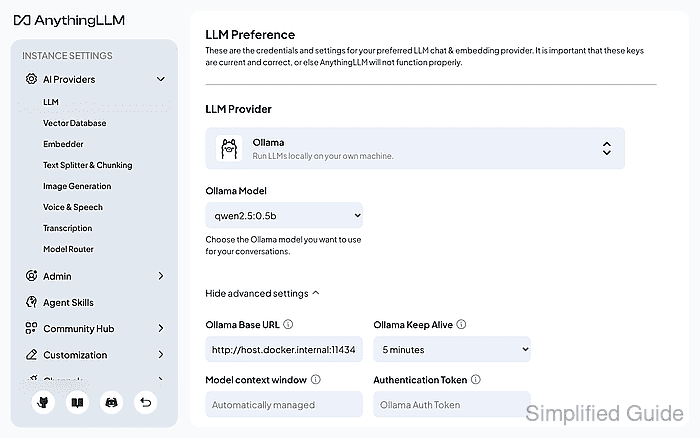
A returned model such as qwen2.5:0.5b confirms that AnythingLLM can query the host provider after reload. An empty list needs a model installed on that server; a connection error leaves the repair incomplete. Choosing a model and testing workspace chat are covered separately.
Related: How to set the Ollama provider in AnythingLLM