An AnythingLLM workspace lives in persistent storage rather than in its Docker image. Updating AnythingLLM in Docker replaces the application container while keeping that storage and its saved workspaces.

A pulled image does not change an existing container, and restarting that container still uses its original image. A version change requires recreation with the same data mounts, environment file, and deployment options.
A stopped-instance backup provides a recovery point before the new release can migrate the database. A standalone Linux Docker container with SQLite keeps its local data in the bind-mounted directory; an external database or vector store needs its own coordinated backup.
Docker access is equivalent to root on a standard Linux host. Use the Docker host and Bash shell for your existing instance, with its original run command available. This layout keeps the environment file at $STORAGE_LOCATION/.env and mounts it at /app/server/.env. A Compose-managed instance should be updated through its Compose project.
Steps to update AnythingLLM in Docker:
- Set the container name and storage path to match your existing instance.
$ export CONTAINER=anythingllm \
  STORAGE_LOCATION="$HOME/anythingllm"
These values must identify the existing container and its existing storage, not a new directory. The remaining shell commands run in the same Bash session.
- Inspect the current container's image and persistent mounts.
$ docker inspect --format 'Image={{.Config.Image}} ID={{.Image}}{{println}}{{range .Mounts}}{{println .Source "->" .Destination}}{{end}}' "$CONTAINER"The storage source must match STORAGE_LOCATION at /app/server/storage, with its existing .env mounted at /app/server/.env. A missing or different mount can start an empty instance. Do not remove the container until its storage and original run options are accounted for.
- Check your existing workspace in the AnythingLLM web interface before the update.
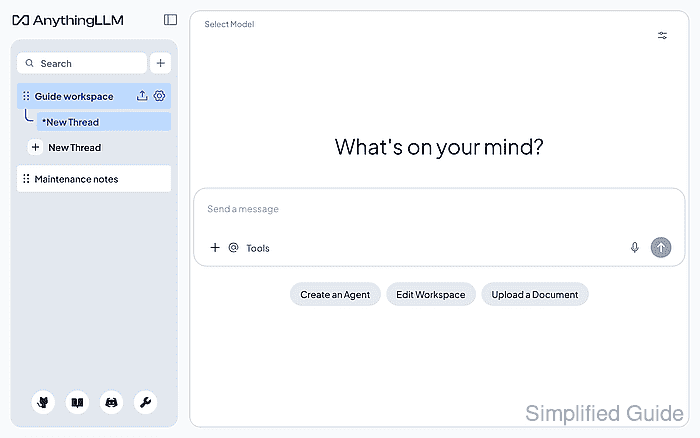
The usual address is http://localhost:3001 on the Docker host, or the host's existing address from another computer. The workspace name and its contents provide a comparison after recreation.
- Pull the selected stable AnythingLLM release.
$ docker pull mintplexlabs/anythingllm:1.19.0
The target here is release 1.19.0, upgrading an existing 1.18.0 instance. The Docker tag has no leading v. The latest tag follows development commits rather than a fixed release. The release notes identify changes that may affect your deployment.
Related: AnythingLLM 1.19.0 release notes - Stop the existing AnythingLLM container for a consistent backup.
Stopping interrupts active sessions and keeps the service unavailable through backup and recreation. The old container remains available if the backup fails.
$ docker stop "$CONTAINER"
- Set a new path for the pre-update backup.
$ export BACKUP_DIR="$HOME/anythingllm-before-update-$(date +%Y%m%d-%H%M%S)"
- Create a private directory at the backup path.
$ mkdir -m 700 "$BACKUP_DIR"
The directory must be new. Mode 700 protects copied documents and API credentials even when source files have permissive modes.
- Copy the stopped instance's storage into the backup.
$ docker cp "$CONTAINER:/app/server/storage" "$BACKUP_DIR/storage"
docker cp works with a stopped container and makes the local copy belong to your account.
- Copy the mounted environment file into the backup.
$ docker cp "$CONTAINER:/app/server/.env" "$BACKUP_DIR/server.env"
The separate environment copy preserves the file actually mounted at /app/server/.env, including when it duplicates storage/.env.
- Save the original image identity with the backup.
$ docker inspect --format '{{.Config.Image}} {{.Image}}' "$CONTAINER" > "$BACKUP_DIR/image.txt"The image ID identifies the local image used before the update. Retaining the original run command also preserves any custom environment variables, network, resource limits, capabilities, and restart policy without printing credentials from Docker's full configuration.
- Confirm the backup contains the database and environment file.
$ ls -l "$BACKUP_DIR/storage/anythingllm.db" "$BACKUP_DIR/server.env"
A missing database, copy error, or insufficient space blocks the update. If backup fails, the stopped original can be started again without replacing it. A local copy does not protect against loss of the Docker host.
- Remove the stopped application container.
This removes the container's writable layer, including anything saved outside its persistent mounts. The bind-mounted storage and environment file remain on the host. The backup must be complete before removal; keep the old image and backup until the updated instance passes its checks.
$ docker rm "$CONTAINER"
- Recreate AnythingLLM with the new image and the existing mounts.
Starting the new release can migrate the existing database. An older image may not understand that migrated database; changing the image back alone is not a data rollback. Recovery requires the pre-update storage and environment file with the saved original image and run options.
This run command matches the standard bind-mounted layout with a two-CPU and 4 GiB limit. Custom deployments need their original options retained, with only the image changed. The port mapping listens on all host interfaces, so existing authentication and network access restrictions must remain in place. Basic startup uses Docker's default capabilities.
$ docker run -d \
  --name "$CONTAINER" \
  --cpus 2 --memory 4g \
  -p 3001:3001 \
  -v "$STORAGE_LOCATION:/app/server/storage" \
  -v "$STORAGE_LOCATION/.env:/app/server/.env" \
  -e STORAGE_DIR=/app/server/storage \
  mintplexlabs/anythingllm:1.19.0
- Confirm the replacement container uses the selected release. Example output:
$ docker ps --filter "name=^/${CONTAINER}$" \
  --format '{{.Image}} {{.State}}'
mintplexlabs/anythingllm:1.19.0 running
Startup may take a short time. A missing row or an exited container requires investigation before normal use resumes. A running process alone does not prove that the previous data loaded.
Related: How to view Docker logs for AnythingLLM - Verify that the existing workspaces load in a new AnythingLLM browser tab.
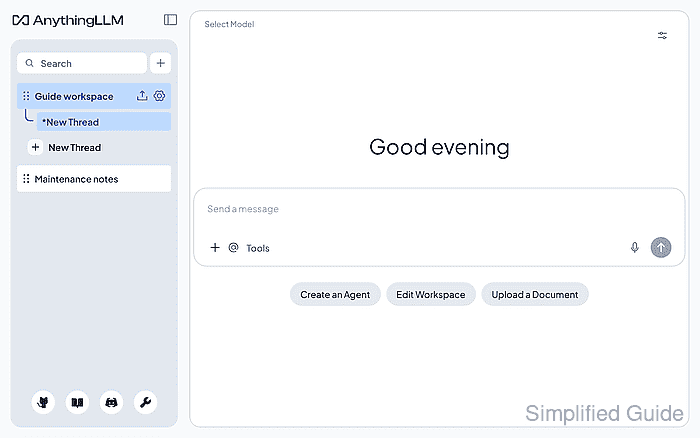
An onboarding screen, missing workspace, or missing saved content is a failed update. If recovery is needed, stop the replacement before further writes and restore the pre-update storage and environment file into an empty directory for the saved original image and run options.