On a Linux server, a background service keeps Ollama available after a terminal session ends. Ollama's official installer adds its command-line client and sets up that service on systemd-based hosts.
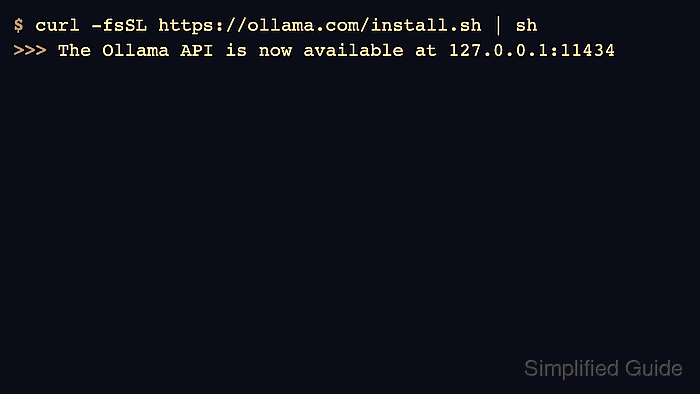
Ubuntu LTS supplies the download and extraction tools through APT, while Ollama itself comes from the vendor. Installation requires an internet connection and a normal account with sudo access; other Linux distributions use their own package managers for the prerequisites.
The local API listens on loopback by default, so it does not need a public network listener. Models are downloaded separately, and machines without a supported GPU can run inference on the CPU.
Steps to install Ollama on Linux:
- Refresh the Ubuntu package index.
$ sudo apt update
- Install curl, CA certificates, and zstd.
$ sudo apt install curl ca-certificates zstd
The current installer uses zstd to extract its compressed Linux archive.
- Download the official installer to a local file.
$ curl -fsSL https://ollama.com/install.sh -o ollama-install.sh
- Review the saved installer before granting it system-wide access.
$ cat ollama-install.sh
The script uses sudo to install binaries and libraries, create a service account, and configure a startup service. It can also install GPU dependencies when it detects supported hardware. An unexpected or incomplete script should not be executed.
- Run the reviewed installer from the sudo-capable account.
$ sh ollama-install.sh
The script selects the archive for the CPU architecture and enables the ollama systemd service. A CPU-only warning does not prevent installation on a machine without a supported GPU.
- Confirm the installed command's location.
$ command -v ollama
/usr/local/bin/ollama
The script chooses an installation prefix from directories on PATH. This result puts the binary under /usr/local/bin and its libraries under /usr/local/lib/ollama; the manual archive method that extracts into /usr uses a different prefix.
- Check the installed Ollama version.
$ ollama --version
ollama version is 0.40.12
The version changes with new releases.
Related: How to check the Ollama version - Start the Ollama service if it is not already running.
$ sudo systemctl start ollama
- Confirm that the service is enabled for startup.
$ systemctl is-enabled ollama
enabled
- Confirm that the Ollama service is active.
$ systemctl is-active ollama
active
An inactive or failed result requires attention before clients can connect.
Related: How to manage the Ollama service
Related: How to view Ollama logs - Check that the local Ollama API answers.
$ curl -fsS http://127.0.0.1:11434/api/version
{"version":"0.40.12"}
A JSON version response confirms that the installed service accepts local API requests. Connection refusal or an HTTP error means the service is not ready.
Related: How to pull an Ollama model