How to configure passwordless SSH login
Passwordless SSH login keeps routine remote administration from stopping at the remote account password prompt. After the server trusts a public key for the target account, repeated logins, remote commands, file copies, and automation can use the matching private key instead of retyping the account password.
In an OpenSSH setup, the private key stays on the local machine and the public key is installed in the remote account's ~/.ssh/authorized_keys file. During login, the client proves it controls the private key, and sshd checks the matching public key before starting the shell or remote command.
The first key installation still needs a working sign-in path, usually the remote account password or another accepted key. A passphrase on the private key can still prompt locally unless ssh-agent has already cached it, and the first connection to a new server may ask for host-key confirmation before authentication begins. Keep the private key off the server and install only the .pub file for the account that should receive access.
Steps to configure passwordless SSH login:
- Create an Ed25519 key pair on the local machine if the account does not already have one.
$ ssh-keygen -t ed25519 -C "user@workstation"
Generating public/private ed25519 key pair.
Enter file in which to save the key (/home/user/.ssh/id_ed25519):
Enter passphrase (empty for no passphrase):
Enter same passphrase again:
Your identification has been saved in /home/user/.ssh/id_ed25519
Your public key has been saved in /home/user/.ssh/id_ed25519.pub
The key fingerprint is:
SHA256:NgA9j3wGPkTjAauOVjVwBtLTNy1iyUjMeLYDb7T3y+c user@workstation
##### snipped #####
Press Enter at the file prompt to use the default ~/.ssh/id_ed25519 path, or enter a different filename when an existing identity must be kept.
Related: How to create an SSH key pair
Related: How to add, change, or remove an SSH key passphrase - Check the public key fingerprint before installing it on the server.
$ ssh-keygen -lf ~/.ssh/id_ed25519.pub
256 SHA256:NgA9j3wGPkTjAauOVjVwBtLTNy1iyUjMeLYDb7T3y+c user@workstation (ED25519)
Record the fingerprint in handoff notes or compare it with the approved key record so the intended public key is installed.
Tool: SSH Key Fingerprint Checker - Install the public key on the remote account with ssh-copy-id.
$ ssh-copy-id -i ~/.ssh/id_ed25519.pub user@host.example.net
/usr/bin/ssh-copy-id: INFO: Source of key(s) to be installed: "/home/user/.ssh/id_ed25519.pub"
/usr/bin/ssh-copy-id: INFO: attempting to log in with the new key(s), to filter out any that are already installed
/usr/bin/ssh-copy-id: INFO: 1 key(s) remain to be installed -- if you are prompted now it is to install the new keys

Number of key(s) added: 1

Now try logging into the machine, with: "ssh -i /home/user/.ssh/id_ed25519 'user@host.example.net'"
and check to make sure that only the key(s) you wanted were added.
The first successful run normally asks for the remote account password so ssh-copy-id can append the public key to ~/.ssh/authorized_keys. Use -p 2222 when the server listens on a non-default SSH port.
Related: How to copy an SSH public key to a server
Related: How to connect to an SSH server on a different port - Confirm the remote key file permissions from a new SSH command.
$ ssh -i ~/.ssh/id_ed25519 user@host.example.net 'stat -c "%a %U %n" ~/.ssh ~/.ssh/authorized_keys'
700 user /home/user/.ssh
600 user /home/user/.ssh/authorized_keys
OpenSSH can ignore ~/.ssh or authorized_keys when ownership or write permissions allow other users to change them.
Related: How to fix SSH authorized_keys permissions - Test login without falling back to the remote account password.
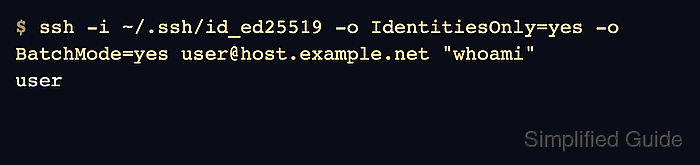
$ ssh -i ~/.ssh/id_ed25519 -o IdentitiesOnly=yes -o BatchMode=yes user@host.example.net "whoami"
user
BatchMode=yes makes ssh fail instead of prompting for the remote account password. A private-key passphrase prompt is local to the client; load the key into ssh-agent if repeated local passphrase prompts are not wanted.
Related: How to connect with SSH using a private key
Related: How to add an SSH key to ssh-agent