Viewing a systemd unit definition shows what a service, socket, timer, target, or other unit is configured to do on the current host. That is the direct check when a packaged unit behaves unexpectedly, a local override changes one directive, or a restart still seems to follow older settings.
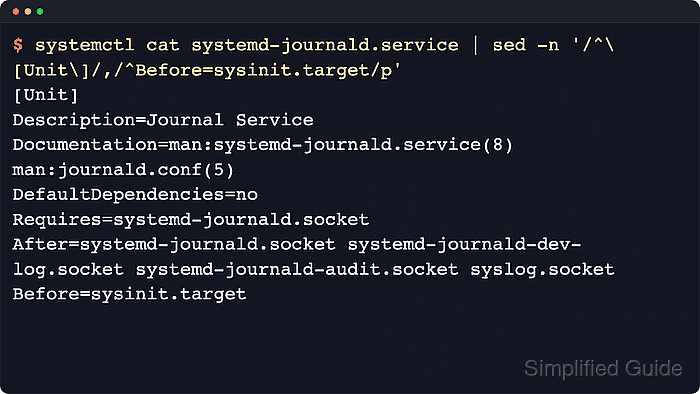
Current upstream systemctl documentation states that systemctl cat prints the backing files for a unit: the main fragment plus any loaded drop-ins. Current systemd.unit documentation still places system unit fragments and drop-ins under locations such as /etc/systemd/system, /run/systemd/system, and /usr/lib/systemd/system, with files in /etc/ overriding the same names in /run/ or /usr/lib/ and different drop-ins applied in lexicographic order.
Use the exact unit name, including the suffix such as .service, .socket, .timer, or .target. Examples below use view-demo.service as a stand-in system unit name, systemctl –user cat is the matching command for per-user units, and the printed file view can be newer than the manager's loaded state until systemctl daemon-reload runs after a manual edit.
Steps to view a systemd unit definition using systemctl:
- Print the unit definition with the exact unit name.
$ systemctl --no-pager cat view-demo.service
# /etc/systemd/system/view-demo.service
[Unit]
Description=View Demo Service

[Service]
Type=oneshot
RemainAfterExit=yes
ExecStart=/usr/bin/printf 'base\n'

# /etc/systemd/system/view-demo.service.d/override.conf
[Service]
ExecStart=
ExecStart=/usr/bin/printf 'override\n'
Each # /path/to/file line marks a backing file. The main fragment prints first, followed by any drop-ins that systemd found for that unit.
If the command returns No files found for unit.service, confirm the exact unit name and whether the query should target the system or user manager first.
Related: How to list systemd unit files using systemctl
Related: How to list systemd units - Read the file paths in the output before editing anything.
Files under /etc/systemd/system usually represent local administrator changes, while matching names under /run/ or /usr/lib/ usually come from runtime or vendor sources. A unit-specific drop-in directory such as /etc/systemd/system/unit-name.service.d/ overrides lower-precedence files with the same drop-in name.
- Check whether the manager still needs a reload after a manual unit-file or drop-in edit.
$ systemctl show -p NeedDaemonReload view-demo.service
NeedDaemonReload=yes
A yes result means the files on disk changed after systemd loaded the current unit definition. Reload the manager before assuming the running definition matches the files just reviewed.
- Print the fragment and drop-in paths when the next job is opening those files directly on disk.
$ systemctl show -p FragmentPath -p DropInPaths view-demo.service
FragmentPath=/etc/systemd/system/view-demo.service
DropInPaths=/etc/systemd/system/view-demo.service.d/override.conf
systemctl cat is the human-readable file view, while this path-only query is faster when the next step is opening the fragment or one specific drop-in in an editor.

Mohd Shakir Zakaria is a cloud architect with deep roots in software development and open-source advocacy. Certified in AWS, Red Hat, VMware, ITIL, and Linux, he specializes in designing and managing robust cloud and on-premises infrastructures.


