Showing unit properties with systemctl exposes the exact state, paths, dependencies, and normalized settings that systemd currently has loaded for a unit. That is the cleaner check when a status screen looks roughly right but a script, override, timer, or dependency question needs exact fields instead of a formatted summary.
Current upstream systemctl documentation describes show as the computer-parsable property view for units, jobs, or the manager itself. Many returned fields are lower-level or runtime-normalized forms of unit-file settings, and empty properties stay hidden until --all is added.
Run the command on the host that owns the target manager, add sudo only when the environment restricts access to the unit details, and use systemctl --user show for per-user units. Running systemctl show without a unit name prints manager properties instead of unit properties, and time settings appear with the ...USec suffix because systemd normalizes them internally.
Steps to show systemd unit properties using systemctl:
- Open a terminal session on the Linux host that runs the target systemd manager.
Use the exact unit name, including the suffix such as .service, .socket, .timer, or .target. The canonical unit name is clearer than an alias in notes, scripts, and monitoring checks.
- Print the full normalized property set when the goal is to inspect everything systemd currently has loaded for that unit.
$ systemctl show systemd-journald.service
Type=notify
ExitType=main
Restart=always
RestartMode=normal
NotifyAccess=main
RestartUSec=0
RestartSteps=0
RestartMaxDelayUSec=infinity
RestartUSecNext=0
TimeoutStartUSec=1min 30s
TimeoutStopUSec=1min 30s
##### snipped #####
Id=systemd-journald.service
Requires=systemd-journald.socket system.slice
LoadState=loaded
ActiveState=active
SubState=running
FragmentPath=/usr/lib/systemd/system/systemd-journald.service
UnitFileState=static
The full property set can be very long. Use systemctl status when a shorter human-readable summary is easier to scan.
- Limit the output to the fields that answer the current state question.
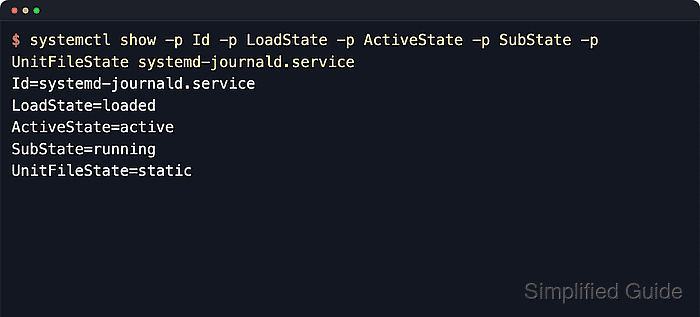
$ systemctl show -p Id -p LoadState -p ActiveState -p SubState -p UnitFileState systemd-journald.service
Id=systemd-journald.service
LoadState=loaded
ActiveState=active
SubState=running
UnitFileState=static
LoadState shows whether systemd loaded the unit definition, ActiveState and SubState show the runtime state, and UnitFileState shows the enablement state. A value such as static is normal for units without install symlinks.
- Return only the property value when the result is feeding a shell condition, monitoring check, or another command.
$ systemctl show -p ActiveState --value systemd-journald.service
active
--value avoids having to strip the NAME= prefix in scripts.
- Keep empty properties visible when the absence of a setting is the answer.
$ systemctl show --all -p OnFailure -p SourcePath systemd-journald.service
OnFailure=
SourcePath=
Without --all, optional blank properties can disappear from the output. That matters when checking whether a failure action, source path, alias, or another field is really unset.
- Read the path and relationship properties when the question is where the unit came from or what other units are tied to it.
$ systemctl show -p FragmentPath -p Requires -p After -p TriggeredBy systemd-journald.service
Requires=systemd-journald.socket system.slice
After=syslog.socket system.slice -.mount systemd-journald-dev-log.socket systemd-journald-audit.socket systemd-journald.socket
TriggeredBy=systemd-journald-dev-log.socket systemd-journald-audit.socket systemd-journald.socket
FragmentPath=/usr/lib/systemd/system/systemd-journald.service
These fields show the relationships and on-disk fragment that the running manager currently has loaded, including automatic dependencies that might not appear as literal lines in the unit file.
- Compare the runtime property view with the backing files on disk when a merged directive needs to be traced back to the fragment or a drop-in.
$ systemctl cat systemd-journald.service
# /usr/lib/systemd/system/systemd-journald.service
#  SPDX-License-Identifier: LGPL-2.1-or-later
#
##### snipped #####

[Unit]
Description=Journal Service
Documentation=man:systemd-journald.service(8) man:journald.conf(5)
DefaultDependencies=no
Requires=systemd-journald.socket
After=systemd-journald.socket systemd-journald-dev-log.socket systemd-journald-audit.socket syslog.socket
Before=sysinit.target
##### snipped #####

# /usr/lib/systemd/system/systemd-journald.service.d/nice.conf
[Service]
Nice=-1
systemctl cat shows the fragment and drop-ins as they exist on disk, while systemctl show shows the normalized properties that the running manager is using. Check both views when a recent manual edit has not been followed by systemctl daemon-reload yet.

Mohd Shakir Zakaria is a cloud architect with deep roots in software development and open-source advocacy. Certified in AWS, Red Hat, VMware, ITIL, and Linux, he specializes in designing and managing robust cloud and on-premises infrastructures.


