Listing systemd units shows what the running service manager currently has loaded across services, sockets, timers, mounts, devices, paths, scopes, targets, and other unit types. That inventory is useful before managing a unit directly, while tracing boot behavior, or when confirming which exact unit name a dependency, package, or failure message is referring to.
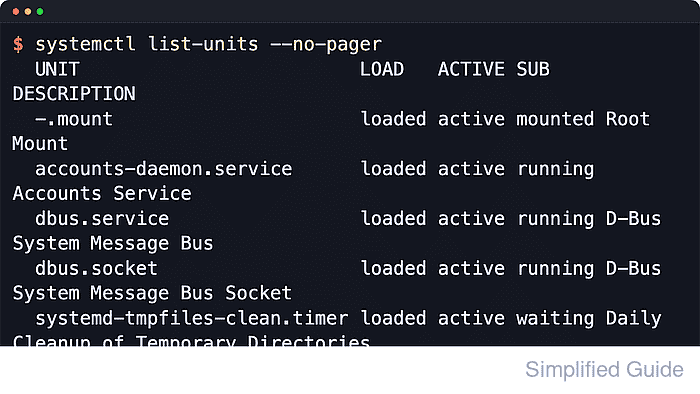
The systemctl list-units command asks the running manager for units currently loaded in memory and prints the LOAD, ACTIVE, and SUB states for each one. This runtime view can include active units, failed units, dependency-pulled units, and units pinned by other programs, but it does not show every unit file installed on disk and it never shows uninstantiated templates such as example@.service.
On busy hosts the default output can be dominated by .device and .mount units, so --type=, --state=, and quoted name patterns are usually the fastest way to narrow the list. Adding --all only expands the loaded view; it still does not become the full on-disk inventory, and per-user units live under systemctl --user list-units instead of the system manager.
Related: How to list systemd services using systemctl
Related: How to list systemd timers
Steps to list systemd units using systemctl:
- Open a terminal session on the Linux host that runs systemd.
The system instance listing commands are read-only and normally do not require sudo. Use systemctl --user list-units for the logged-in user's manager instead of the system-wide manager.
- List the units that the running manager currently has loaded in memory.
$ systemctl list-units --no-pager
  UNIT                                     LOAD   ACTIVE SUB     DESCRIPTION
  proc-sys-fs-binfmt_misc.automount        loaded active running Arbitrary Executable File Formats File System Automount Point
  -.mount                                  loaded active mounted Root Mount
  systemd-ask-password-console.path        loaded active waiting Dispatch Password Requests to Console Directory Watch
  init.scope                               loaded active running System and Service Manager
  dbus.service                             loaded active running D-Bus System Message Bus
  systemd-journald.service                 loaded active running Journal Service
  dbus.socket                              loaded active running D-Bus System Message Bus Socket
  basic.target                             loaded active active  Basic System
  systemd-tmpfiles-clean.timer             loaded active waiting Daily Cleanup of Temporary Directories
##### snipped #####

70 loaded units listed. Pass --all to see loaded but inactive units, too.
To show all installed unit files use 'systemctl list-unit-files'.
The runtime table can mix many unit types in one view, and the LOAD, ACTIVE, and SUB columns describe whether each unit definition was loaded, its high-level state, and its unit-type-specific detailed state.
- Add --all when the inventory must include loaded units that are currently inactive.
$ systemctl list-units --all --no-pager
  UNIT                                                              LOAD      ACTIVE   SUB     DESCRIPTION
  proc-sys-fs-binfmt_misc.automount                                 loaded    active   running Arbitrary Executable File Formats File System Automount Point
● home.mount                                                        not-found inactive dead    home.mount
  apt-daily.service                                                 loaded    inactive dead    Daily apt download activities
● auditd.service                                                    not-found inactive dead    auditd.service
  dbus.service                                                      loaded    active   running D-Bus System Message Bus
  systemd-networkd.socket                                           loaded    inactive dead    Network Service Netlink Socket
  fstrim.timer                                                      loaded    inactive dead    Discard unused filesystem blocks once a week
##### snipped #####

172 loaded units listed.
To show all installed unit files use 'systemctl list-unit-files'.
--all expands the loaded view, but it still does not replace list-unit-files. A not-found row means a unit name was referenced even though no backing unit file is currently installed.
- Limit the view to specific unit types when the mixed inventory is too broad.
$ systemctl list-units --type=service,socket,timer --no-pager --no-legend
  dbus.service                             loaded active running   D-Bus System Message Bus
  getty@tty1.service                       loaded active running   Getty on tty1
  systemd-journald.service                 loaded active running   Journal Service
  systemd-resolved.service                 loaded active running   Network Name Resolution
● unit-list-failed-demo.service            loaded failed failed    Unit List Failed Demo Service
  dbus.socket                              loaded active running   D-Bus System Message Bus Socket
  systemd-journald.socket                  loaded active running   Journal Socket
  apt-daily.timer                          loaded active waiting   Daily apt download activities
  systemd-tmpfiles-clean.timer             loaded active waiting   Daily Cleanup of Temporary Directories
##### snipped #####
Separate multiple types with commas to keep the command readable. When a specific unit type has its own dedicated listing command, such as systemctl list-timers, that command usually adds more type-specific columns.
- Filter by exact name or glob pattern when only a subset of loaded units is relevant.
$ systemctl list-units 'systemd-*' --no-pager --no-legend
  systemd-ask-password-console.path        loaded active waiting   Dispatch Password Requests to Console Directory Watch
  systemd-ask-password-wall.path           loaded active waiting   Forward Password Requests to Wall Directory Watch
  systemd-binfmt.service                   loaded active exited    Set Up Additional Binary Formats
  systemd-journald.service                 loaded active running   Journal Service
  systemd-logind.service                   loaded active running   User Login Management
  systemd-initctl.socket                   loaded active listening initctl Compatibility Named Pipe
  systemd-tmpfiles-clean.timer             loaded active waiting   Daily Cleanup of Temporary Directories
##### snipped #####
Quote glob patterns such as 'systemd-*' so the shell passes them to systemctl unchanged.
- Filter by unit state when only inactive or failed entries matter.
$ systemctl list-units --all --state=inactive --type=service --no-pager --no-legend
  apt-daily-upgrade.service loaded    inactive dead Daily apt upgrade and clean activities
  apt-daily.service         loaded    inactive dead Daily apt download activities
● auditd.service            not-found inactive dead auditd.service
  console-getty.service     loaded    inactive dead Console Getty
  dpkg-db-backup.service    loaded    inactive dead Daily dpkg database backup service
  e2scrub_all.service       loaded    inactive dead Online ext4 Metadata Check for All Filesystems
##### snipped #####
Combine --state= with --type= to answer one specific question quickly. Use --state=failed or --failed when only broken loaded units matter. Related: How to list failed systemd units
- Show the state names supported by the installed systemd build when the filter value is uncertain.
$ systemctl --state=help
Available unit load states:
stub
loaded
not-found
bad-setting
##### snipped #####

Available unit active states:
active
reloading
inactive
failed
##### snipped #####
systemctl --state=help prints the state values supported by the installed systemd build, which is safer than assuming the available state names never change.
- Switch to list-unit-files when the goal is to see installed but currently unloaded units or unit templates.
$ systemctl list-unit-files 'systemd-*' --no-pager --no-legend
systemd-ask-password-console.path            static          -
systemd-ask-password-wall.path               static          -
systemd-ask-password-console.service         static          -
systemd-backlight@.service                   static          -
systemd-boot-check-no-failures.service       disabled        disabled
systemd-confext.service                      disabled        enabled
##### snipped #####
list-unit-files reads the on-disk inventory, so it can show installed units and templates such as systemd-backlight@.service that never appear in list-units until an instance is actually loaded.

Mohd Shakir Zakaria is a cloud architect with deep roots in software development and open-source advocacy. Certified in AWS, Red Hat, VMware, ITIL, and Linux, he specializes in designing and managing robust cloud and on-premises infrastructures.


