A systemd timer turns a local backup routine into a named, inspectable job instead of a cron line that is easy to forget until the restore day arrives. Using a dedicated service and timer makes it easier to rerun the backup on demand, confirm when the next run will happen, and prove that the archive was actually written.
A %.timer unit schedules activation of another unit, usually a %.service with the same basename. In the workflow below, backup-job.timer activates backup-job.service, and the service runs a small script that writes a timestamped .tar.gz archive under /var/backups/backup-job plus a log line in /var/log/backup-job.log.
These steps use a system-level timer under /etc/systemd/system on a current Linux host that already has tar and systemd. The example schedule fires every minute so the first automatic run can be verified quickly, then the OnCalendar= expression can be replaced with the real production schedule. For a per-user backup job, place the units under ~/.config/systemd/user and run the commands against the logged-in user's systemd manager instead of the system manager.
Related: How to create a systemd service unit
Related: How to create a systemd timer
Related: How to manage a systemd timer
Steps to build a backup job with a systemd timer:
- Create the directory that the backup job will archive.
$ sudo mkdir -p /srv/backup-demo
Replace /srv/backup-demo with the real source path on the host, but keep the path in the script and the service unit aligned.
- Create a sample file inside the source directory.
database dump placeholder
- Save the backup script.
- /usr/local/bin/backup-job.sh
#!/usr/bin/env bash
set -euo pipefail

backup_root=/var/backups/backup-job
stamp=$(date +%Y%m%d-%H%M%S)
archive="$backup_root/backup-$stamp.tar.gz"

mkdir -p "$backup_root"
tar --create --gzip --file "$archive" -C /srv backup-demo
printf "backup created %s %s\n" "$(date --iso-8601=seconds)" "$archive" >> /var/log/backup-job.log
Use absolute paths in timer-driven scripts so the job does not depend on an interactive shell working directory or PATH lookup. If the source path changes, update both the -C path and the final directory name in the tar command together.
- Make the backup script executable.
$ sudo chmod 0755 /usr/local/bin/backup-job.sh
- Create the service unit that will run the backup script.
[Unit]
Description=Create a compressed backup archive from /srv/backup-demo

[Service]
Type=oneshot
ExecStart=/usr/local/bin/backup-job.sh
The service stays static because the timer is the entry point that starts it.
Tool: systemd Unit Generator
- Create the timer unit that will schedule the backup service.
[Unit]
Description=Run backup-job.service every minute

[Timer]
OnCalendar=*-*-* *:*:00
AccuracySec=1s
Persistent=true

[Install]
WantedBy=timers.target
OnCalendar=*-*-* *:*:00 fires at the start of every minute so the automatic run is easy to verify, then can be replaced with the real production schedule. Persistent=true stores the last trigger time on disk and only affects timers that use OnCalendar=.
- Validate the new unit files before loading them into the manager.
$ sudo systemd-analyze verify /etc/systemd/system/backup-job.service /etc/systemd/system/backup-job.timer
No output is the ideal result.
- Preview the timer expression before enabling it.
$ systemd-analyze calendar '*-*-* *:*:00'
Normalized form: *-*-* *:*:00
    Next elapse: Wed 2026-04-22 03:02:00 UTC
       From now: 48s left
Previewing the expression first is the fastest way to catch a wrong schedule before the timer begins firing on a real host.
- Reload the systemd manager so it notices the new units.
$ sudo systemctl daemon-reload
- Start the backup service once to prove that the script works before the timer owns the schedule.
$ sudo systemctl start backup-job.service
- List the backup directory after the manual run.
$ sudo ls -lh /var/backups/backup-job
total 4.0K
-rw-r--r-- 1 root root 217 Apr 22 03:01 backup-20260422-030134.tar.gz
The exact filename changes on each run because the script uses a timestamp in the archive name.
- Enable the timer for boot and start it immediately.
$ sudo systemctl enable --now backup-job.timer
Created symlink /etc/systemd/system/timers.target.wants/backup-job.timer → /etc/systemd/system/backup-job.timer.
- Confirm that the timer is loaded and waiting for its next run.
$ systemctl status --no-pager --full backup-job.timer
● backup-job.timer - Run backup-job.service every minute
     Loaded: loaded (/etc/systemd/system/backup-job.timer; enabled; preset: enabled)
     Active: active (waiting) since Wed 2026-04-22 03:02:02 UTC; 14s ago
    Trigger: Wed 2026-04-22 03:03:00 UTC; 43s left
   Triggers: ● backup-job.service

Apr 22 03:02:02 host systemd[1]: Started backup-job.timer - Run backup-job.service every minute.
The timer success state is Loaded: loaded (…; enabled…) together with Active: active (waiting) and a future Trigger: time.
- After the next minute boundary, confirm that the timer recorded a last run.
$ systemctl list-timers --all backup-job.timer --no-pager
NEXT                        LEFT LAST                         PASSED UNIT             ACTIVATES
Wed 2026-04-22 03:04:00 UTC  20s Wed 2026-04-22 03:03:00 UTC 38s ago backup-job.timer backup-job.service

1 timers listed.
The LAST and PASSED columns stay empty until the first scheduled activation completes.
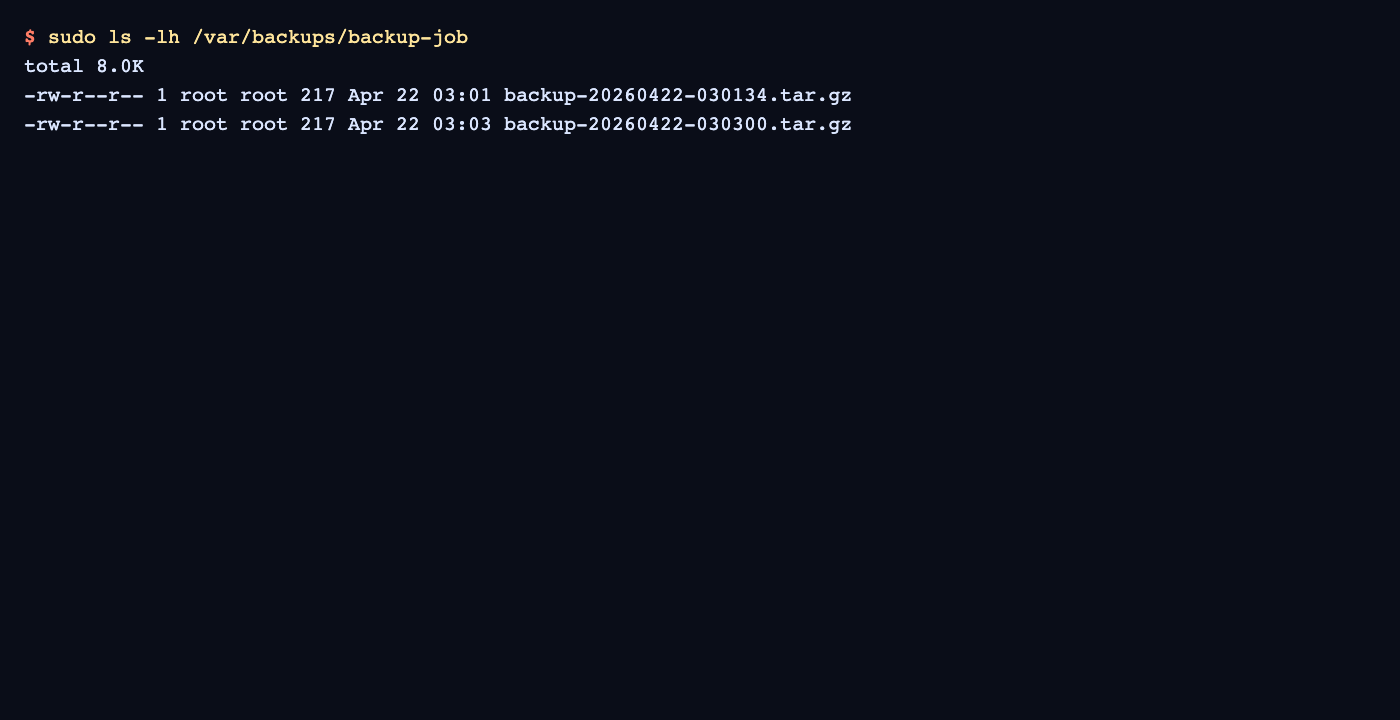
- List the backup directory again to confirm that the scheduled run created another archive.
$ sudo ls -lh /var/backups/backup-job
total 8.0K
-rw-r--r-- 1 root root 217 Apr 22 03:01 backup-20260422-030134.tar.gz
-rw-r--r-- 1 root root 217 Apr 22 03:03 backup-20260422-030300.tar.gz
If the timer runs but the archive count does not increase, inspect the recent journal with sudo journalctl -u backup-job.service -u backup-job.timer -n 20 --no-pager.

Mohd Shakir Zakaria is a cloud architect with deep roots in software development and open-source advocacy. Certified in AWS, Red Hat, VMware, ITIL, and Linux, he specializes in designing and managing robust cloud and on-premises infrastructures.


