A systemd timer runs scheduled maintenance, report generation, or short automation jobs without leaving recurring work split between cron fragments, shell loops, and ad-hoc scripts. Keeping the schedule as a managed unit makes the job visible through systemctl and journalctl, which simplifies boot-time enablement and troubleshooting.
A *.timer unit activates another unit at a wall-clock or monotonic interval. By default, a timer starts the service with the same basename, while Unit= can point at a different unit when needed. Timers that use OnCalendar= are also ordered after time-set.target and time-sync.target so the schedule is not evaluated before the system clock is set.
The example below creates a small oneshot service named systemd-timer-demo.service and a matching timer that fires at the start of each minute so the result can be verified quickly. Put system timers under /etc/systemd/system, use ~/.config/systemd/user plus systemctl –user for a per-user timer, and avoid repetitive timers that target services kept active with RemainAfterExit=yes because systemd skips a new start when the target unit is already active.
Steps to create a systemd timer:
- Create the service unit that the timer will trigger.
[Unit]
Description=Append the current time to /var/log/systemd-timer-demo.log

[Service]
Type=oneshot
ExecStart=/bin/sh -c 'date --iso-8601=seconds >> /var/log/systemd-timer-demo.log'
Timers commonly trigger short oneshot services that do one task and then exit. If the target service already exists, keep its real unit name and make the timer match that basename or add Unit= in the timer file.
Related: How to create a systemd service unit
Tool: systemd Unit Generator - Create the timer unit file.
[Unit]
Description=Run systemd-timer-demo.service every minute

[Timer]
OnCalendar=*-*-* *:*:00
AccuracySec=1s
Persistent=true

[Install]
WantedBy=timers.target
OnCalendar=*-*-* *:*:00 fires at the start of every minute. AccuracySec=1s keeps the test run close to the scheduled second, because the default accuracy window is 1min. Persistent=true catches up one missed run after downtime, but only for timers that use OnCalendar=.
- Verify that both unit files parse cleanly.
$ sudo systemd-analyze verify /etc/systemd/system/systemd-timer-demo.service /etc/systemd/system/systemd-timer-demo.timer
No output is the ideal result. systemd-analyze verify can also report warnings from some other loaded unit file, so read the filename on each message before assuming the new timer is wrong.
- Preview the calendar expression before enabling the timer.
$ systemd-analyze calendar '*-*-* *:*:00'
Normalized form: *-*-* *:*:00
    Next elapse: Wed 2026-04-22 02:59:00 UTC
       From now: 36s left
Use systemd-analyze calendar to confirm what OnCalendar= actually means before the timer starts firing on a real host.
- Reload the systemd manager so it notices the new unit files.
$ sudo systemctl daemon-reload
This reloads the unit definitions from disk and rebuilds the dependency tree before enablement or manual starts.
- Enable the timer for boot and start it immediately.
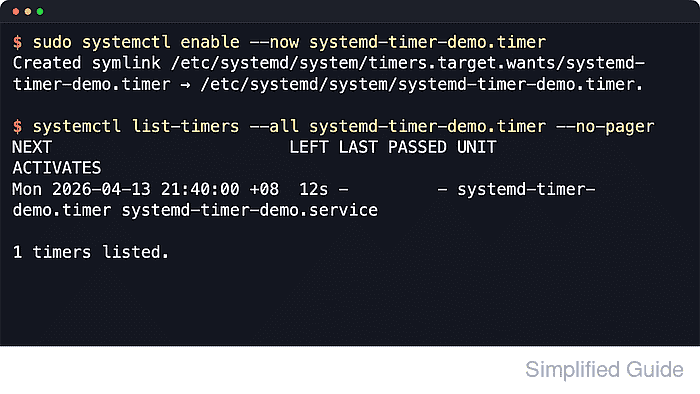
$ sudo systemctl enable --now systemd-timer-demo.timer
Created symlink /etc/systemd/system/timers.target.wants/systemd-timer-demo.timer → /etc/systemd/system/systemd-timer-demo.timer.
Enable the *.timer unit, not the triggered *.service unit. The service itself normally remains static and is started by the timer when the schedule elapses.
- Confirm that the timer is loaded, enabled, and waiting.
$ systemctl show systemd-timer-demo.timer -p LoadState -p ActiveState -p SubState -p UnitFileState
LoadState=loaded
ActiveState=active
SubState=waiting
UnitFileState=enabled
Proceed when the output shows LoadState=loaded, ActiveState=active, SubState=waiting, and UnitFileState=enabled.
- Confirm the next scheduled run in the timer table.
$ systemctl list-timers --all systemd-timer-demo.timer --no-pager
NEXT                        LEFT LAST PASSED UNIT                     ACTIVATES
Wed 2026-04-22 02:59:00 UTC  36s -         - systemd-timer-demo.timer systemd-timer-demo.service

1 timers listed.
Before the first execution, LAST and PASSED stay empty. After the timer fires once, both columns show the most recent activation time.
- Wait until the next scheduled minute and confirm that the service wrote its output file.
$ sudo cat /var/log/systemd-timer-demo.log
2026-04-22T02:59:00+00:00
A timestamp in the file proves that the timer activated the service on schedule instead of only loading cleanly.
- Confirm that the triggered oneshot service finished successfully.
$ systemctl show systemd-timer-demo.service -p LoadState -p ActiveState -p SubState -p Result -p TriggeredBy
Result=success
TriggeredBy=systemd-timer-demo.timer
LoadState=loaded
ActiveState=inactive
SubState=dead
A successful oneshot service usually returns to inactive and dead after it exits. If the file stays empty or Result=success is missing, inspect the recent journal with sudo journalctl -u systemd-timer-demo.timer -u systemd-timer-demo.service -n 20 --no-pager.

Mohd Shakir Zakaria is a cloud architect with deep roots in software development and open-source advocacy. Certified in AWS, Red Hat, VMware, ITIL, and Linux, he specializes in designing and managing robust cloud and on-premises infrastructures.


