Creating a custom service unit lets systemd start a local worker, wrapper script, or in-house daemon the same way it starts packaged services. That matters when a command should survive reboots, restart after failures, and expose a normal service state instead of living in an interactive shell or ad-hoc boot script.
A service unit combines a [Unit] description, a [Service] execution policy, and usually an [Install] section that defines how systemctl enable links the unit into the boot target. Current upstream systemd.unit load-path rules still place administrator-managed units in /etc/systemd/system ahead of /usr/local/lib/systemd/system and /usr/lib/systemd/system, and current systemd.service documentation recommends Type=exec for long-running custom commands when startup failures should be reported accurately.
The workflow below creates a long-running system service named custom-worker.service that launches /usr/local/bin/custom-worker.sh and writes a heartbeat line to /var/log/custom-worker.log. Use an absolute executable path, keep the main process in the foreground, switch to Type=oneshot for short one-time jobs, and use Type=forking or Type=notify only when the application actually follows those startup models.
Steps to create a systemd service unit:
- Create the wrapper script that the service will run.
#!/usr/bin/env bash
while :; do
  printf "custom-worker tick %s\n" "$(date --iso-8601=seconds)" >> /var/log/custom-worker.log
  sleep 30
done
Use a helper script when the workload needs shell features such as loops, redirection, or more than one command. Use an absolute path so the unit does not depend on an interactive shell environment to find the executable.
- Make the script executable.
$ sudo chmod 0755 /usr/local/bin/custom-worker.sh
If the script was prepared somewhere else first, sudo install -m 0755 source-file /usr/local/bin/custom-worker.sh copies it into place and sets the mode in one step.
- Create the service unit file.
[Unit]
Description=Custom worker service demo

[Service]
Type=exec
ExecStart=/usr/local/bin/custom-worker.sh
Restart=on-failure
RestartSec=5

[Install]
WantedBy=multi-user.target
Type=exec is a good default for long-running custom commands because systemd reports a start failure if the executable cannot be invoked. Restart=on-failure restarts the service after an unexpected non-zero exit, and WantedBy=multi-user.target is the usual install target for services that should come up in a normal non-graphical boot. Add User= and Group= when the service should run as a dedicated account instead of root, and disable daemon mode in the application if it tries to fork itself into the background.
- Verify that the new unit parses cleanly before reloading the manager.
$ sudo systemd-analyze verify /etc/systemd/system/custom-worker.service
No output is the ideal result. Current upstream systemd-analyze verify behavior also loads referenced units, so a warning can point at some other existing unit file; read the filename on each message before assuming the new service unit is wrong.
- Reload the systemd manager so it notices the new unit file.
$ sudo systemctl daemon-reload
Current upstream systemctl documentation states that daemon-reload reruns generators, reloads unit files, and recreates the dependency tree, so the new definition becomes visible to the manager without a reboot.
- Enable the service for boot and start it immediately.
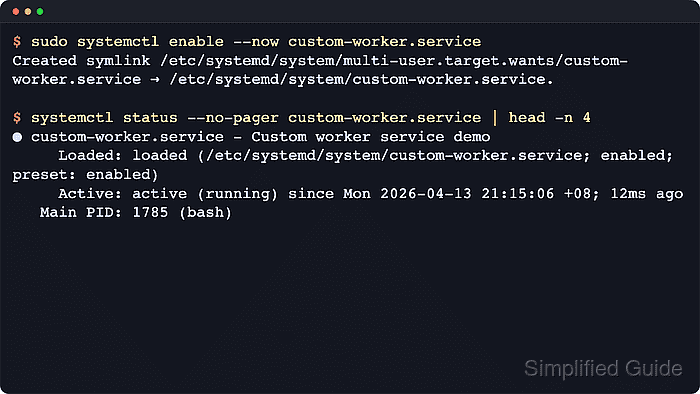
$ sudo systemctl enable --now custom-worker.service
Created symlink /etc/systemd/system/multi-user.target.wants/custom-worker.service → /etc/systemd/system/custom-worker.service.
enable --now combines the persistent boot-time install step with the immediate start action. Use enable without --now when the service should wait until the next boot or until some other dependency starts it.
- Confirm that the manager loaded the local unit and that the service is active.
$ systemctl show custom-worker.service -p FragmentPath -p LoadState -p ActiveState -p SubState -p UnitFileState
LoadState=loaded
ActiveState=active
SubState=running
FragmentPath=/etc/systemd/system/custom-worker.service
UnitFileState=enabled
The success state for a freshly created local service is FragmentPath=/etc/systemd/system/custom-worker.service together with LoadState=loaded, ActiveState=active, and SubState=running. Open systemctl status –no-pager –full custom-worker.service when a human-readable summary with recent journal lines is more useful than the normalized property view.
- Confirm that the workload is actually doing its job.
$ sudo cat /var/log/custom-worker.log
custom-worker tick 2026-04-22T02:44:27+00:00
An application-specific output file, socket, API response, or queue action is a stronger proof than manager state alone because it shows that the service logic is actually running.
If the file stays empty or the unit falls back to failed, inspect the recent journal with sudo journalctl -u custom-worker.service -n 20 –no-pager.

Mohd Shakir Zakaria is a cloud architect with deep roots in software development and open-source advocacy. Certified in AWS, Red Hat, VMware, ITIL, and Linux, he specializes in designing and managing robust cloud and on-premises infrastructures.


