Managing a systemd timer with systemctl lets you see when a scheduled job will fire next, start the timer waiting immediately, stop future elapses, and decide whether it should return automatically after reboot.
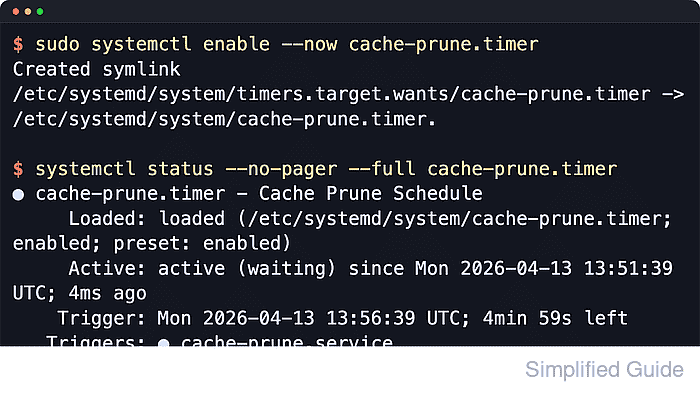
On a systemd host, timer management has two layers: the runtime state such as active (waiting) or inactive (dead), and the unit-file state such as enabled or disabled. systemctl status shows the combined view for one timer, while systemctl list-timers --all shows the next and last run across the timers that the manager currently has loaded.
Examples below use cache-prune.timer as a stand-in unit name. Replace it with the real timer, add sudo for system timers, use systemctl --user for per-user timers, and run systemctl daemon-reload followed by systemctl restart after editing a timer file or drop-in because timer units report CanReload=no and do not support a live reload action.
Related: How to list systemd timers
Related: How to create a systemd timer
Related: How to manage a service using systemctl
Related: How to reload the systemd manager configuration
| Action | Example command |
|---|---|
| Show current status | systemctl status –no-pager –full unit.timer |
| List next and last runs | systemctl list-timers –all –no-pager |
| Start a stopped timer now | systemctl start unit.timer |
| Stop future elapses | systemctl stop unit.timer |
| Check live reload support | systemctl show -p CanReload unit.timer |
| Reread changed timer files | systemctl daemon-reload |
| Apply an edited schedule | systemctl restart unit.timer |
| Enable and start now | systemctl enable –now unit.timer |
| Disable and stop now | systemctl disable –now unit.timer |
Steps to manage a systemd timer using systemctl:
- Check the current timer status before changing anything.
$ systemctl status --no-pager --full cache-prune.timer
● cache-prune.timer - Cache Prune Schedule
     Loaded: loaded (/etc/systemd/system/cache-prune.timer; disabled; preset: enabled)
     Active: active (waiting) since Wed 2026-04-22 11:09:37 +08; 50s ago
    Trigger: Wed 2026-04-22 11:11:00 +08; 32s left
   Triggers: ● cache-prune.service

Apr 22 11:09:37 host systemd[1]: Started cache-prune.timer - Cache Prune Schedule.
Replace cache-prune.timer with the real unit name. The Loaded: line shows the unit path and boot-time state, Active: shows whether the timer is currently waiting, Trigger: shows the next elapse, and Triggers: shows the unit that the timer starts.
- List the scheduled timers when you need the next and last run in the manager view.
$ systemctl list-timers --all --no-pager
NEXT                            LEFT LAST                              PASSED UNIT                           ACTIVATES
Wed 2026-04-22 11:11:00 +08      32s Wed 2026-04-22 11:10:00 +08      27s ago cache-prune.timer              cache-prune.service
Wed 2026-04-22 11:12:41 +08 2min 13s -                                      - update-notifier-download.timer update-notifier-download.service
Wed 2026-04-22 11:20:00 +08     9min Wed 2026-04-22 11:10:00 +08      27s ago sysstat-collect.timer          sysstat-collect.service
##### snipped #####
Only timers that the running manager currently has loaded appear in this table. A disabled timer that has not been started or enabled yet can still be missing here even though its unit file exists on disk. The NEXT time can also move within the timer's AccuracySec= window, which defaults to one minute unless the timer overrides it.
- Start the timer when it should begin waiting now without changing boot-time enablement.
$ sudo systemctl start cache-prune.timer

$ systemctl is-active cache-prune.timer
active

$ systemctl is-enabled cache-prune.timer
disabled
start changes the runtime state only. The timer can be active now while still printing disabled until it is explicitly enabled for later boots.
- Stop the timer when future activations should pause.
$ sudo systemctl stop cache-prune.timer

$ systemctl status --no-pager --full cache-prune.timer
○ cache-prune.timer - Cache Prune Schedule
     Loaded: loaded (/etc/systemd/system/cache-prune.timer; disabled; preset: enabled)
     Active: inactive (dead)
    Trigger: n/a
   Triggers: ● cache-prune.service

Apr 22 11:09:37 host systemd[1]: Started cache-prune.timer - Cache Prune Schedule.
Apr 22 11:10:44 host systemd[1]: cache-prune.timer: Deactivated successfully.
Apr 22 11:10:44 host systemd[1]: Stopped cache-prune.timer - Cache Prune Schedule.
Stopping the timer prevents the next scheduled activation, but it does not stop a service instance that the timer already launched. Manage the triggered service separately if it is still running.
- Check whether the timer supports a live reload before expecting it to reread an edited unit file in place.
$ systemctl show -p CanReload cache-prune.timer
CanReload=no
Timer units report CanReload=no, so a unit-file or drop-in edit needs systemctl daemon-reload and then a timer restart.
- Reload the manager and restart the timer after editing the timer file or an override.
$ sudo systemctl daemon-reload

$ sudo systemctl restart cache-prune.timer

$ systemctl status --no-pager --full cache-prune.timer
● cache-prune.timer - Cache Prune Schedule
     Loaded: loaded (/etc/systemd/system/cache-prune.timer; disabled; preset: enabled)
     Active: active (waiting) since Wed 2026-04-22 11:11:07 +08; 5ms ago
    Trigger: Wed 2026-04-22 11:12:00 +08; 52s left
   Triggers: ● cache-prune.service

Apr 22 11:11:07 host systemd[1]: Started cache-prune.timer - Cache Prune Schedule.
sudo systemctl reload cache-prune.timer fails with Failed to reload cache-prune.timer: Job type reload is not applicable for unit cache-prune.timer. because timer units do not provide a reload action.
- Enable the timer and start it immediately when it should wait now and return after reboot.
$ sudo systemctl enable --now cache-prune.timer
Created symlink /etc/systemd/system/timers.target.wants/cache-prune.timer → /etc/systemd/system/cache-prune.timer.

$ systemctl is-enabled cache-prune.timer
enabled

$ systemctl is-active cache-prune.timer
active
enable creates the install link for future boots, and --now adds the immediate start in the same command.
- Disable the timer and stop it immediately when it should neither wait now nor return after reboot.
$ sudo systemctl disable --now cache-prune.timer
Removed "/etc/systemd/system/timers.target.wants/cache-prune.timer".

$ systemctl is-enabled cache-prune.timer
disabled

$ systemctl is-active cache-prune.timer
inactive
A timer with no [Install] section is static, so it can still be started manually or by a dependency but cannot be enabled or disabled directly.

Mohd Shakir Zakaria is a cloud architect with deep roots in software development and open-source advocacy. Certified in AWS, Red Hat, VMware, ITIL, and Linux, he specializes in designing and managing robust cloud and on-premises infrastructures.


