A Samba share works only when the share name, the Linux directory, and the authenticated SMB user all point to the same access model. Creating a section in /etc/samba/smb.conf without matching filesystem permissions can leave clients seeing the share but failing with access denied errors.
Ordinary file shares are defined as named sections in /etc/samba/smb.conf. The section sets the share path and Samba access rules, while the directory still uses Linux ownership, group membership, mode bits, or ACLs to decide what the connected user can actually read or write.
Use an authenticated projects share under /srv/samba/projects for members of the projectrw group. Replace the example account, group, path, and server name with the values for the file server, then validate the parsed share before reloading smbd and testing the share from an SMB client.
Related: How to install Samba on Ubuntu
Related: How to add a Samba user
Related: How to allow Samba through a firewall
Steps to create a Samba share on Linux:
- Confirm the Samba account that should access the share.
$ sudo pdbedit -L -u alex
alex:1001:
If no row appears, add the Linux account to the Samba password database before creating the share.
Related: How to add a Samba user - Create the Linux group that will own writable access to the share.
$ sudo groupadd --system projectrw
If the group already exists, keep the existing group and continue with the same group name in the later commands.
- Add the Samba user to the share group.
$ sudo usermod --append --groups projectrw alex
New SMB connections use the updated group membership. Reconnect any existing client sessions before testing the new share.
- Create the shared directory with group ownership and SGID permissions.
$ sudo install -d --owner=root --group=projectrw --mode=2770 /srv/samba/projects
The leading 2 in 2770 keeps new files and directories under the projectrw group. The final 770 grants access to the owner and group while blocking other local users.
- Check the shared directory mode.
$ ls -ld /srv/samba/projects
drwxrws--- 2 root projectrw 4096 Jun 16 10:56 /srv/samba/projects
- Back up the Samba configuration file.
$ sudo cp --archive /etc/samba/smb.conf /etc/samba/smb.conf.before-projects
A malformed /etc/samba/smb.conf can block new client connections after reload. Keep the backup until the client smoke test succeeds.
- Open the Samba configuration file.
$ sudoedit /etc/samba/smb.conf
- Add the [projects] share section at the end of the file.
[projects]
    comment = Project files
    path = /srv/samba/projects
    browseable = yes
    read only = no
    valid users = @projectrw
    create mask = 0660
    directory mask = 2770
Setting Effect path Points the share name to the Linux directory. read only = no Allows writes at the Samba share layer. valid users = @projectrw Allows only members of the Linux projectrw group to connect. create mask / directory mask Sets the default permissions for new files and directories created through SMB. - Test the parsed share section.
$ sudo testparm --suppress-prompt --section-name=projects /etc/samba/smb.conf
Load smb config files from /etc/samba/smb.conf
Loaded services file OK.
Weak crypto is allowed by GnuTLS (e.g. NTLM as a compatibility fallback)

[projects]
        comment = Project files
        create mask = 0660
        directory mask = 02770
        path = /srv/samba/projects
        read only = No
        valid users = @projectrw
The weak-crypto line is a compatibility notice, not a parse failure. Fix any testparm error before reloading Samba.
Related: How to validate Samba configuration with testparm - Reload the running smbd configuration.
$ sudo smbcontrol smbd reload-config
Use smbcontrol for a config reload on a running smbd daemon. If smbd is stopped, start or restart the service first.
Related: How to check Samba service status - List the shares advertised by the server.
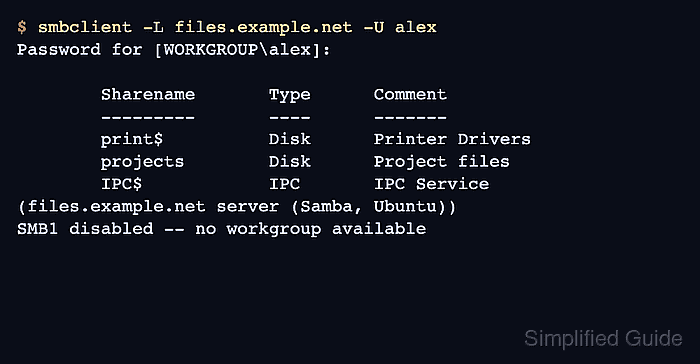
$ smbclient -L files.example.net -U alex
Password for [WORKGROUP\alex]:

        Sharename       Type      Comment
        ---------       ----      -------
        print$          Disk      Printer Drivers
        projects        Disk      Project files
        IPC$            IPC       IPC Service (files.example.net server (Samba, Ubuntu))
SMB1 disabled -- no workgroup available
The projects row proves the share is visible to the authenticated account. The SMB1 disabled line can appear after a successful SMB2 or SMB3 listing.
Related: How to browse SMB shares with smbclient - Run a write smoke test inside the share.
$ smbclient //files.example.net/projects -U alex -c 'mkdir smoke-test; ls; rmdir smoke-test'
Password for [WORKGROUP\alex]:
  .                                   D        0  Tue Jun 16 10:53:21 2026
  ..                                  D        0  Tue Jun 16 10:53:21 2026
  smoke-test                          D        0  Tue Jun 16 10:53:21 2026

                123530212 blocks of size 1024. 107930708 blocks available
The temporary directory appears in the listing before the same client session removes it. If the command fails with NT_STATUS_ACCESS_DENIED, check the group membership, share rule, and Linux directory permissions before widening access.
Related: How to troubleshoot SMB share permission denied

Mohd Shakir Zakaria is a cloud architect with deep roots in software development and open-source advocacy. Certified in AWS, Red Hat, VMware, ITIL, and Linux, he specializes in designing and managing robust cloud and on-premises infrastructures.


