When an SMB share is reachable but a desktop file manager shows the wrong folder or no folder at all, smbclient gives the operator a direct view of the server's advertised shares. Listing the server first separates a missing share name from a credential, name-resolution, or path problem before a mount or mapped drive is attempted.
smbclient speaks SMB/CIFS from a shell and uses service names in the //server/share form. The -L mode asks the server for its available services, while a normal share connection opens an interactive prompt with commands such as ls and cd for directory browsing.
Use an account that already has permission to the share, and let the client prompt for the password unless an isolated automation credential file is required. A share table with the expected name plus a directory listing from inside that share proves both server discovery and share-level access.
Steps to browse SMB shares with smbclient:
- List the shares advertised by the SMB server.
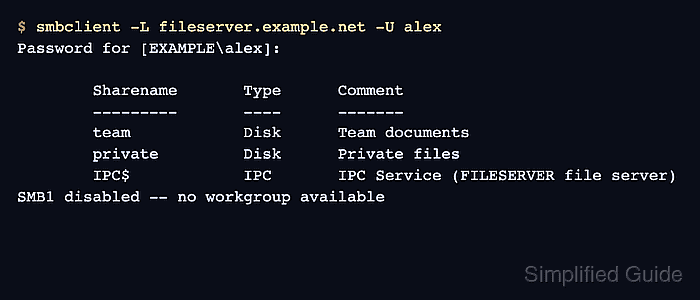
$ smbclient -L fileserver.example.net -U alex
Password for [EXAMPLE\alex]:

	Sharename       Type      Comment
	---------       ----      -------
	team            Disk      Team documents
	private         Disk      Private files
	IPC$            IPC       IPC Service (FILESERVER file server)
SMB1 disabled -- no workgroup available
Replace fileserver.example.net and alex with the target server and SMB account. Add -I 192.0.2.15 only when that name does not resolve to the SMB server address. The SMB1 disabled -- no workgroup available line can appear after a successful SMB2 or SMB3 share listing.
- Connect to the target share by service name.
$ smbclient //fileserver.example.net/team -U alex
Password for [EXAMPLE\alex]:
Try "help" to get a list of possible commands.
smb: \>
Let smbclient prompt for the password on shared systems instead of placing it in -U alex%password or --password; command lines can be exposed briefly to local process listings.
- List the top-level directory inside the share.
smb: \> ls
  .                                   D        0  Tue Jun 16 09:00:00 2026
  ..                                  D        0  Tue Jun 16 09:00:00 2026
  reports                             D        0  Tue Jun 16 09:05:00 2026
  README.txt                          N       25  Tue Jun 16 09:00:00 2026

		123530212 blocks of size 1024. 107838952 blocks available
- Change into the required folder.
smb: \> cd reports
- Confirm that the folder lists the expected file.
smb: \reports\> ls
  .                                   D        0  Tue Jun 16 09:05:00 2026
  ..                                  D        0  Tue Jun 16 09:00:00 2026
  quarterly.txt                       N       22  Tue Jun 16 09:05:00 2026

		123530212 blocks of size 1024. 107838952 blocks available
- Exit the smbclient prompt.
smb: \reports\> exit

Mohd Shakir Zakaria is a cloud architect with deep roots in software development and open-source advocacy. Certified in AWS, Red Hat, VMware, ITIL, and Linux, he specializes in designing and managing robust cloud and on-premises infrastructures.


