Ollama on Linux can use downloaded models or route requests to models hosted in its cloud. Disabling Ollama cloud features turns off built-in cloud models and web search while keeping local model inference available.
On Linux installations managed by systemd, the server runs under its own service account. A service override applies the cloud setting to that server; exporting a variable in a client terminal does not change the running service.
The setting controls Ollama's built-in cloud integration. Public model downloads can still use the internet, and applications that call the hosted API directly remain outside its scope.
The ollama systemd service must already be installed and running, with qwen2.5:0.5b downloaded for the local inference check.
Related: How to install Ollama on Linux
Related: How to pull an Ollama model
Steps to disable Ollama cloud features on Linux:
- Create the Ollama service override directory if it is absent.
$ sudo mkdir -p /etc/systemd/system/ollama.service.d
- Open the dedicated cloud-setting file in your text editor.
$ sudoedit /etc/systemd/system/ollama.service.d/no-cloud.conf
sudoedit opens an editable copy and installs the saved contents with the required permissions when the editor exits. It creates the file if it does not exist.
- Disable Ollama cloud features in the file's [Service] section.
[Service]
Environment="OLLAMA_NO_CLOUD=1"
For a new file, this is its complete contents. In an existing file, other settings remain in place; an existing OLLAMA_NO_CLOUD assignment is replaced rather than duplicated. The variable disables cloud models and web search.
Related: Ollama cloud setting - Save the changes in your editor.
- Close the editor to install the saved file.
- Reload systemd's service configuration.
$ sudo systemctl daemon-reload
- Restart the Ollama service to apply the cloud setting.
The restart interrupts active requests and unloads models. Downloaded model files remain installed. If the service fails to start after this edit, removing only the new Environment line and repeating the reload and restart reverses the change.
Related: How to manage the Ollama service$ sudo systemctl restart ollama
- Check the latest cloud-setting startup message in the service journal. Example output:
$ sudo journalctl -u ollama -b --no-pager -o cat \
  --grep 'Ollama cloud disabled' -n 1
time=2026-11-12T23:10:22.878+08:00 level=INFO source=routes.go:2476 msg="Ollama cloud disabled: true"
The message must report Ollama cloud disabled: true. A false result or no matching entry means the setting has not been confirmed. -b limits the query to this boot, and -n 1 selects the most recent matching message.
Related: How to view Ollama logs - Confirm that the local API refuses a cloud-model request. Example output:
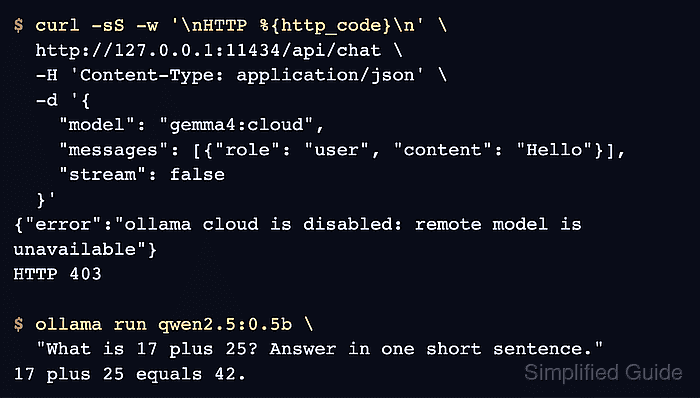
$ curl -sS -w '\nHTTP %{http_code}\n' \
  http://127.0.0.1:11434/api/chat \
  -H 'Content-Type: application/json' \
  -d '{
    "model": "gemma4:cloud",
    "messages": [{"role": "user", "content": "Hello"}],
    "stream": false
  }'
{"error":"ollama cloud is disabled: remote model is unavailable"}
HTTP 403
The ollama cloud is disabled error with HTTP 403 confirms the local server refused the request. A model-not-found error, authentication error, or connection failure does not prove cloud features are disabled. No cloud sign-in is needed for this check.
- Run the downloaded local model to confirm that inference still works. Example output:
$ ollama run qwen2.5:0.5b \
  "What is 17 plus 25? Answer in one short sentence."
17 plus 25 equals 42.
The reply should express that the sum is 42; wording can vary. The returned answer confirms that the local model still processes prompts after cloud features are disabled.
Related: How to run a model in Ollama