Checking a DRBD resource status shows whether the local node is Primary or Secondary, whether its disk is UpToDate, and whether each peer is connected. Operators usually run this check before failover, after reboot, during resynchronization, or whenever an application path depends on the replicated block device.
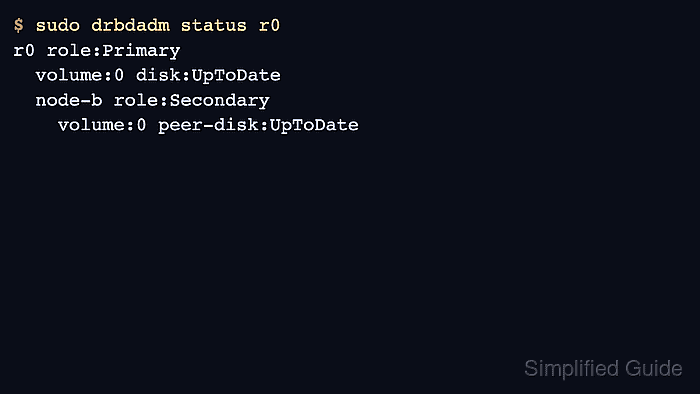
DRBD 9 exposes resource state through drbdadm status and detailed runtime counters through drbdsetup status. /proc/drbd exists only as a minimal compatibility surface in DRBD 9, so resource checks should use the current tools rather than relying on older proc output.
Read the local role and disk state separately from the peer role and peer-disk state. For the common single-primary design, a ready two-node resource shows one intended writable Primary, the peer in Secondary, and UpToDate data on every volume.
Related: How to verify DRBD synchronization state
Related: How to check DRBD after reboot
Related: How to manage DRBD resources with systemd
Steps to check DRBD resource status:
- Check the selected DRBD resource.
$ sudo drbdadm status r0
r0 role:Primary
  volume:0 disk:UpToDate
  node-b role:Secondary
    volume:0 peer-disk:UpToDate
Replace r0 with the resource name from your DRBD configuration. Use all only when every configured resource needs the same quick check.
- Read the local resource role directly.
$ sudo drbdadm role r0
Primary
Primary can be opened for read/write. Secondary receives replicated writes and should not host a mounted single-node filesystem.
- Check the local and peer disk states.
$ sudo drbdadm dstate r0
UpToDate/UpToDate
The first value is the local disk state; following values describe peer disks. Diskless, Inconsistent, Outdated, or DUnknown need investigation before planned promotion or application startup.
- Show detailed connection and replication fields.
$ sudo drbdsetup status r0 --verbose --statistics
r0 node-id:1 role:Primary suspended:no
  volume:0 minor:0 disk:UpToDate blocked:no
  node-b local:ipv4:192.0.2.10:7789 peer:ipv4:192.0.2.11:7789
      node-id:0 connection:Connected role:Secondary congested:no
    volume:0 replication:Connected peer-disk:UpToDate
        resync-suspended:no out-of-sync:0
connection:Connected shows that the peer link is up. out-of-sync:0 means DRBD has no known unsynchronized blocks for that peer.
- Read synchronization progress when replication is still running.
$ sudo drbdsetup status r0 --verbose --statistics
r0 node-id:0 role:Secondary suspended:no
  volume:0 minor:0 disk:Inconsistent blocked:no
  node-a node-id:1 connection:Connected role:Primary congested:no
    volume:0 replication:SyncTarget peer-disk:UpToDate
        done:64.18 out-of-sync:1835008 eta:92
SyncTarget means the local node is receiving data. done is the synchronized percentage, out-of-sync is reported in KiB, and eta is the estimated remaining time in seconds.
Related: How to verify DRBD synchronization state - Inspect recent DRBD kernel messages when the status is unexpected.
$ sudo journalctl --dmesg --grep "drbd r0" --since "15 minutes ago"
Jun 19 12:10:37 node-a kernel: drbd r0/0 drbd0: conn( Connecting -> Connected )
Jun 19 12:10:38 node-a kernel: drbd r0/0 drbd0: pdsk( DUnknown -> UpToDate )
Use a wider --since window when the transition happened before the current terminal session.
Related: How to view DRBD logs

Mohd Shakir Zakaria is a cloud architect with deep roots in software development and open-source advocacy. Certified in AWS, Red Hat, VMware, ITIL, and Linux, he specializes in designing and managing robust cloud and on-premises infrastructures.


