Viewing DRBD logs connects a resource status change with the kernel or service message that caused it. Operators usually check the journal after reboot, failed promotion, disconnected peers, split brain, resynchronization stalls, or unexpected drbdadm status output.
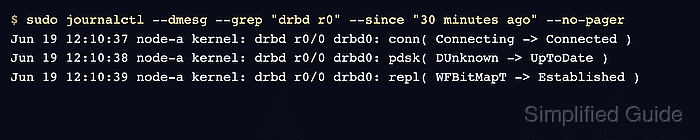
Most DRBD runtime messages come from the kernel module, so journalctl --dmesg is the primary view on systemd hosts. The per-resource drbd@r0.service unit can also show startup and adjustment messages when drbd-utils units manage resources outside a cluster manager.
Keep the log window narrow enough to match the event being investigated and compare the messages with live resource status before changing roles or storage. Pacemaker, DRBD Reactor, LINSTOR, and applications can have their own logs, so inspect those owners when they control promotion, mounts, or failover.
Related: How to check DRBD resource status
Related: How to check DRBD after reboot
Related: How to recover DRBD split brain
Steps to view DRBD logs:
- Read recent kernel messages for the resource.
$ sudo journalctl --dmesg --grep "drbd r0" --since "30 minutes ago" --no-pager
Jun 19 12:10:37 node-a kernel: drbd r0/0 drbd0: conn( Connecting -> Connected )
Jun 19 12:10:38 node-a kernel: drbd r0/0 drbd0: pdsk( DUnknown -> UpToDate )
Jun 19 12:10:39 node-a kernel: drbd r0/0 drbd0: repl( WFBitMapT -> Established )
Replace r0 with the resource name. Use a wider --since window when the transition happened before the current terminal session.
- Read current-boot DRBD kernel messages when the resource name is unclear.
$ sudo journalctl --dmesg --grep "drbd" --boot --no-pager
Jun 19 09:12:30 node-b kernel: drbd: initialized. Version: 9.2.13
Jun 19 09:12:31 node-b kernel: drbd data/0 drbd1: disk( Diskless -> Attaching )
Jun 19 09:12:32 node-b kernel: drbd data/0 drbd1: disk( Attaching -> UpToDate )
##### snipped #####
The kernel log records driver initialization, disk attachment, peer connection, resynchronization, split-brain detection, and blocked I/O messages. On non-systemd hosts, the same messages usually land in the distribution's kernel or system log file.
- Check the per-resource systemd unit log when drbd-utils started or adjusted the resource.
$ sudo journalctl --unit 'drbd@r0.service' --boot --no-pager
Jun 19 09:12:30 node-a systemd[1]: Starting drbd@r0.service - (Re)configure DRBD resource r0.
Jun 19 09:12:31 node-a drbd-r0[812]: adjust r0
Jun 19 09:12:31 node-a systemd[1]: Finished drbd@r0.service - (Re)configure DRBD resource r0.
Check drbd.service instead when the host still uses the aggregate service. If a cluster manager owns the resource, inspect the cluster manager log before treating the drbd@ unit as the control-plane signal.
Related: How to manage DRBD resources with systemd - Filter warning and error entries before recovery work.
$ sudo journalctl --dmesg --grep "drbd" --priority warning..alert --boot --no-pager
Jun 19 12:40:18 node-a kernel: drbd wwwdata/0 drbd1000: Split-Brain detected, dropping connection!
Jun 19 12:40:18 node-a kernel: drbd wwwdata/0 drbd1000: helper command: /sbin/drbdadm split-brain minor-1000
Do not repair a DRBD warning from the log message alone. Confirm the affected resource, data owner, peer state, and cluster-manager ownership before discarding data or forcing a reconnect.
Related: How to recover DRBD split brain
- Compare the log signal with live resource status.
$ sudo drbdadm status r0
r0 role:Primary
  volume:0 disk:UpToDate
  node-b role:Secondary
    volume:0 replication:Established peer-disk:UpToDate
Logs explain transitions; live status shows the state that remains after the transition. Continue investigation when the journal shows Connecting, StandAlone, Split-Brain, Inconsistent, Outdated, DUnknown, suspended I/O, or growing out-of-sync data.
Related: How to check DRBD resource status - Stream live DRBD events while reproducing a transient state change.
$ sudo drbdsetup events2 r0 --statistics
exists resource name:r0 role:Primary suspended:no write-ordering:flush
exists connection name:r0 peer-node-id:0 conn-name:node-b connection:Connected role:Secondary
exists device name:r0 volume:0 minor:0 disk:UpToDate
exists peer-device name:r0 peer-node-id:0 conn-name:node-b volume:0 replication:Established peer-disk:UpToDate out-of-sync:0
change peer-device name:r0 peer-node-id:0 conn-name:node-b volume:0 out-of-sync:0
events2 is a live state stream, not a saved log. Press Ctrl-C after the state change appears, or add --now when a one-shot monitoring dump is enough.
Related: How to verify DRBD synchronization state

Mohd Shakir Zakaria is a cloud architect with deep roots in software development and open-source advocacy. Certified in AWS, Red Hat, VMware, ITIL, and Linux, he specializes in designing and managing robust cloud and on-premises infrastructures.


