Checking DRBD after a reboot confirms that the restarted node loaded its resources, found its backing storage, and reconnected to its peer before applications depend on replicated data.
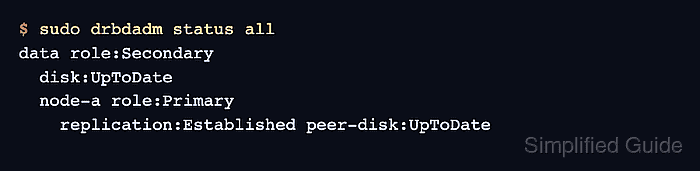
DRBD reports the post-boot state through the resource unit, drbdadm status, and the lower-level drbdsetup status view. A node can be healthy as Secondary when another node is intentionally Primary, so the important signals are connection state, local disk state, peer disk state, and any resync or split-brain messages.
Use read-only checks first. If Pacemaker, DRBD Reactor, or another cluster manager owns promotion and dependent services, inspect that manager before starting, stopping, promoting, or demoting the DRBD resource manually.
Related: How to check DRBD resource status
Steps to check DRBD after reboot:
- Check the resource target when drbd-utils systemd units are expected to start the resource.
$ sudo systemctl is-active drbd@data.target
active
Replace data with the DRBD resource name. If Pacemaker or DRBD Reactor owns the resource, use the cluster manager's status command instead of treating the drbd@ unit as the source of control.
- Check the high-level DRBD state for all resources.
$ sudo drbdadm status all
data role:Secondary
  disk:UpToDate
  node-a role:Primary
    replication:Established peer-disk:UpToDate
The restarted node can remain Secondary when the peer is Primary. Treat Connected or Established replication plus UpToDate local and peer disks as the expected post-boot signal.
- Check the detailed runtime state when the high-level output is unclear.
$ sudo drbdsetup status --verbose --statistics
data role:Secondary suspended:no
    write-ordering:flush
  volume:0 minor:1 disk:UpToDate
      size:20971520 read:0 written:124 al-writes:3 bm-writes:0 upper-pending:0
      lower-pending:0 al-suspended:no blocked:no
  node-a connection:Connected role:Primary congested:no
    volume:0 replication:Established peer-disk:UpToDate resync-suspended:no
        received:128 sent:0 out-of-sync:0 pending:0 unacked:0
Use this view to confirm the local volume is not blocked, suspended, or carrying out-of-sync data after boot.
- Review DRBD startup messages for the current boot.
$ sudo journalctl -u 'drbd@data.service' -b --no-pager
Jun 19 09:12:30 node-b systemd[1]: Starting drbd@data.service - (Re)configure DRBD resource data...
Jun 19 09:12:31 node-b drbd-data[812]: adjust data
Jun 19 09:12:31 node-b systemd[1]: Finished drbd@data.service - (Re)configure DRBD resource data.
For systems that still use the aggregate drbd.service, check that unit as well. Cluster-managed systems can have the more useful failure signal in Pacemaker, DRBD Reactor, or application service logs.
Related: How to view DRBD logs - Check the DRBD role before promoting a restarted node.
$ sudo drbdadm role data
Secondary
Do not promote the restarted node only because it booted successfully. Promotion belongs to the node that should run the filesystem or application, and forcing the wrong node can break the cluster's ownership model.
- Treat unhealthy states as blockers before returning the node to service.
$ sudo drbdadm status all
data role:Secondary
  disk:Inconsistent
  node-a connection:Connecting role:Unknown
    peer-disk:DUnknown
Stop the handoff when the output shows Connecting, StandAlone, Inconsistent, Outdated, DUnknown, Split-Brain, suspended I/O, or growing out-of-sync data. Inspect networking, backing disks, logs, quorum, and cluster-manager state before promoting or mounting the resource.

Mohd Shakir Zakaria is a cloud architect with deep roots in software development and open-source advocacy. Certified in AWS, Red Hat, VMware, ITIL, and Linux, he specializes in designing and managing robust cloud and on-premises infrastructures.


