Adding a node to an existing DRBD 9 resource brings a new server into the replication set for the same block device. Operators do this when storage capacity, failover placement, or a rebalancing plan needs another diskful peer without recreating the resource from scratch.
A controlled add updates the shared resource file, creates metadata only on the new node, adjusts the existing nodes, and then brings the resource up on the new node. The new node receives data from an up-to-date peer and should remain Secondary unless a separate failover or promotion task makes it writable.
Start only when the existing resource already has a free bitmap slot or a placeholder on section reserved for a future node. If the resource metadata was created without room for another diskful peer, schedule a metadata maintenance window first; forcing a new node into a resource without the required bitmap space can block synchronization or require disruptive metadata work on the existing nodes.
Related: How to create a DRBD resource
Related: How to check DRBD resource status
Related: How to verify DRBD synchronization state
Steps to add a node to a DRBD resource:
- Check the resource state from an existing node.
$ sudo drbdadm status webdata
webdata role:Primary
  volume:0 disk:UpToDate
  node-b role:Secondary
    volume:0 replication:Established peer-disk:UpToDate
Replace webdata with the resource name from /etc/drbd.d/. Start from an UpToDate resource so the new node can receive a known data set.
Related: How to check DRBD resource status - Confirm that the resource has a free bitmap slot for the new peer.
$ sudo drbdadm dump webdata
resource webdata {
    device               minor 100;
    disk                 /dev/vg_drbd/webdata;
    meta-disk            internal;
    on node-a {
        node-id 0;
    }
    on node-b {
        node-id 1;
    }
    on for-later-rebalancing {
        node-id 2;
    }
##### snipped #####
}
If no unused slot exists, do not continue with a live add. Prepare the extra bitmap slot during a metadata maintenance window before changing the active resource definition.
Related: How to back up DRBD metadata before a change - Confirm that the new node has its backing block device.
$ ssh admin@node-c lsblk /dev/vg_drbd/webdata
NAME             MAJ:MIN RM  SIZE RO TYPE MOUNTPOINTS
vg_drbd-webdata 253:2    0  100G  0 lvm
The backing device path in the resource file must exist on node-c before create-md runs. Use the storage tool already approved for the environment to create the device when it is missing.
- Edit the resource file on the first existing node.
$ sudoedit /etc/drbd.d/webdata.res
- Replace the placeholder with the new node and add its peer connections.
resource "webdata" {
  net {
    protocol C;
  }
  device minor 100;
  disk "/dev/vg_drbd/webdata";
  meta-disk internal;

  on "node-a" {
    node-id 0;
  }
  on "node-b" {
    node-id 1;
  }
  on "node-c" {
    node-id 2;
  }

  connection {
    host "node-a" address 192.0.2.10:7789;
    host "node-b" address 192.0.2.11:7789;
  }
  connection {
    host "node-a" address 192.0.2.10:7789;
    host "node-c" address 192.0.2.12:7789;
  }
  connection {
    host "node-b" address 192.0.2.11:7789;
    host "node-c" address 192.0.2.12:7789;
  }
}
Use the real node names, node IDs, disk path, minor number, and replication addresses for the resource. The same resource file should be installed on every node that belongs to the resource.
- Copy the updated resource file to the existing peer.
$ scp /etc/drbd.d/webdata.res admin@node-b:/tmp/webdata.res
- Copy the updated resource file to the new node.
$ scp /etc/drbd.d/webdata.res admin@node-c:/tmp/webdata.res
- Install the resource file on the existing peer.
$ ssh admin@node-b 'sudo install --mode=0644 /tmp/webdata.res /etc/drbd.d/webdata.res'
- Install the resource file on the new node.
$ ssh admin@node-c 'sudo install --mode=0644 /tmp/webdata.res /etc/drbd.d/webdata.res'
Configuration management can replace the copy and install commands when it deploys the same validated file to all nodes.
- Parse the updated configuration on every node.
$ sudo drbdadm dump webdata
resource webdata {
    device               minor 100;
    disk                 /dev/vg_drbd/webdata;
    meta-disk            internal;
    on node-a {
        node-id 0;
    }
##### snipped #####
    on node-c {
        node-id 2;
    }
}
Run the same parser check on node-b and node-c before applying the change.
Related: How to validate DRBD configuration - Preview the runtime changes on an existing node.
$ sudo drbdadm --dry-run adjust webdata
drbdsetup new-peer webdata 2 --_name=node-c --protocol=C
drbdsetup new-path webdata 2 ipv4:192.0.2.10:7789 ipv4:192.0.2.12:7789
drbdsetup connect webdata 2
The dry run should show the new peer and path for node-c without changing the running resource.
- Create DRBD metadata on the new node.
$ ssh admin@node-c sudo drbdadm create-md webdata
v09 Magic number not found
Writing meta data...
initializing activity log
NOT initializing bitmap
New drbd meta data block successfully created.
Run create-md only on the new node's unused backing device. Running it on an existing node or the wrong disk can destroy the metadata that identifies the current data set.
Related: How to create DRBD metadata - Adjust the resource on the first existing node.
$ sudo drbdadm adjust webdata
- Adjust the resource on the existing peer.
$ ssh admin@node-b sudo drbdadm adjust webdata
- Bring the resource up on the new node.
$ ssh admin@node-c sudo drbdadm up webdata
drbdadm up attaches the new node's lower-level device, creates the local DRBD device, and connects it to the peers defined in the resource file.
- Watch the new node receive its initial synchronization.
$ ssh admin@node-c sudo drbdsetup status webdata --verbose --statistics
webdata node-id:2 role:Secondary suspended:no
  volume:0 minor:100 disk:Inconsistent
  node-a node-id:0 connection:Connected role:Primary congested:no
    volume:0 replication:SyncTarget peer-disk:UpToDate resync-suspended:no
        done:64.18 out-of-sync:1835008 eta:92
  node-b node-id:1 connection:Connected role:Secondary congested:no
    volume:0 replication:Established peer-disk:UpToDate resync-suspended:no
        out-of-sync:0 pending:0 unacked:0
SyncTarget means node-c is receiving blocks. Wait for synchronization to finish before treating the node as a failover target.
Related: How to verify DRBD synchronization state - Wait for the new node to finish synchronization.
$ ssh admin@node-c sudo drbdadm wait-sync webdata
- Verify the final state from the new node.
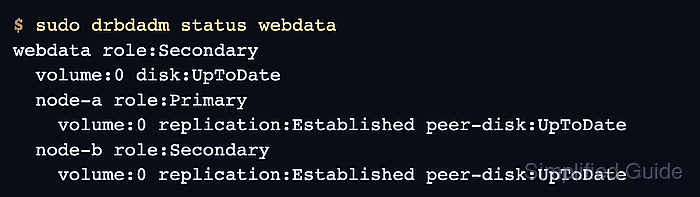
$ ssh admin@node-c sudo drbdadm status webdata webdata role:Secondary volume:0 disk:UpToDate node-a role:Primary volume:0 replication:Established peer-disk:UpToDate node-b role:Secondary volume:0 replication:Established peer-disk:UpToDate - Verify that an existing node sees the new peer as UpToDate.
$ sudo drbdadm status webdata
webdata role:Primary
  volume:0 disk:UpToDate
  node-b role:Secondary
    volume:0 replication:Established peer-disk:UpToDate
  node-c role:Secondary
    volume:0 replication:Established peer-disk:UpToDate
The add is complete when the new node and the existing nodes agree that every expected peer is Connected or Established with UpToDate disk state.

Mohd Shakir Zakaria is a cloud architect with deep roots in software development and open-source advocacy. Certified in AWS, Red Hat, VMware, ITIL, and Linux, he specializes in designing and managing robust cloud and on-premises infrastructures.


