Deploying a PHP application on Apache is complete only when the application files, document root, PHP handler, virtual host, and reload sequence all point at the same site. A server can have Apache and PHP installed and still show the default page, expose the wrong directory, or serve PHP source as text when one of those pieces is missing.
On Debian and Ubuntu systems, the usual deployment path is to place the application under /var/www, serve only its public directory, enable PHP-FPM through Apache's FastCGI proxy modules, create a file under /etc/apache2/sites-available, test the syntax with apache2ctl configtest, and restart or reload the apache2 service after the test passes.
The examples below use the current Ubuntu 26.04 package defaults, where php-fpm installs php8.5-fpm and the Apache snippet is enabled with a2enconf php8.5-fpm. Replace app.example.test, /var/www/app.example.test/public, and the 8.5 PHP branch with the hostname, public directory, and packaged PHP branch on the target host.
Related: How to create a virtual host in Apache
Related: How to configure PHP-FPM with Apache
Related: How to test Apache configuration
Related: How to manage the Apache web server service
Steps to deploy a PHP application on Apache:
- Choose the hostname, application root, and public document root before copying files.
Item Example value Hostname app.example.test Application root /var/www/app.example.test Public document root /var/www/app.example.test/public Virtual host file /etc/apache2/sites-available/app.example.test.conf Point DocumentRoot at the application's public entry directory, not at the whole project tree. Framework files such as .env, vendor, storage, or source directories should not be web-readable unless the application explicitly places them under the public directory.
- Install Apache and the distro PHP-FPM package.
$ sudo apt update
##### snipped #####
Reading package lists... Done

$ sudo apt install --assume-yes apache2 php-fpm
Reading package lists... Done
Building dependency tree... Done
Reading state information... Done
The following NEW packages will be installed:
  apache2 php-fpm php8.5-fpm
##### snipped #####
Setting up php8.5-fpm (8.5.4-0ubuntu1.1) ...
NOTICE: Not enabling PHP 8.5 FPM by default.
NOTICE: To enable PHP 8.5 FPM in Apache2 do:
NOTICE: a2enmod proxy_fcgi setenvif
NOTICE: a2enconf php8.5-fpm
Install application-specific extensions such as php-mysql, php-pgsql, php-gd, or php-xml only when the application requires them.
- Confirm the versioned PHP-FPM service and Apache configuration snippet installed by the package.
$ systemctl list-unit-files 'php*-fpm.service' --no-legend
php8.5-fpm.service enabled enabled

$ ls /etc/apache2/conf-available/php*-fpm.conf
/etc/apache2/conf-available/php8.5-fpm.conf
Use the same PHP branch in the service name, Apache snippet, and any socket path. A host running another distro release may show php8.3-fpm, php8.4-fpm, or another packaged branch.
- Start PHP-FPM and confirm the service is active before connecting Apache to it.
$ sudo systemctl enable --now php8.5-fpm

$ systemctl is-active php8.5-fpm
active
If PHP-FPM is not active, fix that service first. Apache can parse a PHP-FPM configuration file even when the target socket is missing, but PHP requests will fail at runtime.
- Create the public document root and place the PHP application entry point there.
$ sudo install --directory --mode=0755 /var/www/app.example.test/public

$ sudo tee /var/www/app.example.test/public/index.php >/dev/null <<'EOF'
<?php
header('Content-Type: text/plain');
echo "Deployed PHP app OK\n";
echo "sapi=" . PHP_SAPI . "\n";
EOF
For a real application, copy the release files into the same application root and keep only the public entry directory exposed as DocumentRoot. Grant write permission only to application-owned storage, cache, or upload directories that need it.
- Set ownership so Apache and PHP-FPM can read the deployed files.
$ sudo chown -R root:www-data /var/www/app.example.test
The www-data group is the packaged Apache and PHP-FPM runtime group on Debian and Ubuntu. Keep code owned by an administrative account or deployment account; do not make the web server user the owner of the whole application tree unless the application packaging model requires it.
- Enable the Apache modules and packaged PHP-FPM snippet.
$ sudo a2enmod proxy_fcgi setenvif
Considering dependency proxy for proxy_fcgi:
Enabling module proxy.
Enabling module proxy_fcgi.
Module setenvif already enabled
To activate the new configuration, you need to run:
  service apache2 restart

$ sudo a2enconf php8.5-fpm
Enabling conf php8.5-fpm.
To activate the new configuration, you need to run:
  service apache2 reload
mod_proxy_fcgi passes PHP requests to PHP-FPM. The packaged php8.5-fpm.conf snippet contains the PHP handler and points Apache at the matching /run/php/php8.5-fpm.sock socket.
Related: How to configure PHP-FPM with Apache
- Create the Apache virtual host file for the PHP application.
$ sudo tee /etc/apache2/sites-available/app.example.test.conf >/dev/null <<'EOF'
<VirtualHost *:80>
  ServerName app.example.test
  DocumentRoot /var/www/app.example.test/public

  <Directory /var/www/app.example.test/public>
    Options -Indexes +FollowSymLinks
    AllowOverride None
    Require all granted
  </Directory>

  DirectoryIndex index.php index.html
  ErrorLog ${APACHE_LOG_DIR}/app.example.test-error.log
  CustomLog ${APACHE_LOG_DIR}/app.example.test-access.log combined
</VirtualHost>
EOF
Use AllowOverride All only when the application depends on .htaccess rules. Keeping rewrite and access rules in the virtual host is easier to review when the application supports it.
- Enable the virtual host.
$ sudo a2ensite app.example.test.conf
Enabling site app.example.test.
To activate the new configuration, you need to run:
  service apache2 reload
Disable 000-default.conf only when this PHP application should become the fallback site for unmatched port-80 requests.
- Test the Apache configuration before applying the site.
$ sudo apache2ctl configtest
AH00558: apache2: Could not reliably determine the server's fully qualified domain name, using 192.0.2.40. Set the 'ServerName' directive globally to suppress this message
Syntax OK
The AH00558 line is a global ServerName warning on fresh installs. Syntax OK confirms the enabled site and PHP-FPM snippet parsed successfully.
- Restart Apache after enabling new modules and the PHP-FPM handler.
$ sudo systemctl restart apache2
Use sudo systemctl reload apache2 for later virtual-host-only edits that do not add or remove modules. A restart is the safer first apply after enabling proxy_fcgi or changing the PHP handler.
- Confirm Apache loaded the new name-based virtual host.
$ sudo apache2ctl -S
VirtualHost configuration:
*:80                   is a NameVirtualHost
         default server 192.0.2.40 (/etc/apache2/sites-enabled/000-default.conf:1)
         port 80 namevhost 192.0.2.40 (/etc/apache2/sites-enabled/000-default.conf:1)
         port 80 namevhost app.example.test (/etc/apache2/sites-enabled/app.example.test.conf:1)
ServerRoot: "/etc/apache2"
Main DocumentRoot: "/var/www/html"
##### snipped #####
If app.example.test is missing from this output, the site file is not enabled, the filename does not end in .conf, or the configuration test is still failing.
- Request the application through Apache with a matching Host header.
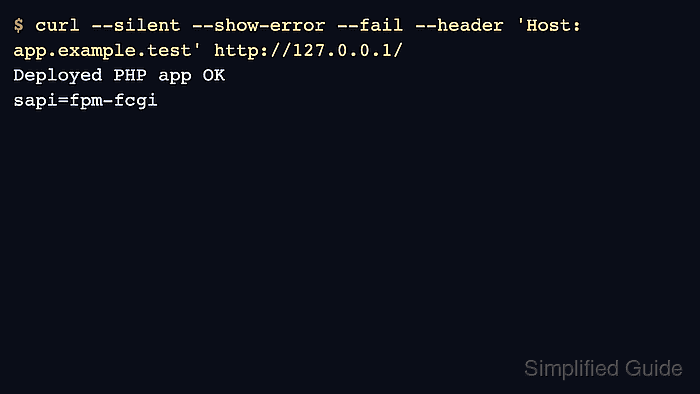
$ curl --silent --show-error --fail --header 'Host: app.example.test' http://127.0.0.1/
Deployed PHP app OK
sapi=fpm-fcgi
sapi=fpm-fcgi confirms the request reached PHP through PHP-FPM. If the output shows PHP source code or downloads the file, the PHP handler is not active for this site.
Related: Override Host header in cURL
- Test the public hostname after DNS or a temporary hosts-file entry points at the server.
$ curl --silent --show-error --fail http://app.example.test/
Deployed PHP app OK
sapi=fpm-fcgi
A successful localhost Host-header test proves Apache can route the vhost on the server. A successful hostname request proves the client-side name resolution path also reaches the same application.

Mohd Shakir Zakaria is a cloud architect with deep roots in software development and open-source advocacy. Certified in AWS, Red Hat, VMware, ITIL, and Linux, he specializes in designing and managing robust cloud and on-premises infrastructures.


