Adding another site to an existing Apache server is mostly a routing problem: the request can reach the right machine but still show the default site when the enabled virtual host does not match the request hostname. A separate name-based virtual host gives one hostname its own DocumentRoot, directory access rule, and logs, then a Host-header request proves Apache selected the intended file.
Apache first narrows virtual host candidates by the real destination address and port, then compares the request name with ServerName and ServerAlias values in that address set. If no name matches, the first enabled virtual host for that address and port handles the request, which is why 000-default.conf often catches unknown hostnames on fresh Debian and Ubuntu installs.
This guide uses the packaged apache2 layout on Ubuntu and Debian, where site files live in /etc/apache2/sites-available and a2ensite enables a site by linking it into /etc/apache2/sites-enabled. It assumes Apache is already installed and listening on port 80; on RHEL-style systems the file path is usually /etc/httpd/conf.d and the service name is httpd.
Steps to create a virtual host in Apache:
- Choose the site hostname, optional alias, and public web root.
Example hostname: app.internal.example
Example alias: www.example.net
Example document root: /var/www/app.internal.example/public - Create the document root directory.
$ sudo install --directory --mode=0755 /var/www/app.internal.example/public
- Write a distinct test page into the document root.
$ sudo tee /var/www/app.internal.example/public/index.html >/dev/null <<'EOF' <!doctype html> <html lang="en"> <head> <meta charset="utf-8"> <title>app.internal.example</title> </head> <body> <h1>app.internal.example virtual host works</h1> </body> </html> EOF - Create the virtual host file under /etc/apache2/sites-available.
$ sudo tee /etc/apache2/sites-available/app.internal.example.conf >/dev/null <<'EOF'
<VirtualHost *:80>
  ServerName app.internal.example
  ServerAlias www.example.net

  DocumentRoot /var/www/app.internal.example/public

  <Directory /var/www/app.internal.example/public>
    Options -Indexes +FollowSymLinks
    AllowOverride None
    Require all granted
  </Directory>

  ErrorLog ${APACHE_LOG_DIR}/app.internal.example-error.log
  CustomLog ${APACHE_LOG_DIR}/app.internal.example-access.log combined
</VirtualHost>
EOF
Keep hostnames in ServerName and ServerAlias, not in the <VirtualHost> address. The wildcard listener stays *:80, and Apache uses the request hostname after it has matched the real address and port.
- Enable the new site file.
$ sudo a2ensite app.internal.example.conf
Enabling site app.internal.example.
To activate the new configuration, you need to run:
  service apache2 reload
a2ensite creates the enabled-site symlink. 000-default.conf remains the fallback for unmatched names unless you disable it or place a different default site first.
- Test the Apache configuration before reloading.
$ sudo apache2ctl configtest
AH00558: apache2: Could not reliably determine the server's fully qualified domain name, using 192.0.2.40. Set the 'ServerName' directive globally to suppress this message
Syntax OK
The AH00558 line is a global ServerName warning, not a virtual-host parse failure. Syntax OK confirms the enabled configuration parsed successfully.
- Reload Apache to apply the enabled site.
$ sudo systemctl reload apache2
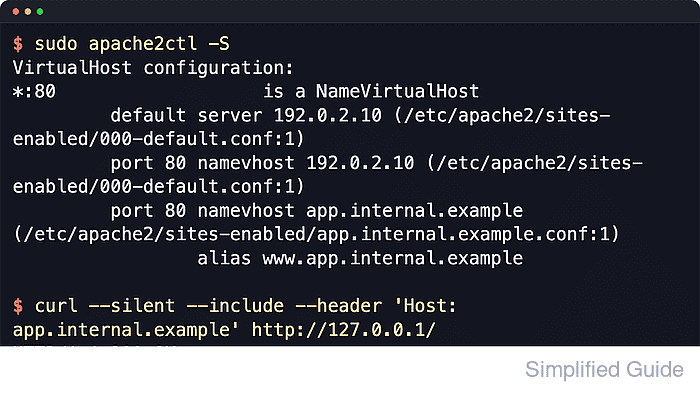
- List the loaded virtual hosts and confirm the hostname points to the new file.
$ sudo apache2ctl -S
AH00558: apache2: Could not reliably determine the server's fully qualified domain name, using 192.0.2.40. Set the 'ServerName' directive globally to suppress this message
VirtualHost configuration:
*:80                   is a NameVirtualHost
         default server 192.0.2.40 (/etc/apache2/sites-enabled/000-default.conf:1)
         port 80 namevhost 192.0.2.40 (/etc/apache2/sites-enabled/000-default.conf:1)
         port 80 namevhost app.internal.example (/etc/apache2/sites-enabled/app.internal.example.conf:1)
                 alias www.example.net
ServerRoot: "/etc/apache2"
Main DocumentRoot: "/var/www/html"
Main ErrorLog: "/var/log/apache2/error.log"
Mutex watchdog-callback: using_defaults
Mutex default: dir="/run/apache2/" mechanism=default
PidFile: "/run/apache2/apache2.pid"
Define: DUMP_VHOSTS
Define: DUMP_RUN_CFG
User: name="www-data" id=33
Group: name="www-data" id=33
If the new hostname is missing here, the site is not enabled, the filename did not end in .conf, or the syntax test is still failing.
- Send a local request with the target Host header.
$ curl --silent --include --header 'Host: app.internal.example' http://127.0.0.1/
HTTP/1.1 200 OK
Date: Sat, 06 Jun 2026 04:01:59 GMT
Server: Apache/2.4.66 (Ubuntu)
Last-Modified: Sat, 06 Jun 2026 04:01:59 GMT
ETag: W/"c7-6538dd6cbb1b4"
Accept-Ranges: bytes
Content-Length: 199
Vary: Accept-Encoding
Content-Type: text/html

<!doctype html>
<html lang="en">
  <head>
    <meta charset="utf-8">
    <title>app.internal.example</title>
  </head>
  <body>
    <h1>app.internal.example virtual host works</h1>
  </body>
</html>
If DNS already points at the server, request the real URL directly instead. For browser testing before DNS is live, add a temporary hosts entry such as 127.0.0.1 app.internal.example on the test machine.
Related: Override Host header in cURL

Mohd Shakir Zakaria is a cloud architect with deep roots in software development and open-source advocacy. Certified in AWS, Red Hat, VMware, ITIL, and Linux, he specializes in designing and managing robust cloud and on-premises infrastructures.


