How to deploy a custom application as a systemd service
Deploying a custom application as a systemd service turns a launch command into a managed system workload that can start at boot, restart after failures, and write its output into the system journal. That is the normal path for a locally built API worker, queue consumer, or wrapper script that should keep running without an interactive shell.
A clean deployment usually includes a dedicated service account, an application directory under /opt or another fixed path, an optional environment file under /etc, and a unit file under /etc/systemd/system. Current upstream systemd.service and systemd.exec documentation make Type=exec, User=, WorkingDirectory=, and EnvironmentFile= a practical default set for long-running custom commands that stay in the foreground.
The start command in ExecStart= should point to an absolute path and should not daemonize itself unless the unit type is adjusted for that behavior. After any unit-file change, run systemd-analyze verify and systemctl daemon-reload before restarting or enabling the service, and keep changing values such as ports, modes, and secrets out of the launcher script when a dedicated environment file is clearer.
Related: How to create a systemd service unit
Related: How to create a user systemd service unit
Related: How to edit a systemd unit override
Steps to deploy a custom application as a systemd service:
- Create a dedicated system account for the application process.
$ sudo useradd --system --home-dir /opt/custom-app --shell /usr/sbin/nologin --user-group custom-app
Replace custom-app with the real service account and unit prefix when using the same deployment pattern for another application.
- Create the application directories under /opt.
$ sudo install -d -o custom-app -g custom-app -m 0755 /opt/custom-app /opt/custom-app/bin
Keeping the deployed files in a fixed path avoids unit files that depend on a shell session, a home directory, or a release unpacked into a temporary location.
- Create the configuration directory under /etc.
$ sudo install -d -m 0755 /etc/custom-app
Use a separate configuration path when the deployment needs environment variables, flags, or connection settings that change more often than the application files.
- Create the environment file that the service will load at start time.
APP_NAME=custom-app
APP_MODE=production
APP_BIND=127.0.0.1:9000
EnvironmentFile= reads simple key=value lines before ExecStart= runs, which keeps the unit file shorter and makes later configuration changes easier to review.
If the file will contain secrets, tighten its permissions and keep write access limited to administrators.
- Create the launcher script that starts the application in the foreground.
#!/usr/bin/env bash
set -eu
printf "%s mode=%s bind=%s\n" "${APP_NAME}" "${APP_MODE}" "${APP_BIND}"
trap 'printf "%s stopping\n" "${APP_NAME}"; exit 0' TERM INT
while :; do
  printf "%s heartbeat %s\n" "${APP_NAME}" "$(date --iso-8601=seconds)"
  sleep 30
done
Replace the loop with the real application start command when the program already runs in the foreground, such as a Python entry point, a Node.js server, or a compiled binary.
- Make the launcher executable.
$ sudo chmod 0755 /opt/custom-app/bin/custom-app.sh
Use an absolute path in ExecStart= even when the program name is already on the shell PATH.
- Create the systemd service unit.
[Unit]
Description=Custom application service
After=network.target

[Service]
Type=exec
User=custom-app
Group=custom-app
WorkingDirectory=/opt/custom-app
EnvironmentFile=/etc/custom-app/custom-app.env
ExecStart=/opt/custom-app/bin/custom-app.sh
Restart=on-failure
RestartSec=5

[Install]
WantedBy=multi-user.target
Type=exec delays follow-up job success until the executable is invoked successfully, which makes missing binaries, wrong users, and similar startup mistakes fail earlier than the default Type=simple behavior.
Restart=on-failure retries unexpected exits, while a clean stop through systemctl stop still leaves the service stopped.
Tool: systemd Unit Generator
- Verify that the unit file parses cleanly before reloading the manager.
$ sudo systemd-analyze verify /etc/systemd/system/custom-app.service
No output is the usual success result. Read the file path on any warning carefully because systemd-analyze verify can also report problems in referenced units.
- Reload the systemd manager so it sees the new unit definition.
$ sudo systemctl daemon-reload
Run this again after later edits to the unit file or any drop-in under /etc/systemd/system/custom-app.service.d. Related: How to reload the systemd manager configuration
- Enable the service for boot and start it immediately.
$ sudo systemctl enable --now custom-app.service
Created symlink /etc/systemd/system/multi-user.target.wants/custom-app.service → /etc/systemd/system/custom-app.service.
enable --now is the quickest first deployment path because it installs the boot-time symlink and starts the unit in one command.
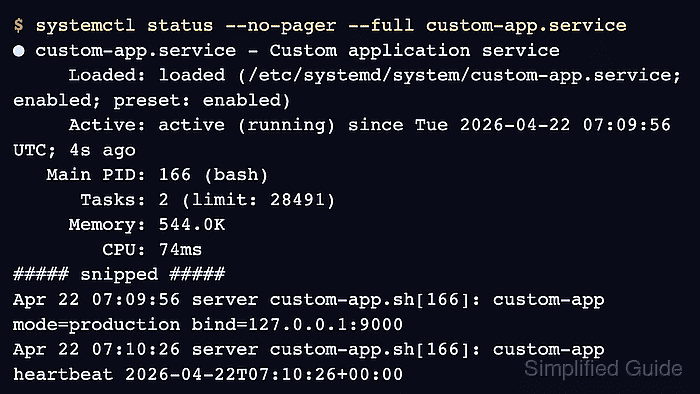
- Confirm that the service is loaded from the local unit path and running.
$ systemctl status --no-pager --full custom-app.service
● custom-app.service - Custom application service
     Loaded: loaded (/etc/systemd/system/custom-app.service; enabled; preset: enabled)
     Active: active (running) since Tue 2026-04-22 07:09:56 UTC; 4s ago
   Main PID: 166 (bash)
      Tasks: 2 (limit: 28491)
     Memory: 544.0K
        CPU: 74ms
##### snipped #####
Apr 22 07:09:56 server custom-app.sh[166]: custom-app mode=production bind=127.0.0.1:9000
The important success state is Loaded: loaded (/etc/systemd/system/custom-app.service…) together with Active: active (running). Related: How to check service status using systemctl
- Read the recent unit journal to confirm the application started with the expected environment values.
$ sudo journalctl -u custom-app.service -n 4 --no-pager
Apr 22 07:09:56 server systemd[1]: Started custom-app.service - Custom application service.
Apr 22 07:09:56 server custom-app.sh[166]: custom-app mode=production bind=127.0.0.1:9000
Apr 22 07:09:56 server custom-app.sh[166]: custom-app heartbeat 2026-04-22T07:09:56+00:00
Apr 22 07:10:26 server custom-app.sh[166]: custom-app heartbeat 2026-04-22T07:10:26+00:00
The journal is often the fastest place to spot a missing environment file, a bad working directory, or a failed executable path after the first start. Related: How to view service logs using journalctl