How to record HTTP and HTTPS traffic in JMeter
Browser journeys often contain redirects, cookies, request headers, and hidden background calls that are easy to miss when building a JMeter plan by hand. The HTTP(S) Test Script Recorder captures those requests through a local proxy and writes them into a test-plan tree for later cleanup and validation.
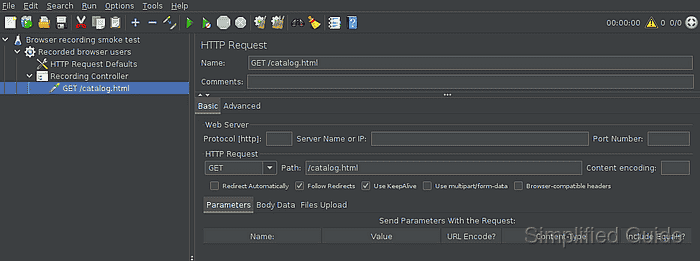
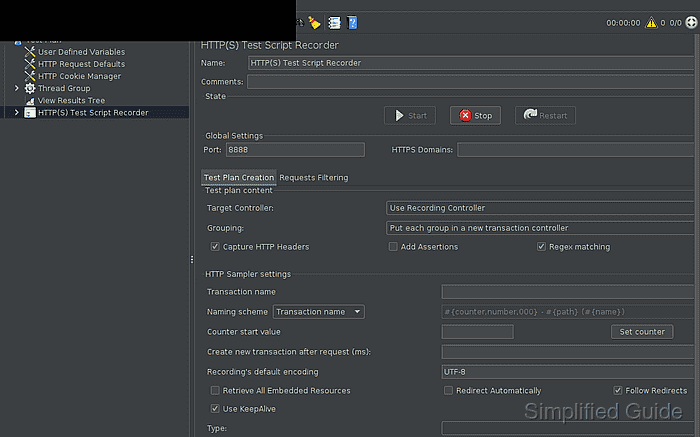
The recorder listens on a local port, usually 8888, while the test browser sends HTTP and HTTPS requests through that proxy. JMeter stores matching requests under the selected Recording Controller and can exclude static assets such as images, fonts, and scripts so the first saved plan stays focused on the user path.
Record only approved test targets and use a dedicated browser profile for recorder sessions. HTTPS pages need the local JMeter recorder CA trusted by that profile, and the browser proxy must be turned off after recording so normal browsing does not keep flowing through the test tool.
Related: How to start the JMeter GUI
Related: How to install the JMeter recorder certificate
Related: How to create an HTTP test plan in JMeter
Steps to record HTTP and HTTPS traffic with JMeter:
- Create a recording-ready test plan from File → Templates → Recording.
The built-in template creates the Thread Group, Recording Controller, and recorder support elements. If the HTTP(S) Test Script Recorder node appears grey, enable it before starting the proxy.
Related: How to start the JMeter GUI - Select HTTP(S) Test Script Recorder and confirm the recorder target.
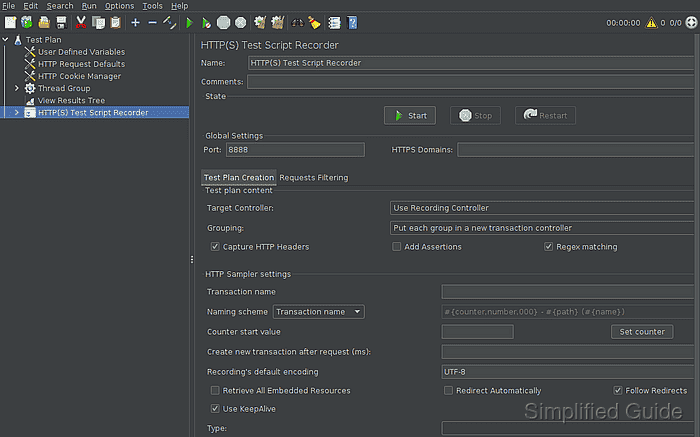
Port: 8888
Target Controller: Use Recording Controller
Grouping: Put each group in a new transaction controller
Capture HTTP Headers: enabled
- Open the Requests Filtering tab and review the include and exclude patterns.
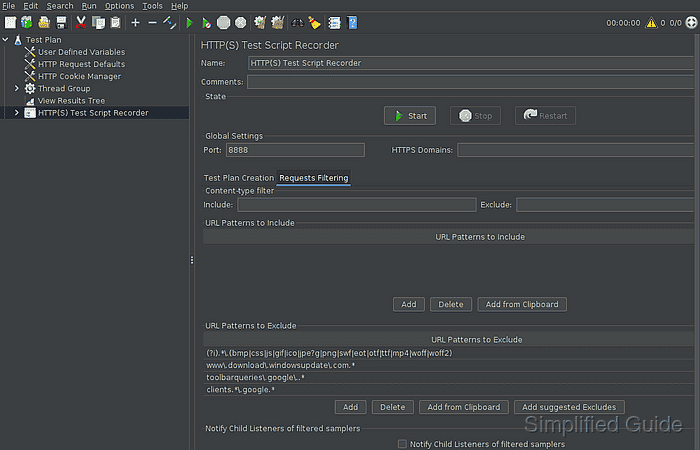
Leave the default static-asset exclusions in place for the first pass. Add an Include pattern only when the browser session must be limited to one host or path.
- Configure the test browser to use the recorder proxy.
HTTP proxy: 127.0.0.1
Port: 8888
HTTPS proxy: 127.0.0.1
Port: 8888
Use the hostname or IP address of the machine running JMeter when the browser is on another device. Install the recorder CA in the browser profile before loading HTTPS pages.
Related: How to install the JMeter recorder certificate - Start the HTTP(S) Test Script Recorder.
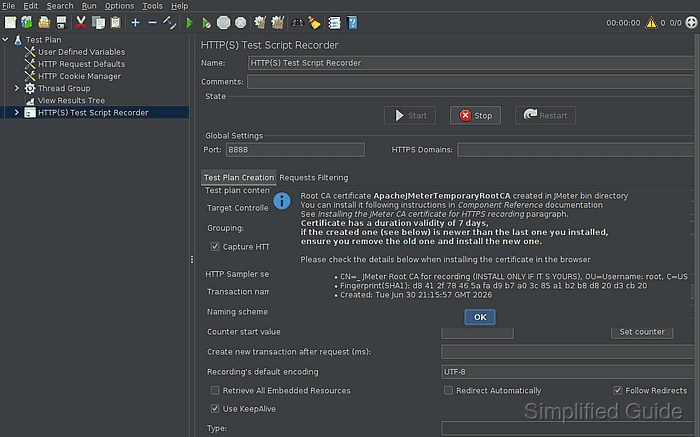
The first start can create ApacheJMeterTemporaryRootCA.crt and proxyserver.jks. Close the certificate notice after confirming it names the local recorder CA.
- Browse the test scenario through the configured browser.
Do not record real passwords, personal data, production-only tokens, or unapproved account actions. Use a staging account or disposable data set for the session.
- Confirm that the request samplers appear under Recording Controller.
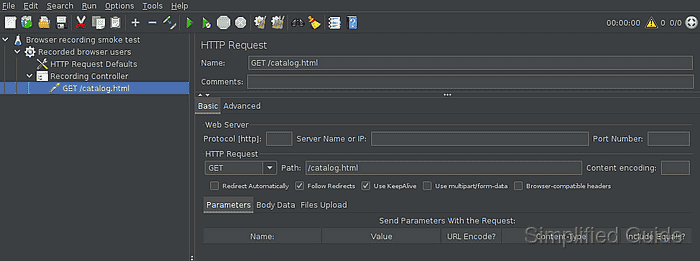
- Stop the recorder from the HTTP(S) Test Script Recorder panel.
- Turn off the browser proxy settings.
Leaving the browser pointed at 127.0.0.1:8888 after the recorder stops causes normal pages to fail until the proxy is removed.
- Save the recorded plan.
browser-recording.jmx
- Run a small CLI smoke test against an approved target.
$ jmeter -n -t browser-recording.jmx -l browser-recording-results.jtl
Creating summariser <summary>
Created the tree successfully using browser-recording.jmx
Starting standalone test @ 2026 Jun 30 21:17:46 GMT
Waiting for possible Shutdown/StopTestNow/HeapDump/ThreadDump message on port 4445
summary =      1 in 00:00:00 =    9.3/s Avg:    44 Min:    44 Max:    44 Err:     0 (0.00%)
Tidying up ...
... end of run
Use CLI mode for validation and load runs after the recorded tree has been cleaned up.
Related: How to run a JMeter test from the command line - Check the result file for the captured request.
$ cat browser-recording-results.jtl
timeStamp,elapsed,label,responseCode,responseMessage,threadName,dataType,success,failureMessage,bytes,sentBytes,grpThreads,allThreads,URL,Latency,IdleTime,Connect
1782854266556,44,GET /catalog.html,200,OK,Recorded browser users 1-1,text,true,,210,137,1,1,http://web.example.test:18080/catalog.html,42,0,10
- Check the target server log or request inspector.
$ cat http-server.log
127.0.0.1 - - [30/Jun/2026:21:17:46 +0000] "GET /catalog.html HTTP/1.1" 200 -
The recorded sampler is ready for cleanup when success is true in the result file and the target side shows the expected request. Remove duplicate, analytics, tracking, and one-off setup requests before increasing users or loops.
Related: How to validate a JMeter test plan before a load test