A saved JMeter test plan becomes repeatable when it can run without the desktop GUI. Command-line mode starts the same .jmx file from a shell or CI runner and writes sampler results to a .jtl file for later review.
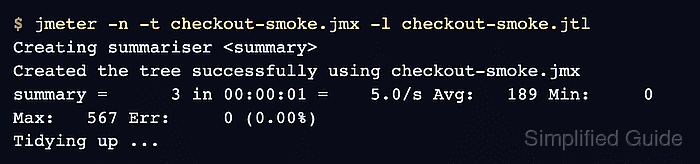
The -n option starts non-GUI execution, -t points at the test plan, and -l names the result file. JMeter prints a running summary while the test is active, and the result file stores each completed sample so it can be checked directly or used for a dashboard.
Use a fresh result file name for each run and keep the working directory writable for both the .jtl file and jmeter.log. Build or debug the test plan in the GUI first, then run the CLI copy without heavy visual listeners during load windows or automation.
Steps to run a JMeter test from the command line:
- Open a terminal in the directory that contains the saved .jmx test plan.
- Choose a new result file path for the run.
Test plan: checkout-smoke.jmx
Result file: checkout-smoke.jtl
Do not reuse a .jtl file that belongs to a previous run unless it has been archived or removed.
- Run the test plan in JMeter CLI mode.
$ jmeter -n -t checkout-smoke.jmx -l checkout-smoke.jtl
Creating summariser <summary>
Created the tree successfully using checkout-smoke.jmx
Starting standalone test @ 2026 Jun 29 21:51:34 GMT
Waiting for possible Shutdown/StopTestNow/HeapDump/ThreadDump message on port 4445
summary +      1 in 00:00:01 =    1.7/s Avg:   567 Min:   567 Max:   567 Err:     0 (0.00%) Active: 1 Started: 1 Finished: 0
summary +      2 in 00:00:00 =  400.0/s Avg:     0 Min:     0 Max:     1 Err:     0 (0.00%) Active: 0 Started: 1 Finished: 1
summary =      3 in 00:00:01 =    5.0/s Avg:   189 Min:     0 Max:   567 Err:     0 (0.00%)
Tidying up ...
... end of run
-n selects CLI mode, -t names the plan, and -l writes the sample result file. Add -j with a log file name only when the run log should use a dedicated file name.
Related: How to stop a JMeter CLI test gracefully - Check the shell exit status immediately after JMeter finishes.
$ echo $?
0
A zero status confirms that the JMeter process finished without a startup failure or engine abort. Failed samplers still need the result-file check.
- Inspect the .jtl file for completed samples.
$ cat checkout-smoke.jtl
timeStamp,elapsed,label,responseCode,responseMessage,threadName,dataType,success,failureMessage,bytes,sentBytes,grpThreads,allThreads,URL,Latency,IdleTime,Connect
1782769894309,567,checkout-smoke,200,OK,Thread Group 1-1,text,true,,21,0,1,1,null,0,0,0
1782769894879,1,checkout-smoke,200,OK,Thread Group 1-1,text,true,,21,0,1,1,null,0,0,0
1782769894880,0,checkout-smoke,200,OK,Thread Group 1-1,text,true,,21,0,1,1,null,0,0,0
The success column should contain true for passing samples. Any false row needs assertion, response, or sampler review before the run is accepted.

Mohd Shakir Zakaria is a cloud architect with deep roots in software development and open-source advocacy. Certified in AWS, Red Hat, VMware, ITIL, and Linux, he specializes in designing and managing robust cloud and on-premises infrastructures.


