Load-test plans need an editor for arranging requests and inspecting their settings before a run. Apache JMeter provides that editor in its GUI, which opens with a blank Test Plan ready to edit.
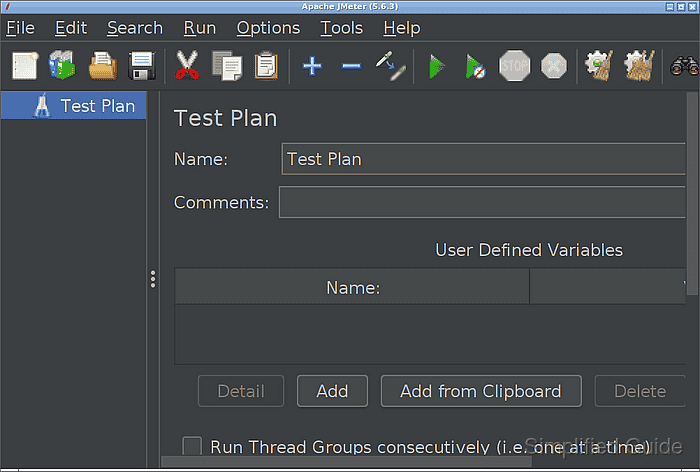
The GUI requires an installed copy of JMeter and a working Java runtime. On Linux, the launcher also needs access to a graphical desktop session; a headless SSH session has no display for the window.
GUI mode is intended for creating and debugging test plans. Load tests belong in non-GUI mode, so the launcher's warning against GUI-mode load testing is expected and does not by itself indicate a startup failure.
Steps to start the JMeter GUI:
- Start the JMeter GUI with the jmeter launcher in your desktop terminal.
$ jmeter

The command assumes JMeter is on PATH. For an extracted Apache archive, the equivalent command from its bin directory is ./jmeter. The terminal remains occupied while the GUI is running; closing it or interrupting the process can close the window.
- Confirm that the Apache JMeter window shows the Test Plan editor with editable Name and Comments fields.
The Test Plan node should be selected in the tree, with its settings on the right and the toolbar above. A Java error followed by no window, or a window that never displays the editor, means startup did not complete.