How to install the Checkmk agent on Windows
Installing the Checkmk agent on Windows adds the MSI-based agent program and Agent Controller to a server or workstation so a Checkmk site can collect operating system, service, and hardware data. Use this path when a Windows host should be monitored with the standard Checkmk agent instead of only SNMP, API checks, or active network checks.
The agent package comes from the Checkmk site that will monitor the host. In Checkmk Community, the Windows MSI is available under Setup → Agents → Windows; in commercial editions, a baked Windows package can also include site-specific configuration and automatic registration settings.
After installation, the Agent Controller registers with the site's Agent Receiver and establishes TLS trust. The host object must already exist in Setup for manual registration, and the final proof is a registered controller, a passing agent connection test, discovered Windows services, and activated changes.
Steps to install the Checkmk Windows agent:
- Create the Windows host object in Checkmk Setup.
The host name used during registration must exactly match the host name saved in Setup → Hosts. Use pull mode unless the host must send data outward with push mode in Checkmk Ultimate.
Related: How to add a host in Checkmk - Open an elevated PowerShell session on the Windows host.
- Download the Windows MSI from the monitoring site.
PS C:\Users\Administrator\Downloads> Invoke-WebRequest `
   -Uri "https://monitor.example.com/prod/check_mk/agents/windows/check_mk_agent.msi" `
   -OutFile "check_mk_agent.msi"
Copy the MSI URL from Setup → Agents → Windows or from the host agent slideout. Replace monitor.example.com and prod with the server name and site name from the Checkmk web URL.
- Install the MSI silently as a clean installation.
PS C:\Users\Administrator\Downloads> msiexec /i check_mk_agent.msi /qn WIXUI_CLEANINSTALL=
Double-clicking check_mk_agent.msi opens the same setup wizard. Choose Clean installation for normal new installs; use the legacy migration choices only when replacing a pre-1.6 Windows agent.
- Confirm that the Checkmk Windows service is running.
PS C:\Windows\System32> Get-Service -Name CheckMkService

Status   Name               DisplayName
------   ----               -----------
Running  CheckMkService     Check MK Service
- Check local agent output through the Agent Controller.
PS C:\Windows\System32> & "C:\Program Files (x86)\checkmk\service\cmk-agent-ctl.exe" dump
<<<check_mk>>>
Version: 2.5.0p7
AgentOS: windows
Hostname: win-app-01
Architecture: 64bit
OSName: Microsoft Windows Server 2025 Standard
ConfigFile: C:\Program Files (x86)\checkmk\service\check_mk.yml
##### snipped #####
The default program files are under C:\Program Files (x86)\checkmk\service\, while host-specific configuration, logs, plug-ins, and local checks are under C:\ProgramData\checkmk\agent\.
- Register the Agent Controller with the Checkmk site.
PS C:\Windows\System32> & "C:\Program Files (x86)\checkmk\service\cmk-agent-ctl.exe" register `
   --hostname win-app-01 `
   --server monitor.example.com `
   --site prod `
   --user agent_registration
Password: ********
Attempting to register at monitor.example.com:8000/prod. Server certificate details:
Issued by:
        Site 'prod' local CA
Do you want to establish this connection? [Y/n]
> Y
Omitting --password keeps the automation secret out of saved shell history. If the REST API cannot discover the Agent Receiver port, retry with --server monitor.example.com:8000 after confirming the receiver port on the Checkmk server.
Related: How to troubleshoot a Checkmk agent connection - Verify the registered trust relationship.
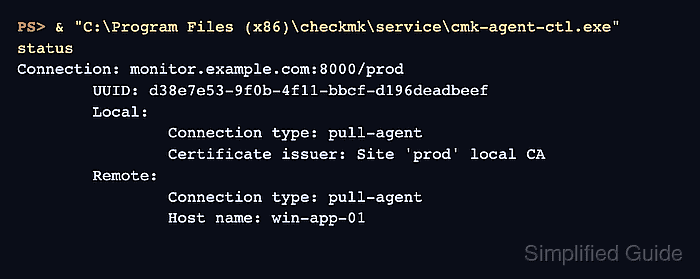
PS C:\Windows\System32> & "C:\Program Files (x86)\checkmk\service\cmk-agent-ctl.exe" status
Connection: monitor.example.com:8000/prod
        UUID: d38e7e53-9f0b-4f11-bbcf-d196deadbeef
        Local:
                Connection type: pull-agent
                Certificate issuer: Site 'prod' local CA
        Remote:
                Connection type: pull-agent
                Host name: win-app-01
Only confirm the registration certificate when it belongs to the intended Checkmk site. Use --trust-cert only for automation that verifies the certificate by another controlled method.
- Run the agent connection test from the host properties page in Checkmk.
Use Save & run connection tests or the host agent slideout. A passing result confirms that the site can communicate with the Windows agent after TLS registration.
Related: How to troubleshoot a Checkmk agent connection - Run service discovery for the Windows host.
Add the discovered Windows services, file systems, interfaces, CPU, memory, and agent services that should be monitored.
Related: How to run Checkmk service discovery - Activate the pending Checkmk changes.
The host is not fully in monitoring until the discovered services and configuration changes are activated.
Related: How to activate Checkmk pending changes