Adding a host in Checkmk creates the configuration object that tells the site which server, appliance, or integration target should enter monitoring. Placing the host in the right folder before discovery lets inherited attributes, permissions, and rules apply from the start.
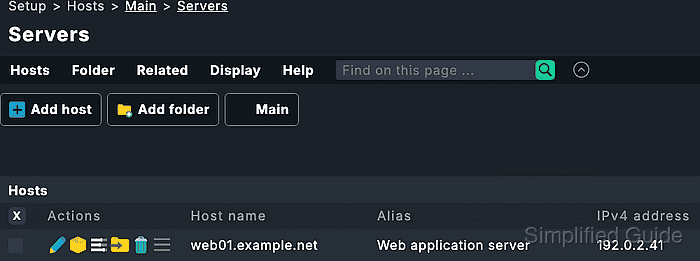
Host creation starts in Setup → Hosts → Hosts. The folder supplies inherited settings, the Host name uniquely identifies the object, and the Network address plus Monitoring agents sections decide how Checkmk reaches the target.
The manual path fits one host or a small controlled batch where an operator wants to review the folder, address, and data source before services are accepted. After the host is saved, connection tests, service discovery, and pending-change activation move the saved object into active monitoring.
Steps to add a host in Checkmk Setup:
- Sign in to the Checkmk site with permission to edit host configuration.
- Open Setup → Hosts → Hosts.
- Open the folder that should contain the new host.
Folder attributes can set contact groups, host tags, agent behavior, and other defaults for hosts created below that folder.
- Click Add host.
- Enter the Host name, such as web01.example.net.
Use the DNS name when possible because Checkmk uses the host name as the object's unique key. Rename a monitored host with the host rename function instead of editing the name casually later.
Related: How to rename a host in Checkmk - Enter an Alias when operators should see a friendlier display name, such as Web application server.
- Confirm Monitored on site or Monitored on relay in Basic settings when the site is distributed.
Leave the default site on a single-site installation. Select a relay only when a Checkmk Relay has already been configured for the target network.
- Set the network address for the host.
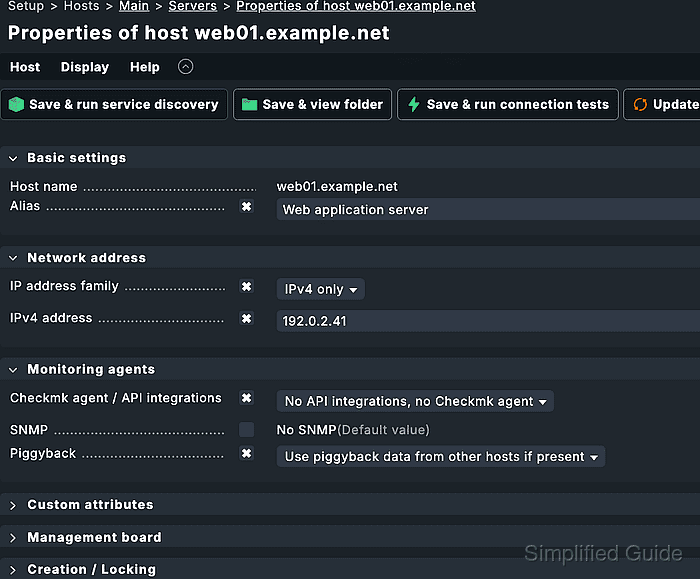
Leave IPv4 address empty when the host name resolves in DNS. Enter an address such as 192.0.2.41 when Checkmk should skip DNS resolution and test that address directly.
- Keep Checkmk agent / API integrations set to API integrations if configured, else Checkmk agent for a normal Linux, Windows, or Unix host.
- Adjust the data source only when the host is not a normal agent host.
Select No API integrations, no Checkmk agent for SNMP-only or active-check-only hosts. Use No IP in Network address for push-mode agent hosts and pure API or piggyback objects that should not be pinged directly.
- Click Save & run connection tests when the agent, SNMP service, active check, or API data source should be tested before discovery.
A failed agent test can offer the agent installation or registration workflow when the host object is saved but the agent is not ready yet.
Related: How to register a Checkmk agent host - Return to the host properties page after the connection test is resolved.
- Click Save & run service discovery when the host data source is ready.
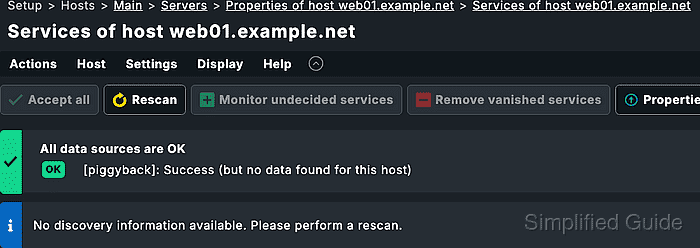
Service discovery saves the host properties and opens the service list for the new host.
Related: How to run Checkmk service discovery - Accept the services and labels that should be monitored.
- Activate the pending changes.
Activation moves the saved host and accepted services from Setup into the running monitoring environment.
Related: How to activate Checkmk pending changes - Open the host from Monitor and confirm that the host appears with the expected services.
- Query the host from the site shell when terminal evidence is required.
OMD[monitoring]:~$ lq "GET hosts\nColumns: name address\nFilter: name = web01.example.net"
web01.example.net;192.0.2.41

Mohd Shakir Zakaria is a cloud architect with deep roots in software development and open-source advocacy. Certified in AWS, Red Hat, VMware, ITIL, and Linux, he specializes in designing and managing robust cloud and on-premises infrastructures.


