UI test screenshots turn an XCUITest run into visual evidence of the app state. They help when a test needs to preserve the screen after a key transition, capture a state for review, or leave enough context for a failure investigation.
XCTest stores screenshots as attachments on a test case or named activity. XCUIScreen.main.screenshot() captures the current simulator screen, XCTAttachment(screenshot:) wraps it for the test report, and the attachment lifetime decides whether Xcode keeps the image after a passing run.
Use .keepAlways for screenshots that must survive successful runs, such as release evidence or documentation captures. Leave the default .deleteOnSuccess behavior for failure-only diagnostics so routine CI runs do not fill result bundles with images that nobody reviews.
Related: How to write a first XCUITest UI test
Related: How to save XCUITest result bundles
Related: How to run XCUITest with xcodebuild in CI
Steps to capture screenshots in XCUITest:
- Add a screenshot attachment helper to the UI test target.
- ScreenshotAttachment.swift
import XCTest

extension XCTActivity {
    func addScreenshot(
        named name: String,
        lifetime: XCTAttachment.Lifetime = .keepAlways
    ) {
        let screenshot = XCUIScreen.main.screenshot()
        let attachment = XCTAttachment(screenshot: screenshot)
        attachment.name = name
        attachment.lifetime = lifetime
        add(attachment)
    }
}
XCTActivity keeps the screenshot beside the named substep in the Xcode test report. Pass .deleteOnSuccess only when the screenshot is meant for failed runs.
- Attach a screenshot after the UI reaches the state that needs evidence.
- ScreenshotUITests.swift
import XCTest

final class ScreenshotUITests: XCTestCase {
    private var app: XCUIApplication!

    override func setUpWithError() throws {
        continueAfterFailure = false
        app = XCUIApplication()
        app.launch()
    }

    func testCapturesWelcome() throws {
        app.buttons["onboarding-continue"].tap()

        let welcomeTitle = app.staticTexts["welcome-title"]
        XCTAssertTrue(
            welcomeTitle.waitForExistence(timeout: 5),
            "Welcome title did not appear after onboarding"
        )

        XCTContext.runActivity(named: "Welcome screen after onboarding") { activity in
            activity.addScreenshot(named: "welcome-screen")
        }
    }
}
Capture after the assertion that proves the intended screen is present. A screenshot taken before the wait may preserve a loading state instead of the UI checkpoint.
- Create a result directory for the run.
$ mkdir -p TestResults
- Remove stale screenshot result artifacts from earlier runs.
$ rm -rf TestResults/ScreenshotCapture.xcresult TestResults/ScreenshotAttachments
Remove only known result paths inside the project or CI workspace. Do not point cleanup commands at shared DerivedData or source directories.
- Run the focused UI test with a named result bundle.
$ xcodebuild test \
  -workspace MyApp.xcworkspace \
  -scheme MyApp \
  -destination 'platform=iOS Simulator,name=iPhone 16,OS=latest' \
  -only-testing:MyAppUITests/ScreenshotUITests/testCapturesWelcome \
  -resultBundlePath TestResults/ScreenshotCapture.xcresult
Test Suite 'Selected tests' started.
Test Case '-[MyAppUITests.ScreenshotUITests testCapturesWelcome]' started.
Test Case '-[MyAppUITests.ScreenshotUITests testCapturesWelcome]' passed (3.427 seconds).
** TEST SUCCEEDED **
Use -project MyApp.xcodeproj instead of -workspace MyApp.xcworkspace when the scheme belongs to a standalone project. A full Xcode installation with an iOS Simulator runtime is required; Command Line Tools alone cannot run XCUITest.
Related: How to save XCUITest result bundles - Open the result bundle in Xcode.
$ open TestResults/ScreenshotCapture.xcresult
Select ScreenshotUITests/testCapturesWelcome() and expand Welcome screen after onboarding. The attachment should appear as welcome-screen.
- Export the saved attachments from the result bundle.
$ xcrun xcresulttool export attachments \
  --path TestResults/ScreenshotCapture.xcresult \
  --output-path TestResults/ScreenshotAttachments
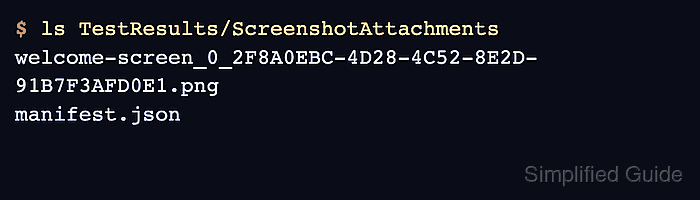
xcresulttool writes exported files plus manifest.json. The manifest maps UUID-style exported filenames back to their human-readable attachment names.
- Confirm that the exported attachments include the screenshot.
$ ls TestResults/ScreenshotAttachments
welcome-screen_0_2F8A0EBC-4D28-4C52-8E2D-91B7F3AFD0E1.png
manifest.json

Mohd Shakir Zakaria is a cloud architect with deep roots in software development and open-source advocacy. Certified in AWS, Red Hat, VMware, ITIL, and Linux, he specializes in designing and managing robust cloud and on-premises infrastructures.


