A first XCUITest should prove one visible app path from launch to an expected screen state. Starting with a small button tap and one assertion keeps the automation contract clear before the suite grows into login, deep-link, permission, or CI coverage.
XCUIAutomation drives the app through XCUIApplication and XCUIElement queries from a UI Testing Bundle target. The app code provides stable accessibility identifiers, and the test target launches the app, finds those identifiers, performs a user action, and checks the UI state that should appear afterward.
Use a deterministic screen that does not depend on production accounts, push notifications, or a remote service. That first test should pass when the app displays the expected state and fail with a message that names the missing control or screen.
Related: How to add an XCUITest UI testing target
Related: How to run XCUITest tests locally
Related: How to wait for UI elements in XCUITest
Steps to write a first XCUITest UI test:
- Choose one visible path for the first UI test.
Screen: onboarding
Action: tap Continue
Expected state: Welcome title appears
Pick a path that works from a fresh simulator install. A first test should not require a real customer account, payment state, notification delivery, or production data.
- Add accessibility identifiers to the app controls that the test will touch or assert.
- OnboardingView.swift
import SwiftUI

struct OnboardingView: View {
    @State private var showWelcome = false

    var body: some View {
        VStack {
            Button("Continue") {
                showWelcome = true
            }
            .accessibilityIdentifier("onboarding-continue")

            if showWelcome {
                Text("Welcome")
                    .accessibilityIdentifier("welcome-title")
            }
        }
    }
}
Use identifiers that describe the automation role, not the current marketing copy. The visible button title can change while onboarding-continue stays stable for tests.
- Create a new Swift file in the MyAppUITests target.
MyAppUITests/OnboardingUITests.swift
The file must belong to the UI Testing Bundle target, not the app target or a unit test target.
Related: How to add an XCUITest UI testing target - Add a focused UI test case.
- OnboardingUITests.swift
import XCTest

final class OnboardingUITests: XCTestCase {
    private var app: XCUIApplication!

    override func setUpWithError() throws {
        continueAfterFailure = false
        app = XCUIApplication()
        app.launch()
    }

    func testContinueShowsWelcomeScreen() throws {
        let continueButton = app.buttons["onboarding-continue"]
        XCTAssertTrue(
            continueButton.waitForExistence(timeout: 5),
            "Continue button did not appear"
        )

        continueButton.tap()

        let welcomeTitle = app.staticTexts["welcome-title"]
        XCTAssertTrue(
            welcomeTitle.waitForExistence(timeout: 5),
            "Welcome title did not appear after tapping Continue"
        )
        XCTAssertEqual(welcomeTitle.label, "Welcome")
    }
}
waitForExistence(timeout:) gives the app a short, explicit window to render the next state. The failure messages name the missing element so the test report points at the broken part of the path.
- Create a local directory for the result bundle.
$ mkdir -p TestResults
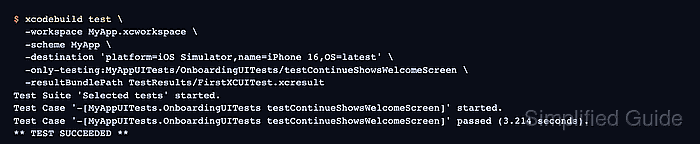
- Run only the new UI test on an iOS Simulator.
$ xcodebuild test \
  -workspace MyApp.xcworkspace \
  -scheme MyApp \
  -destination 'platform=iOS Simulator,name=iPhone 16,OS=latest' \
  -only-testing:MyAppUITests/OnboardingUITests/testContinueShowsWelcomeScreen \
  -resultBundlePath TestResults/FirstXCUITest.xcresult
Test Suite 'Selected tests' started.
Test Case '-[MyAppUITests.OnboardingUITests testContinueShowsWelcomeScreen]' started.
Test Case '-[MyAppUITests.OnboardingUITests testContinueShowsWelcomeScreen]' passed (3.214 seconds).
** TEST SUCCEEDED **
Use -project MyApp.xcodeproj instead of -workspace MyApp.xcworkspace when the app does not use a workspace. Apple documents focused test identifiers in TestTarget/TestClass/TestMethod form.
Related: How to run XCUITest tests locally - Confirm that xcodebuild wrote the result bundle.
$ ls -d TestResults/FirstXCUITest.xcresult
TestResults/FirstXCUITest.xcresult
Open the bundle with open TestResults/FirstXCUITest.xcresult when a failure needs screenshots, logs, or the selected test method report.

Mohd Shakir Zakaria is a cloud architect with deep roots in software development and open-source advocacy. Certified in AWS, Red Hat, VMware, ITIL, and Linux, he specializes in designing and managing robust cloud and on-premises infrastructures.


