Broken CSS, JavaScript, font, or image requests behind CloudFront or another CDN usually leave visitors with an incomplete page even though the main HTML still loads. The fastest recovery path is to isolate one failing asset request and confirm whether the bad response comes from the URL that WordPress generated, the origin response, or a stale object at the CDN edge.
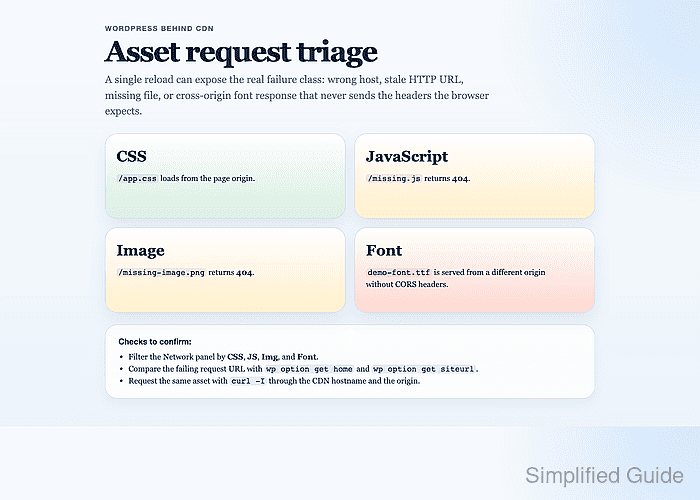
WordPress builds many asset URLs from the public site settings, any WP_HOME or WP_SITEURL constants in wp-config.php, and theme or plugin code that writes files under /wp-content/. The CDN then caches whatever the origin returned for that URL, so one asset can fail because the request points at the wrong host, the origin redirects to plain HTTP or an internal hostname, a generated file is missing, or a cross-origin asset response omits the headers that browsers require.
Keep the troubleshooting scope on one concrete asset path. Correct a broader HTTPS or reverse-proxy problem before purging CDN cache; if the origin already serves the right response, invalidate only the affected paths after the origin is fixed. Full proxy trust, URL migration, and long-term cache-busting belong in the supporting guides.
Steps to fix WordPress asset loading behind CloudFront or CDN:
- Open the broken page in a browser with developer tools available.
- Open the Network panel, enable Disable cache, reload the page, and capture one failing CSS, JS, Img, or Font request.
Record the full request URL, status, response headers, and initiator. One exact asset path is enough to tell whether the problem is a wrong URL, a stale CDN object, a missing file, or a cross-origin block.
Related: How to detect HTTP redirects in Google Chrome - Check whether wp-config.php locks the public URL or maps the forwarded HTTPS header.
$ grep -nE "WP_HOME|WP_SITEURL|HTTP_X_FORWARDED_PROTO|HTTP_CLOUDFRONT_FORWARDED_PROTO" wp-config.php
45:define( 'WP_HOME', 'https://www.example.com' );
46:define( 'WP_SITEURL', 'https://www.example.com' );
52:if ( isset( $_SERVER['HTTP_X_FORWARDED_PROTO'] ) && strpos( $_SERVER['HTTP_X_FORWARDED_PROTO'], 'https' ) !== false ) {
53:    $_SERVER['HTTPS'] = 'on';
54:}
If the constants still use the origin hostname or plain HTTP, or the forwarded-proto mapping is missing while the CDN terminates TLS, WordPress can keep generating broken asset URLs even after dashboard changes.
- Check the active WordPress URL settings.
$ wp option get home
https://www.example.com
$ wp option get siteurl
https://www.example.com
These values correspond to Site Address (URL) and WordPress Address (URL) in Settings → General. In a default install they should match the public hostname and scheme that visitors use, though siteurl can differ on subdirectory installs.
- Correct the public WordPress URL when the options still point to the origin hostname or plain HTTP.
$ wp option update home 'https://www.example.com'
Success: Updated 'home' option.
$ wp option update siteurl 'https://www.example.com'
Success: Updated 'siteurl' option.
Skip the option updates when WP_HOME or WP_SITEURL are defined in wp-config.php. In that case, update the constants instead because they override the database fields.
- Run a dry-run replacement when the failing asset request still uses an old hostname or plain HTTP inside stored content or plugin settings.
$ wp search-replace 'http://www.example.com' 'https://www.example.com' --all-tables-with-prefix --skip-columns=guid --precise --dry-run --report-changed-only
Table         Column       Replacements Type
wp_options    option_value 1            PHP
wp_posts      post_content  1            PHP
Success: 2 replacements to be made.
Use the exact stale asset hostname from the failing request when the problem is an old origin name rather than plain HTTP. The dry run keeps the database unchanged while showing whether builder data, plugin settings, generated blocks, or cached fragments are still generating the bad URL.
Related: How to update WordPress URLs from HTTP to HTTPS
Related: How to use WP-CLI safely on a production WordPress site - Apply the replacement after the dry run shows only the intended stale URLs.
$ wp search-replace 'http://www.example.com' 'https://www.example.com' --all-tables-with-prefix --skip-columns=guid --precise --report-changed-only
Table         Column       Replacements Type
wp_options    option_value 1            PHP
wp_posts      post_content  1            PHP
Success: Made 2 replacements.
Do not use raw SQL string replacement for this job. Serialized option and metadata values can break when string lengths are not recalculated.
- Flush the WordPress object cache and regenerate any plugin or builder asset bundle that writes static files under /wp-content/.
$ wp cache flush
Success: The cache was flushed.
Elementor and performance plugins are common examples, but the same pattern applies to any theme or plugin that writes generated CSS, JS, or font files under /wp-content/uploads/ or its own cache directory.
- Request the same asset path through the public CDN hostname and the origin with the public Host header.
$ curl -I https://www.example.com/wp-content/themes/example/style.css
HTTP/2 404
cache-control: max-age=86400
age: 517
x-cache: Hit from cloudfront

$ curl -I -H 'Host: www.example.com' https://origin.example.internal/wp-content/themes/example/style.css
HTTP/1.1 200 OK
content-type: text/css
cache-control: max-age=300
Compare status, Location, Age, X-Cache, and Content-Type. If the origin already returns the correct file but the CDN still serves an older 404, the fix is at the edge cache layer. If the origin redirects to an internal host or returns HTML for a stylesheet path, the origin is still wrong.
Tool: HTTP Header Checker
- Check cross-origin asset responses only when the failing request uses a different asset hostname such as cdn.example.com.
$ curl -I -H 'Origin: https://www.example.com' https://cdn.example.com/wp-content/uploads/fonts/brand.woff2
HTTP/2 200
content-type: font/woff2
access-control-allow-origin: https://www.example.com
vary: Origin
If a font or preload response comes from another hostname and the response omits Access-Control-Allow-Origin for the page origin, browsers can block it even when the file itself exists and returns 200.
Same-origin CSS and JS requests do not need a CORS fix.
- Add the missing origin-side header rule when the cross-origin check fails.
- .htaccess
<IfModule mod_headers.c>
    <FilesMatch "\.(woff2?|ttf|otf|eot|svg)$">
        Header always set Access-Control-Allow-Origin "https://www.example.com"
        Header always merge Vary "Origin"
    </FilesMatch>
</IfModule>
Use the equivalent header rule on Nginx, a load balancer, or the CDN response policy when Apache is not the origin server.
- Invalidate only the affected CDN paths after the URL, origin, or header fix is already correct.
$ aws cloudfront create-invalidation \
  --distribution-id E123EXAMPLE \
  --paths '/wp-content/themes/example/style.css' '/wp-content/uploads/elementor/css/post-123.css' '/wp-content/uploads/2026/03/logo.png'
{
    "Invalidation": {
        "Status": "InProgress"
    }
}
Quote any path that uses a wildcard such as '/wp-content/uploads/*' when calling the AWS CLI. Targeted invalidations keep the purge small, while versioned asset URLs remain the cleaner long-term pattern for frequently changed files.
- Recheck the fixed asset through the CDN and reload the page with Disable cache still enabled.
$ curl -I https://www.example.com/wp-content/themes/example/style.css
HTTP/2 200
content-type: text/css
cache-control: max-age=300
x-cache: Miss from cloudfront
Success means the request uses the public hostname and scheme, the response type matches the asset, the CDN no longer serves a stale error or redirect, and the browser console stays quiet for that asset class.

Mohd Shakir Zakaria is a cloud architect with deep roots in software development and open-source advocacy. Certified in AWS, Red Hat, VMware, ITIL, and Linux, he specializes in designing and managing robust cloud and on-premises infrastructures.


