Updating WordPress URLs from HTTP to HTTPS removes stored plain-HTTP links after the secure site is already live. It keeps browser requests, feeds, media links, profile URLs, and dashboard references pointed at the public TLS address instead of relying on redirects to cover stale database values.
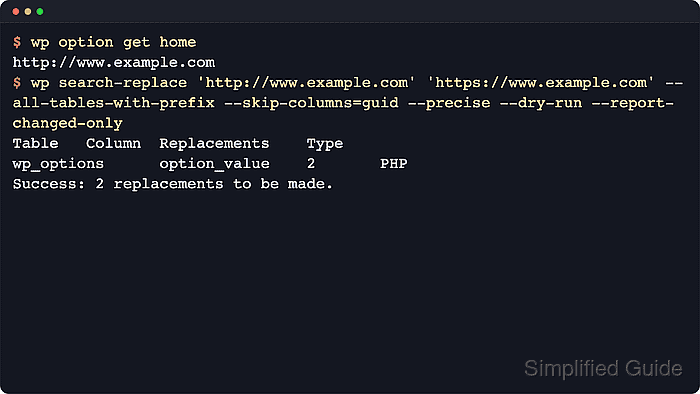
The public URL settings live in the home and siteurl options, which appear in Settings → General as Site Address (URL) and WordPress Address (URL). Older http:// references can also remain in posts, metadata, user profiles, widgets, and plugin-managed tables, so a redirect or proxy change by itself does not rewrite stored content.
Start only after the HTTPS site already works at the web-server, load-balancer, or CDN layer. WP-CLI handles serialized database values during wp search-replace, keeps the rewrite scoped to the WordPress table set, and lets the stale URL check run as a dry run before anything is written. If wp-config.php defines WP_HOME or WP_SITEURL, update those constants before the database pass because they override the stored options.
Related: How to redirect HTTP to HTTPS in WordPress
Tool: HTTP Redirect Checker
Steps to update WordPress URLs from HTTP to HTTPS:
- Change into the WordPress document root.
$ cd /var/www/example.com/public_html
Run the remaining wp commands from the directory that contains wp-config.php.
Related: How to use WP-CLI safely on a production WordPress site - Print the current home URL.
$ wp option get home
http://www.example.com
- Print the current siteurl value.
$ wp option get siteurl
http://www.example.com
On subdirectory installs, siteurl can differ from home by design.
- Create a backup directory outside the public document root.
$ mkdir -p ~/backups/wordpress
- Export a rollback database dump before changing stored URLs.
$ wp db export ~/backups/wordpress/pre-https-url-update-20260621120000.sql
Success: Exported to '/home/user/backups/wordpress/pre-https-url-update-20260621120000.sql'.
A fresh SQL dump is the fastest recovery path if the target hostname, replacement scope, or multisite target URL is wrong.
Related: How to back up a WordPress site - Check whether wp-config.php hard-codes the site URLs.
$ grep -nE "WP_HOME|WP_SITEURL" wp-config.php
No output means the database options control the active URLs.
- Replace any HTTP WP_HOME or WP_SITEURL constants with HTTPS when the previous command prints them.
define( 'WP_HOME', 'https://www.example.com' );
define( 'WP_SITEURL', 'https://www.example.com' );
These constants override the database values, so wp option update alone may not change the active URLs while they are defined. Keep the final public URL free of a trailing slash.
- Update the home option to HTTPS.
$ wp option update home 'https://www.example.com'
Success: Updated 'home' option.
- Update the siteurl option to HTTPS.
$ wp option update siteurl 'https://www.example.com'
Success: Updated 'siteurl' option.
- Dry-run the database rewrite for remaining references to the old HTTP URL.
$ wp search-replace 'http://www.example.com' 'https://www.example.com' --all-tables-with-prefix --skip-columns=guid --precise --dry-run --report-changed-only
Table       Column        Replacements Type
wp_postmeta meta_value    1            PHP
wp_posts    post_content  3            PHP
wp_usermeta meta_value    1            PHP
wp_users    user_url      1            PHP
Success: 6 replacements to be made.
--precise uses the PHP replacement path for serialized values, while --report-changed-only keeps unchanged rows out of the report. If a plugin stores URLs in a custom table that does not use the normal wp_ prefix, add that table name explicitly instead of widening the rewrite to the whole database.
- Apply the same search-replace command after the dry-run table list matches the intended scope.
$ wp search-replace 'http://www.example.com' 'https://www.example.com' --all-tables-with-prefix --skip-columns=guid --precise --report-changed-only
Table       Column        Replacements Type
wp_postmeta meta_value    1            PHP
wp_posts    post_content  3            PHP
wp_usermeta meta_value    1            PHP
wp_users    user_url      1            PHP
Success: Made 6 replacements.
Avoid raw SQL string replacement for this job. Serialized option and metadata values can break when string lengths are not recalculated. On multisite, target the correct site with --url=https://www.example.com and add --network only when the change is intentionally network-wide.
- Flush the WordPress object cache after the database rewrite.
$ wp cache flush
Success: The cache was flushed.
If a caching plugin, host page cache, CDN, or reverse proxy is in use, purge that layer from its normal control panel as well.
- Confirm no stale references remain for the old HTTP URL.
$ wp search-replace 'http://www.example.com' 'https://www.example.com' --all-tables-with-prefix --skip-columns=guid --precise --dry-run --report-changed-only
Success: 0 replacements to be made.
Repeat the check for any second old URL when siteurl and home used different values.
- Verify the active home URL now returns HTTPS.
$ wp option get home
https://www.example.com
- Verify the active siteurl value now returns HTTPS.
$ wp option get siteurl
https://www.example.com
Open the front page, a post, and wp-admin over HTTPS and check the browser console for mixed-content warnings. Remaining HTTP references usually come from plugin-specific settings, page-builder data, or hard-coded theme files.
Related: How to fix WordPress asset loading behind CloudFront or CDN

Mohd Shakir Zakaria is a cloud architect with deep roots in software development and open-source advocacy. Certified in AWS, Red Hat, VMware, ITIL, and Linux, he specializes in designing and managing robust cloud and on-premises infrastructures.


