Tomcat can report a running Java process while the expected web connector is still unavailable, bound to a different port, or serving only part of the instance. A status check should confirm the systemd unit, the listener, and an HTTP response before the host is handed back after an install, restart, deployment, or outage triage.
The examples below use the current Ubuntu and Debian package unit name, tomcat10. Other Linux packages may use tomcat, tomcat9, tomcat11, or a custom instance name, so identify the unit on the host before running status checks.
The default packaged HTTP connector is commonly port 8080, but a configured instance may listen elsewhere or sit behind Apache or Nginx on the public side. Checking localhost first proves the Tomcat instance itself, while a final request to the application or reverse-proxy URL proves the path that users or health checks actually reach.
Related: How to start and stop Tomcat with systemd
Related: How to view Tomcat logs on Linux
Related: How to change the Tomcat connector port
Steps to check Tomcat service status on Linux:
- Open a terminal on the Tomcat host with sudo privileges.
- Identify the installed Tomcat service unit.
$ systemctl list-unit-files 'tomcat*.service'
UNIT FILE        STATE   PRESET
tomcat10.service enabled enabled

1 unit files listed.
Use the unit name shown on the host. The remaining examples use tomcat10; replace it with tomcat, tomcat9, tomcat11, or the local custom unit name when needed.
- Check the runtime state of the unit.
$ systemctl is-active tomcat10
active
active means systemd sees the unit running. inactive, failed, or activating needs a full status check and logs before treating the service as ready.
- Inspect the full service status for the active process and recent startup lines.
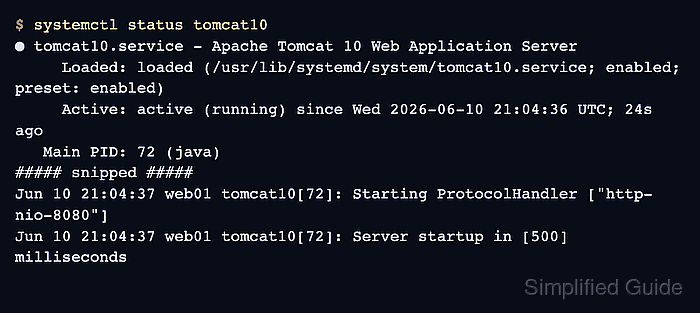
$ systemctl status tomcat10
● tomcat10.service - Apache Tomcat 10 Web Application Server
     Loaded: loaded (/usr/lib/systemd/system/tomcat10.service; enabled; preset: enabled)
     Active: active (running) since Wed 2026-06-10 21:04:36 UTC; 24s ago
   Main PID: 72 (java)
##### snipped #####
Jun 10 21:04:37 web01 tomcat10[72]: Starting ProtocolHandler ["http-nio-8080"]
Jun 10 21:04:37 web01 tomcat10[72]: Server startup in [500] milliseconds
The Active line confirms the unit state, Main PID identifies the Java process owned by the service, and the http-nio-8080 line shows Tomcat started the HTTP connector.
If the unit is failed, inspect sudo journalctl -u tomcat10 before restarting repeatedly. Related: How to troubleshoot Tomcat startup failures with systemd
- Confirm that Java is listening on the expected connector port.
$ sudo ss -ltnp 'sport = :8080'
State  Recv-Q Send-Q Local Address:Port Peer Address:Port Process
LISTEN 0      100                *:8080            *:*    users:(("java",pid=72,fd=36))
Use the connector port configured for the instance. On package-managed Ubuntu and Debian hosts, /etc/tomcat10/server.xml commonly contains the default 8080 HTTP connector.
- Request the local connector from the host.
$ curl -I -sS http://127.0.0.1:8080/
HTTP/1.1 200
Accept-Ranges: bytes
ETag: W/"1905-1781125433000"
Last-Modified: Wed, 10 Jun 2026 21:03:53 GMT
Content-Type: text/html
Content-Length: 1905
Date: Wed, 10 Jun 2026 21:05:01 GMT
A 200 response from the root context proves the packaged default web application answered. A deployed application may return another success code or use a different context path, such as /myapp/.
- Check the application-facing URL when users or health checks reach Tomcat through another host name, port, or reverse proxy.
$ curl -I -sS https://app.example.com/
HTTP/2 200
content-type: text/html
date: Wed, 10 Jun 2026 21:06:12 GMT
If localhost works but the application-facing URL fails, keep Tomcat status separate from proxy, firewall, DNS, TLS, and load-balancer checks.

Mohd Shakir Zakaria is a cloud architect with deep roots in software development and open-source advocacy. Certified in AWS, Red Hat, VMware, ITIL, and Linux, he specializes in designing and managing robust cloud and on-premises infrastructures.


