Putting Apache HTTP Server in front of Tomcat lets a Java web application answer on a normal site hostname while the Tomcat connector stays on an internal port. The public virtual host can handle TLS, logs, compression, and access policy before forwarding only the application paths that belong to Tomcat.
Apache uses mod_proxy and mod_proxy_http to pass HTTP requests to the backend connector. ProxyPass sends the matching public path to Tomcat, ProxyPassReverse rewrites backend redirect headers, and ProxyPreserveHost can pass the public Host header to the application.
Keep the public path and the Tomcat context path aligned unless the application was designed for a different external path. The examples below use the Debian and Ubuntu Apache layout with /etc/apache2, apache2ctl, and the apache2 service; on Red Hat-style systems, use the matching /etc/httpd path, apachectl command, and httpd service name.
Related: Configure Apache as a reverse proxy
Related: Test Apache configuration
Related: How to configure RemoteIpValve in Tomcat
Tool: Apache Virtual Host Generator
Steps to configure Apache as a reverse proxy for Tomcat:
- Confirm the Tomcat application answers from the Apache host.
$ curl -isS http://127.0.0.1:8080/
HTTP/1.1 200
Content-Type: text/html
Content-Length: 38

Tomcat backend reached through Apache
Run this check on the server that will run Apache. A Tomcat URL that works from a workstation can still be blocked from the reverse proxy host by a listener, firewall, or bind-address setting.
- Enable the Apache proxy modules.
$ sudo a2enmod proxy proxy_http
Enabling module proxy.
Considering dependency proxy for proxy_http:
Module proxy already enabled
Enabling module proxy_http.
To activate the new configuration, you need to run:
  service apache2 restart
proxy and proxy_http perform the HTTP backend handoff from Apache to Tomcat.
- Create a virtual host file for the public Tomcat hostname.
$ sudoedit /etc/apache2/sites-available/app.conf
Use a short file name tied to the public application name so later operators can identify the proxy vhost from /etc/apache2/sites-available without opening every file.
- Add the Apache-to-Tomcat proxy mapping.
<VirtualHost *:80>
    ServerName app.example.net

    ProxyRequests Off
    ProxyPreserveHost On

    ProxyPass        "/" "http://127.0.0.1:8080/"
    ProxyPassReverse "/" "http://127.0.0.1:8080/"

    ErrorLog ${APACHE_LOG_DIR}/app.error.log
    CustomLog ${APACHE_LOG_DIR}/app.access.log combined
</VirtualHost>
Keep the same trailing slash style on both sides of each mapping. For a context path such as /inventory/, use that path on both the public and backend side instead of hiding a different Tomcat context behind Apache.
Do not turn ProxyRequests on for this reverse proxy. Forward proxy mode can let clients use the server to reach arbitrary external sites.
- Set Tomcat connector proxy attributes in /etc/tomcat10/server.xml when the application builds absolute redirects from servlet request data.
<Connector
    port="8080"
    protocol="HTTP/1.1"
    connectionTimeout="20000"
    proxyName="app.example.net"
    proxyPort="80"
    scheme="http" />
For an HTTPS public virtual host, use proxyPort="443", scheme="https", and secure="true". For multiple public hostnames or client-IP-sensitive controls, configure a trusted forwarded-header path instead. Related: How to configure RemoteIpValve in Tomcat
- Enable the Tomcat proxy site.
$ sudo a2ensite app.conf
Enabling site app.
To activate the new configuration, you need to run:
  service apache2 reload
Disable 000-default.conf if it would otherwise answer unmatched requests on the same listener.
- Test the Apache configuration syntax.
$ sudo apache2ctl -t
Syntax OK
If AH00558 appears before Syntax OK on a fresh host, Apache is warning about a missing global ServerName. Fix that warning separately, but Syntax OK means this vhost file parsed successfully.
Related: How to test Apache configuration
- Restart Tomcat if /etc/tomcat10/server.xml changed.
$ sudo systemctl restart tomcat10
Skip this restart when the Apache vhost was the only file changed.
- Reload Apache to apply the enabled proxy virtual host.
$ sudo systemctl reload apache2
Use sudo systemctl reload httpd on Red Hat-style systems when Apache runs under the httpd unit.
- Request the public Apache URL and confirm the response comes through the proxy.
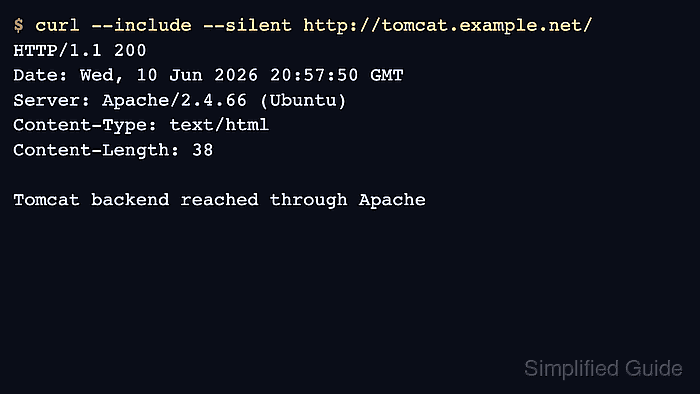
$ curl -isS http://app.example.net/
HTTP/1.1 200
Date: Wed, 10 Jun 2026 20:57:50 GMT
Server: Apache/2.4.66 (Ubuntu)
Content-Type: text/html
Content-Length: 38

Tomcat backend reached through Apache
The Server header shows Apache answered the client-facing request, while the body should match the Tomcat application endpoint.
- Check the Apache virtual host access log for the proxied request.
$ sudo cat /var/log/apache2/app.access.log
203.0.113.25 - - [10/Jun/2026:20:57:50 +0000] "GET / HTTP/1.1" 200 265 "-" "curl/8.18.0"
If you also need Tomcat-side request rows for backend timing or client-IP verification, enable and review a Tomcat AccessLogValve for the application host. Related: How to enable Tomcat access logs

Mohd Shakir Zakaria is a cloud architect with deep roots in software development and open-source advocacy. Certified in AWS, Red Hat, VMware, ITIL, and Linux, he specializes in designing and managing robust cloud and on-premises infrastructures.


