Installing Apache Tomcat from SUSE-family packages gives an openSUSE or SLES host a servlet container managed by zypper, RPM, and systemd. The package-managed install keeps Java dependencies, service files, configuration paths, and security updates aligned with the distribution.
On current openSUSE Leap and supported SLES 15 service packs, the package name is tomcat10 while the default systemd unit is tomcat.service. The package installs editable configuration under /etc/tomcat, starts from /usr/lib/tomcat/server, uses CATALINA_HOME=/usr/share/tomcat, and writes logs under /var/log/tomcat.
A completed install should show tomcat10 in RPM, report active for tomcat.service, and return an HTTP response from http://127.0.0.1:8080/. A bare core install can return 404 at the root path because no ROOT web application is deployed; install the optional webapps package or deploy an application when a landing page is required.
Related: How to install Tomcat on Ubuntu
Related: How to check Tomcat service status on Linux
Related: How to start and stop Tomcat with systemd
Steps to install Tomcat on openSUSE or SLES:
- Open a terminal with sudo privileges.
- Refresh zypper repository metadata.
$ sudo zypper refresh
- Confirm the Tomcat package is visible in the enabled repositories.
$ zypper search --details --match-exact tomcat10
Loading repository data...
Reading installed packages...

S | Name     | Type    | Version               | Arch   | Repository
--+----------+---------+-----------------------+--------+-------------------------------------------------------------
  | tomcat10 | package | 10.1.52-150200.5.61.1 | noarch | Update repository with updates from SUSE Linux Enterprise 15
On SLES, enable the SUSE module or repository that provides web and scripting packages if this search does not return tomcat10.
- Install the Tomcat package.
$ sudo zypper install tomcat10
Loading repository data...
Reading installed packages...
Resolving package dependencies...

The following 55 NEW packages are going to be installed:
  apache-commons-collections apache-commons-daemon java-11-openjdk tomcat10
##### snipped #####
(55/55) Installing: tomcat10-10.1.52-150200.5.61.1.noarch [..done]
The package pulls in the Java runtime and Tomcat API libraries needed by the service. Optional packages such as tomcat10-webapps and tomcat10-admin-webapps are separate from the core service install.
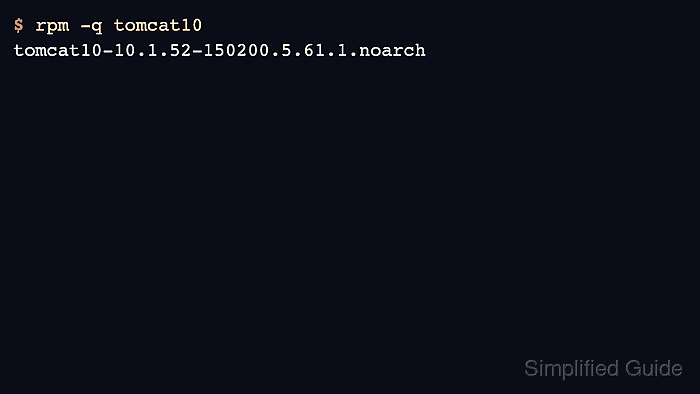
- Confirm the installed package with RPM.
$ rpm -q tomcat10
tomcat10-10.1.52-150200.5.61.1.noarch
- Enable the SUSE Tomcat service at boot and start it now.
$ sudo systemctl enable --now tomcat
The package installs tomcat.service for the default instance and tomcat@.service for named instances. Use tomcat for the default service even though the package is named tomcat10.
- Confirm the service is active.
$ sudo systemctl is-active tomcat
active
- Check that Tomcat is listening on the default connector port.
$ sudo ss -ltnp 'sport = :8080'
State  Recv-Q Send-Q Local Address:Port Peer Address:Port Process
LISTEN 0      100                *:8080            *:*     users:(("java",pid=4312,fd=38))
The default HTTP connector is defined in /etc/tomcat/server.xml. If this listener is missing, inspect sudo systemctl status tomcat and /var/log/tomcat before changing the connector.
- Request the local connector.
$ curl -I -sS http://127.0.0.1:8080/
HTTP/1.1 404
Content-Type: text/html;charset=utf-8
Content-Language: en
Content-Length: 683
Date: Wed, 10 Jun 2026 20:37:10 GMT
A 404 from Tomcat still proves the connector accepted the request when no ROOT application is deployed. Install tomcat10-webapps or deploy your application when you need a default page.
- If remote clients should reach Tomcat directly and firewalld protects the host, allow TCP port 8080.
$ sudo firewall-cmd --add-port=8080/tcp --permanent
success
Skip this step when Tomcat should only listen behind a reverse proxy, load balancer, or local service. Opening 8080 exposes the servlet container directly to the network.
- Reload firewalld after adding the permanent rule.
$ sudo firewall-cmd --reload
success

Mohd Shakir Zakaria is a cloud architect with deep roots in software development and open-source advocacy. Certified in AWS, Red Hat, VMware, ITIL, and Linux, he specializes in designing and managing robust cloud and on-premises infrastructures.


