Creating a tmux session gives you a persistent workspace that can keep shells, editors, and long-running commands alive even after you leave the terminal. It is the usual starting point when you want one named place to hold related tmux windows and panes.
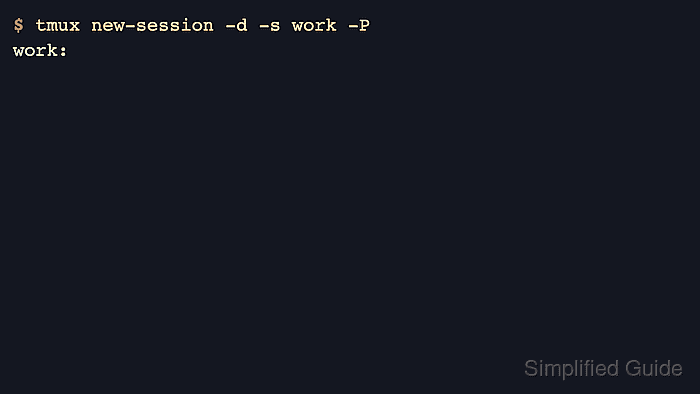
The new-session command attaches to the new session by default, but -d creates it in the background so the current shell stays where it is. Giving the session a name with -s makes later attach, list, rename, and cleanup commands target the intended workspace instead of whichever session tmux would choose automatically.
Printing the new session with -P returns the created target name, and list-sessions confirms the same session with its window count and creation time. If the chosen name is already in use, tmux rejects the request so a second create command does not replace or disturb another running session.
Related: How to attach to a tmux session
Related: How to list tmux sessions
Steps to create a tmux session:
- Create the session with a descriptive name and print the created session identifier.
$ tmux new-session -d -s work -P
work:
The -d flag keeps the current shell in place instead of attaching immediately, and omitting -d opens the new session in the current terminal. Add -c with a project directory when the first window should start somewhere other than the current directory.
- List the available sessions to confirm that the new session now exists on the tmux server.
$ tmux list-sessions
work: 1 windows (created Fri Jun  5 07:50:35 2026)
Tmux shows the session name, window count, and creation time for each session it knows about.
- Choose a different name when tmux reports that the session already exists.
$ tmux new-session -d -s work
duplicate session: work
Session names must be unique on the same tmux server, so reuse a different name or attach to the existing session instead of trying to create it again.
Related: How to rename a tmux session
Related: How to kill a tmux session

Mohd Shakir Zakaria is a cloud architect with deep roots in software development and open-source advocacy. Certified in AWS, Red Hat, VMware, ITIL, and Linux, he specializes in designing and managing robust cloud and on-premises infrastructures.


