Attaching to an existing tmux session brings a saved shell workspace back onto the current terminal without restarting the commands already running inside it. That makes it the normal way to resume editors, logs, or long-running jobs after reconnecting to a server or opening a new terminal.
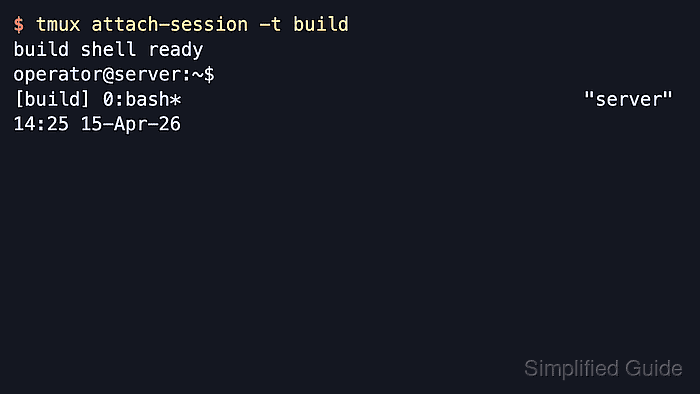
The attach-session command connects a client terminal to a session that already exists in the tmux server. From an outside shell it takes over the current terminal and draws the target session. From the tmux command prompt, it switches the current client to that session without starting a nested tmux instance.
If no target is given, tmux prefers the most recently used session that is not already attached to another client. Tmux does not create missing sessions during attach, and using -d detaches any other attached clients first, so the safest flow is to identify the right session name before taking it over.
Related: How to list tmux sessions
Related: How to create a tmux session
Steps to attach to a tmux session:
- List the available tmux sessions so the exact target name and current state are visible.
$ tmux list-sessions
build: 1 windows (created Wed Apr 15 14:25:46 2026)
ops: 2 windows (created Wed Apr 15 14:24:03 2026)
Use the session name at the start of each line as the -t target for the next command.
Related: How to list tmux sessions
- Attach to the most recently used unattached session when only one idle workspace needs to be resumed.
$ tmux attach-session
If no -t target is given, tmux prefers the most recently used session that is not already attached to another client.
- Attach to a specific named session when several sessions exist or the target is already known.
$ tmux attach-session -t build
build shell ready
operator@server:~$
[build] 0:bash*                                    "server" 14:25 15-Apr-26
From an outside shell this takes over the current terminal. If a tmux client is already attached, open the command prompt and run attach-session -t build there instead of typing an external tmux attach-session command inside a pane.
Related: How to use the tmux command prompt
- Detach any other attached clients first when the session must move to the current terminal.
$ tmux attach-session -d -t build
Every other client attached to build is disconnected immediately, so use -d only when taking over the session intentionally.
- Create the session or correct the target name before retrying when tmux reports that the session does not exist.
$ tmux attach-session -t build
can't find session: build
Attach-session does not create sessions, so use How to create a tmux session when the target is missing and run How to list tmux sessions if the remembered name may be wrong.
- Confirm the attach landed on the intended workspace by checking the session name at the left side of the tmux status line.
[build] 0:bash*
The bracketed session name in the default status line is the quickest visual confirmation that the client is attached to build rather than a different session.

Mohd Shakir Zakaria is a cloud architect with deep roots in software development and open-source advocacy. Certified in AWS, Red Hat, VMware, ITIL, and Linux, he specializes in designing and managing robust cloud and on-premises infrastructures.


