Long output in a tmux pane can move out of view before a build, log stream, or test run finishes. Increasing the pane history limit gives copy mode and capture-pane more retained lines to inspect after the command has already scrolled past the visible terminal.
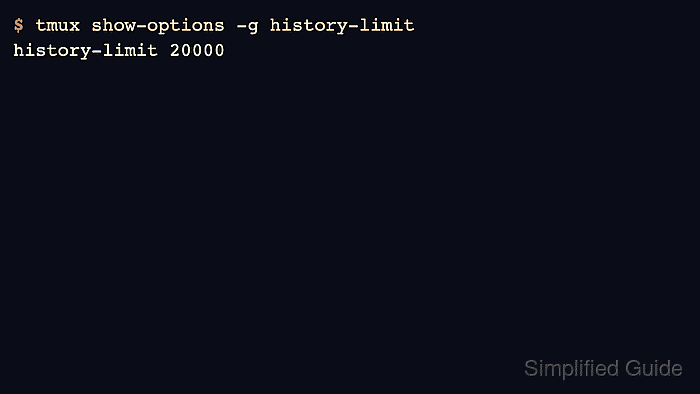
Tmux controls retained pane history with the history-limit option. The setting is commonly placed in ~/.tmux.conf with set -g so new windows inherit the larger limit, then loaded into the running server with source-file.
Raise the limit before starting output-heavy work. Increasing history-limit changes how much history tmux keeps from that point onward, but it cannot restore lines that were already discarded from a busy pane. For output that must be archived while it is produced, use a live pane log instead of relying only on retained history.
Related: How to use copy mode in tmux
Related: How to save tmux scrollback to a file
Related: How to enable output logging in tmux
Related: How to reload the tmux config
Steps to configure tmux scrollback:
- Check the current global history limit.
$ tmux show-options -g history-limit
history-limit 2000
The value is the maximum number of lines tmux keeps in each pane history buffer before older lines are discarded.
- Open the tmux configuration file used by the running server.
$ vi ~/.tmux.conf
Most setups use ~/.tmux.conf. If the server was started from $XDG_CONFIG_HOME/tmux/tmux.conf or ~/.config/tmux/tmux.conf, edit that file and source the same path later.
- Add a larger history-limit value.
set -g history-limit 20000
set -g writes the global value tmux uses for windows that do not have their own local override.
Pick a number that matches the output you need to review. Very large limits consume more memory in sessions with many busy panes.
- Source the configuration file into the running tmux server.
$ tmux source-file ~/.tmux.conf
No output means tmux accepted the file and applied the setting to the running server.
Related: How to reload the tmux config
- Confirm tmux reports the configured value.
$ tmux show-options -g history-limit
history-limit 20000
- Use the direct command instead of the file edit when the larger scrollback should affect only the current running server.
$ tmux set-option -g history-limit 20000
This command is useful for a temporary adjustment or for testing the value before keeping it in ~/.tmux.conf. Save the line in the config file when the larger scrollback should survive a server restart.
- Verify retained output with capture-pane after generating or observing enough pane output.
$ tmux capture-pane -p -S - -t work:0.0
history-line-001
history-line-002
##### snipped
history-line-069
history-line-070
Replace work:0.0 with the session, window, and pane you want to inspect. The -S - argument starts capture at the oldest retained history line, so missing early lines usually mean the pane produced more output than the configured limit could keep.
- Enter copy mode and scroll back through the same pane when interactive review is needed.
Ctrl-b [
Use PageUp, PageDown, search, or the configured copy-mode key table to review the retained history.
Related: How to use copy mode in tmux

Mohd Shakir Zakaria is a cloud architect with deep roots in software development and open-source advocacy. Certified in AWS, Red Hat, VMware, ITIL, and Linux, he specializes in designing and managing robust cloud and on-premises infrastructures.


