Copy mode lets tmux freeze the current pane view, move through pane history, and copy text into tmux's own paste buffer without leaving the session. It is the built-in way to review long command output, logs, or scrollback when the pane is still busy.
A new tmux server normally uses the emacs-style copy mode key table, so the standard flow is Ctrl-b then [ to enter copy mode, the cursor and search keys to move, Ctrl-Space to start the selection, and Alt-w or Ctrl-w to copy and exit. If the window option mode-keys is set to vi, or the server started with a VISUAL or EDITOR value that contains vi, tmux switches to the copy-mode-vi key table instead.
The common failure case is using the wrong key table for the current window. If Ctrl-Space, Alt-w, or Ctrl-w does nothing, check whether the window is using vi bindings before assuming copy mode is broken. The copy keys still fill tmux's paste buffer; they only send the same text to the system clipboard when clipboard integration or the copy-command option has been configured separately.
Related: How to reload the tmux config
Related: How to enable mouse support in tmux
Related: How to save tmux scrollback to a file
Steps to use copy mode in tmux:
- Press your tmux prefix key and then press [ to enter copy mode in the active pane.
Ctrl-b [
With the default configuration the prefix key is Ctrl-b. Press q to leave copy mode without copying anything.
- Move to the start of the text you want to copy with the default emacs-style movement keys.
Up Down PageUp PageDown Ctrl-r Ctrl-s
Ctrl-r searches upward, Ctrl-s searches downward, Left and Right move by character, Ctrl-a and Ctrl-e jump to the start or end of the line, and Alt-b and Alt-f move by word.
- Start the selection at the current cursor position.
Ctrl-Space
- Move to the end of the text you want to copy while the selection stays active.
- Copy the selection into tmux and leave copy mode with the emacs copy key.
Alt-w
Ctrl-w is bound to the same copy action in the emacs copy-mode table. The copied text is stored in tmux's paste buffer, so it can be pasted into another tmux pane even if your terminal emulator clipboard is separate.
- Confirm the copied text is in tmux's paste buffer before pasting it into a live shell.
$ tmux show-buffer
expr 6 + 7
The verified check copied expr 6 + 7 from pane history and read it back from tmux's most recent paste buffer.
- Paste the most recent tmux buffer into a safe prompt or editor if you want to use the copied text immediately.
Ctrl-b ]
Paste into a safe location first. If the copied text contains shell syntax or a trailing newline, pressing Enter afterwards can run it.
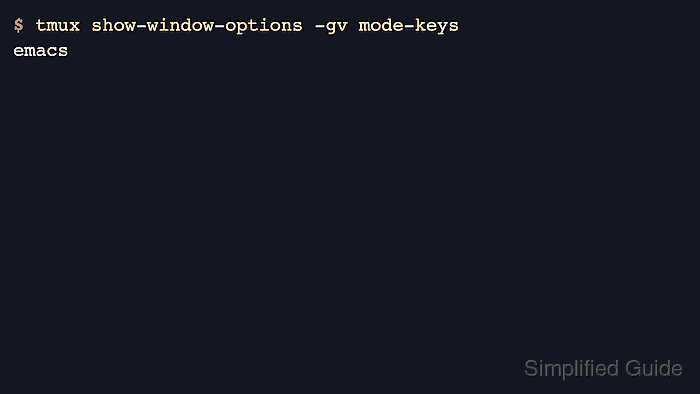
- Check which key table the current window is using if the default selection keys do not match what you see.
$ tmux show-window-options -gv mode-keys
emacs
If this returns vi, use Space to begin a selection, Enter to copy and exit, Escape to clear a selection, and h j k l / ? n N g G b w 0 $ to move around the history.

Mohd Shakir Zakaria is a cloud architect with deep roots in software development and open-source advocacy. Certified in AWS, Red Hat, VMware, ITIL, and Linux, he specializes in designing and managing robust cloud and on-premises infrastructures.


