Reloading the tmux config applies new key bindings, status-bar settings, mouse behavior, and other preferences without forcing active shells to restart. That makes it the quickest way to test a configuration change while keeping the current tmux server and its running panes alive.
Tmux reads its configuration when the server starts, usually from ~/.tmux.conf, $XDG_CONFIG_HOME/tmux/tmux.conf, or ~/.config/tmux/tmux.conf. Editing the file alone does not change a live tmux environment because the running server keeps its current settings until the file is loaded again with source-file.
The reload command talks to an existing tmux server instead of starting one for you. Most option and key-binding changes take effect immediately after a successful reload, but settings such as default-shell and default-command are only used when tmux creates a new window or pane later.
Related: How to change tmux prefix key to Ctrl-a
Related: How to customize the tmux status bar
Steps to reload the tmux config:
- Open the tmux configuration file that should be reloaded by the running server.
$ vi ~/.tmux.conf
Most setups use ~/.tmux.conf. If the server was started from an XDG config path, edit $XDG_CONFIG_HOME/tmux/tmux.conf or ~/.config/tmux/tmux.conf and reload that same file.
- Save the setting or key binding change.
set-option -g prefix C-a
The example changes the global prefix so the verification step has a visible result. Use the line you actually changed when reloading status-bar, mouse, pane, or binding settings.
- Reload the saved file into the running tmux server.
$ tmux source-file ~/.tmux.conf
No output means the file was accepted and its commands were applied to the running server. From the tmux command prompt, run source-file ~/.tmux.conf without the leading tmux shell command.
If the command returns error connecting to /tmp/tmux-UID/default (No such file or directory), start or attach to a tmux session before reloading.
Related: How to create a tmux session
Related: How to attach to a tmux session - Query the changed setting to confirm the reload applied it.
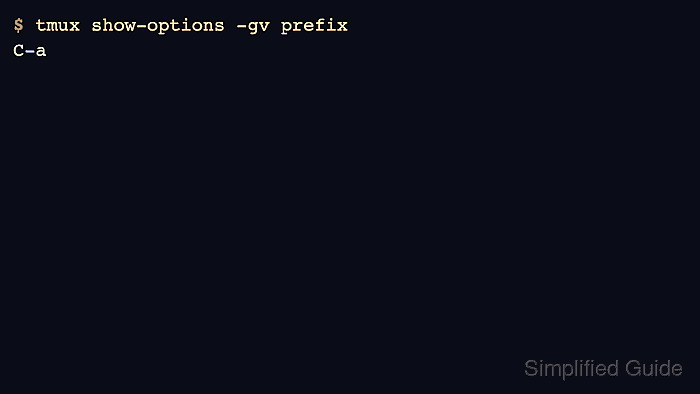
$ tmux show-options -gv prefix
C-a
Replace prefix with the option that changed. For example, use status after changing the status bar or mouse after toggling mouse support. Settings such as default-shell and default-command are only used when tmux creates a new window or pane, so open a new pane or window before judging those changes.
- Correct the reported line and reload again when tmux returns an error.
$ tmux source-file ~/.tmux.conf
/home/admin/.tmux.conf:1: unknown command: not-a-real-option
A failed reload can leave the running server on its previous settings. Correct the reported line, rerun source-file, then query the changed option again.

Mohd Shakir Zakaria is a cloud architect with deep roots in software development and open-source advocacy. Certified in AWS, Red Hat, VMware, ITIL, and Linux, he specializes in designing and managing robust cloud and on-premises infrastructures.


