Long-running commands inside tmux can keep producing output after the visible terminal has moved on, especially during builds, deploys, monitoring, or remote maintenance. Live pane logging writes new output to a file while the command keeps running, so the handoff does not depend on terminal scrollback or someone copying text at the right moment.
tmux enables live pane logging with the pipe-pane command. The command connects the selected pane's output stream to a shell command such as cat >> /tmp/tmux-output.log, and running pipe-pane again with no shell command closes the active pipe.
Logging starts with output written after the pipe is opened. Existing history in the pane is not copied into the file, and each pane can have only one active pipe command at a time, so choose the pane and log path before enabling the capture. Full-screen programs and colored terminal output can add control sequences to the log, while line-oriented commands leave files that can be read without stripping escape characters.
Related: How to save tmux scrollback to a file
Related: How to use copy mode in tmux
Steps to enable output logging in tmux:
- Attach to the tmux session that contains the pane to log.
$ tmux attach -t work
Replace work with the session name shown by tmux list-sessions.
Related: How to attach to a tmux session
- Select the pane whose new output should be written to the log file.
Ctrl-b q 0
Ctrl-b is the default tmux prefix. Replace 0 with the pane number shown by the pane indicators.
Related: How to select a pane in tmux
- Open the tmux command prompt from inside the selected pane.
Ctrl-b :
Use the configured prefix if the session changed it from Ctrl-b.
Related: How to use the tmux command prompt
- Start piping new output from the selected pane into an explicit log file.
pipe-pane -o 'cat >> /tmp/tmux-output.log'
The -o flag opens the pipe only when the pane is not already piped, which avoids replacing an active log target by mistake.
Use an absolute path or a path whose working directory is clear to the tmux server. cat >> appends to the file; use cat > only when replacing the file is intentional.
- Produce or wait for the output that must be captured in that same pane.
$ echo tmux log enabled
tmux log enabled
Only output produced after pipe-pane starts appears in the log file.
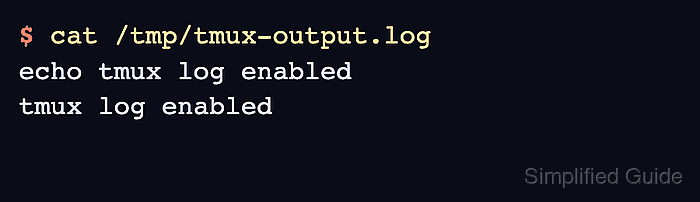
- Verify from another terminal that the log file contains the new pane output.
$ cat /tmp/tmux-output.log
echo tmux log enabled
tmux log enabled
Seeing both the typed command and its output confirms that tmux is piping the selected pane to the log file.
- Stop logging when the capture is complete.
pipe-pane
Open the tmux command prompt again with Ctrl-b : before entering the command. Running pipe-pane without a shell command closes the active pipe for the selected pane.

Mohd Shakir Zakaria is a cloud architect with deep roots in software development and open-source advocacy. Certified in AWS, Red Hat, VMware, ITIL, and Linux, he specializes in designing and managing robust cloud and on-premises infrastructures.


