A tmux pane can fill with build logs, test output, or remote maintenance text before the output needs to be attached to a ticket, audit note, or handoff. Saving pane scrollback from the tmux server captures the retained history directly, instead of depending on terminal emulator scrollback or a manual text selection.
The capture-pane command reads a target pane and, with the -p flag, prints the captured text to standard output so the shell can redirect it into a file. The -S - and -E - range selects everything tmux still has for that pane, from the start of pane history through the end of the visible screen.
Only retained tmux history can be saved. If older lines have already rolled out of the pane's history-limit, save the current file as evidence and increase scrollback depth or enable live output logging before repeating the long-running command.
Related: How to enable output logging in tmux
Related: How to use copy mode in tmux
Related: How to configure tmux scrollback
Steps to save tmux scrollback to a file:
- List panes when the capture will be run from a separate shell or when the target pane is not obvious.
$ tmux list-panes -a -F '#{session_name}:#{window_index}.#{pane_index} #{pane_id} #{pane_current_command}'
work:0.0 %0 bash
The work:0.0 target names the session, window, and pane index. The pane ID is the value after the target, such as %0; replace it with the pane ID from your own output.
Related: How to select a pane in tmux
- Save all retained history plus the visible pane to an explicit file.
$ tmux capture-pane -t %0 -p -S - -E - > /tmp/tmux-scrollback.txt
The -t option selects the pane, -p prints the capture to standard output, -S - starts at the oldest retained history line, and -E - ends at the bottom of the visible pane.
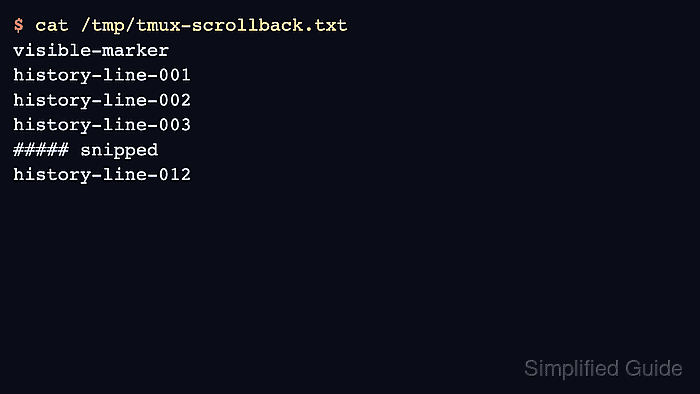
- Read the saved file before closing the session or changing the pane.
$ cat /tmp/tmux-scrollback.txt
visible-marker
history-line-001
history-line-002
history-line-003
##### snipped
history-line-012
The file should contain the older lines you expected from pane history. If the file starts too late, the missing lines are no longer retained by tmux and the pane needs a larger history-limit for future runs.
Related: How to configure tmux scrollback
- Recreate the file with joined wrapped lines when long output was split only because the pane was narrow.
$ tmux capture-pane -t %0 -p -J -S - -E - > /tmp/tmux-scrollback.txt
The -J flag joins wrapped lines and is useful for long log records, commands, or URLs that should remain one logical line in the saved file.
- Preserve terminal colors and text attributes only when they are needed for the evidence.
$ tmux capture-pane -t %0 -p -e -S - -E - > /tmp/tmux-scrollback.ansi
The -e flag keeps escape sequences for color and attributes. Use the plain text file for ordinary review because it is easier to read, search, and attach.
- Copy the verified file to the handoff location after confirming its contents.
$ cp /tmp/tmux-scrollback.txt ./tmux-scrollback.txt
Keep the original file until the copied file has been attached, archived, or reviewed.

Mohd Shakir Zakaria is a cloud architect with deep roots in software development and open-source advocacy. Certified in AWS, Red Hat, VMware, ITIL, and Linux, he specializes in designing and managing robust cloud and on-premises infrastructures.


