Listing systemd timers shows which scheduled jobs the service manager is waiting to trigger next. That quick inventory is useful when checking whether recurring maintenance, package refreshes, backups, or custom automation are actually queued to run on the host.
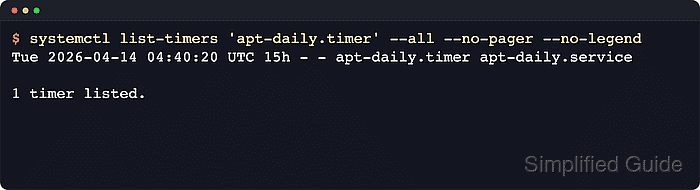
The systemctl list-timers view asks the running systemd manager for timer units currently loaded in memory and prints them in next-elapse order. The columns show the next scheduled run, how long remains until that run, when the timer last ran, how long ago that happened, the timer unit name, and the service unit it activates.
The default view does not equal every timer unit file installed on disk. Adding --all includes loaded timers that are not currently waiting for a future elapse, while systemctl list-unit-files –type=timer shows the broader installed inventory. Per-user timers belong to the separate systemctl --user manager and only appear when that user manager is running, and some timer properties remain empty when a timer has not fired yet in the current manager instance.
Steps to list systemd timers using systemctl:
- Open a terminal session on the Linux host that runs systemd.
Add sudo only when the host restricts timer or journal details; the listing commands themselves are read-only.
- List the timer units that the running manager currently has in memory.
$ systemctl list-timers --no-pager
NEXT                            LEFT LAST PASSED UNIT                         ACTIVATES
Wed 2026-04-22 03:21:23 UTC    13min -         - systemd-tmpfiles-clean.timer systemd-tmpfiles-clean.service
Wed 2026-04-22 06:50:38 UTC 3h 42min -         - apt-daily-upgrade.timer      apt-daily-upgrade.service
Wed 2026-04-22 07:10:49 UTC  4h 2min -         - apt-daily.timer              apt-daily.service
Wed 2026-04-22 09:15:31 UTC       6h -         - motd-news.timer              motd-news.service
Thu 2026-04-23 00:00:00 UTC      20h -         - dpkg-db-backup.timer         dpkg-db-backup.service
Sun 2026-04-26 03:10:29 UTC   4 days -         - e2scrub_all.timer            e2scrub_all.service

6 timers listed.
Pass --all to see loaded but inactive timers, too.
The default view is already ordered by the next elapse time, so the timers closest to firing appear first.
- Add --all when the inventory must include timers that are loaded but not currently waiting for the next run.
$ systemctl list-timers --all --no-pager
NEXT                            LEFT LAST PASSED UNIT                         ACTIVATES
Wed 2026-04-22 03:21:23 UTC    13min -         - systemd-tmpfiles-clean.timer systemd-tmpfiles-clean.service
Wed 2026-04-22 06:50:38 UTC 3h 42min -         - apt-daily-upgrade.timer      apt-daily-upgrade.service
Wed 2026-04-22 07:10:49 UTC  4h 2min -         - apt-daily.timer              apt-daily.service
Wed 2026-04-22 09:15:31 UTC       6h -         - motd-news.timer              motd-news.service
Thu 2026-04-23 00:00:00 UTC      20h -         - dpkg-db-backup.timer         dpkg-db-backup.service
Sun 2026-04-26 03:10:29 UTC   4 days -         - e2scrub_all.timer            e2scrub_all.service
-                                  - -         - fstrim.timer                 fstrim.service

7 timers listed.
A row with - in NEXT and LEFT is loaded but does not currently have a future elapse scheduled in this manager instance.
- Filter the timer list by exact unit name or glob pattern when the host has too many scheduled jobs to scan manually.
$ systemctl list-timers 'apt-daily.timer' --all --no-pager --no-legend
Wed 2026-04-22 07:10:49 UTC 4h 2min - - apt-daily.timer apt-daily.service

1 timer listed.
Quote glob patterns such as 'apt-*' so the shell passes them to systemctl unchanged.
- Show only timers that are currently waiting for their next run when the full list is too broad.
$ systemctl list-timers --all --state=active --no-pager --no-legend
Wed 2026-04-22 03:21:23 UTC    13min - - systemd-tmpfiles-clean.timer systemd-tmpfiles-clean.service
Wed 2026-04-22 06:50:38 UTC 3h 42min - - apt-daily-upgrade.timer      apt-daily-upgrade.service
Wed 2026-04-22 07:10:49 UTC  4h 2min - - apt-daily.timer              apt-daily.service
Wed 2026-04-22 09:15:31 UTC       6h - - motd-news.timer              motd-news.service
Thu 2026-04-23 00:00:00 UTC      20h - - dpkg-db-backup.timer         dpkg-db-backup.service
Sun 2026-04-26 03:10:29 UTC   4 days - - e2scrub_all.timer            e2scrub_all.service
Swap active for inactive to show loaded timers that are not currently scheduled to elapse and therefore usually display - under NEXT and LEFT.
- Inspect an individual timer when the list needs follow-up details such as the trigger unit or the next scheduled run.
$ systemctl status --no-pager --full apt-daily.timer
● apt-daily.timer - Daily apt download activities
     Loaded: loaded (/usr/lib/systemd/system/apt-daily.timer; enabled; preset: enabled)
     Active: active (waiting) since Wed 2026-04-22 03:06:23 UTC; 1min 42s ago
    Trigger: Wed 2026-04-22 07:10:49 UTC; 4h 2min left
   Triggers: ● apt-daily.service

Apr 22 03:06:23 server systemd[1]: Started apt-daily.timer - Daily apt download activities.
The Trigger: line is the single-timer equivalent of the NEXT and LEFT columns from list-timers.
- Show a timer's normalized properties when the result needs to be parsed in a shell script or monitoring check.
$ systemctl show -p NextElapseUSecRealtime -p LastTriggerUSec -p UnitFileState apt-daily.timer
NextElapseUSecRealtime=Wed 2026-04-22 07:10:49 UTC
LastTriggerUSec=
UnitFileState=enabled
An empty LastTriggerUSec= value means the timer has not fired yet in the current manager instance.
- List installed timer unit files when the broader on-disk inventory matters more than the currently loaded timer set.
$ systemctl list-unit-files --type=timer --no-pager
UNIT FILE                      STATE    PRESET
apt-daily-upgrade.timer        enabled  enabled
apt-daily.timer                enabled  enabled
dpkg-db-backup.timer           enabled  enabled
e2scrub_all.timer              enabled  enabled
fstrim.timer                   enabled  enabled
motd-news.timer                enabled  enabled
systemd-sysupdate-reboot.timer disabled enabled
systemd-sysupdate.timer        disabled enabled
systemd-tmpfiles-clean.timer   static   -

9 unit files listed.
Use list-unit-files when a timer is installed but missing from list-timers, because only loaded timers appear in the runtime list.

Mohd Shakir Zakaria is a cloud architect with deep roots in software development and open-source advocacy. Certified in AWS, Red Hat, VMware, ITIL, and Linux, he specializes in designing and managing robust cloud and on-premises infrastructures.


