A printer that works on a Linux server is not automatically discoverable through SMB clients. A Samba printer share advertises an existing local print queue as a printable service, so Windows and other SMB clients can find office-printer beside normal file shares on the same server.
Samba sends jobs from a printable share to the server's local print backend. On Ubuntu and other CUPS-based systems, the printer name value in /etc/samba/smb.conf must match the CUPS queue name, while the SMB share name can stay shorter or friendlier for clients.
The explicit-share model exposes one selected queue instead of publishing every backend printer. Keep load printers = no when only selected queues should be exposed, restrict access with a Samba user or group, and verify both the parsed share and the advertised SMB service before submitting a test page.
Related: How to install Samba on Ubuntu
Related: How to allow Samba through a firewall
Related: How to browse SMB shares with smbclient
Steps to create a Samba printer share:
- Confirm the local CUPS queue name on the Samba server.
$ lpstat -p Office_Printer
printer Office_Printer is idle. enabled since Tue Jun 16 09:00:00 2026
Replace Office_Printer with the local print queue name that already works from the server. Samba sends jobs to this backend queue through the printer name setting.
- Back up the Samba configuration file.
$ sudo cp --archive /etc/samba/smb.conf /etc/samba/smb.conf.before-printer-share
A broken /etc/samba/smb.conf can block new SMB sessions after reload. Keep the backup until the printer share lists and accepts a test job.
- Open the Samba configuration file.
$ sudoedit /etc/samba/smb.conf
- Add or update the print backend settings in the [global] section.
[global]
    printing = CUPS
    printcap name = cups
    load printers = no
load printers = no prevents Samba from automatically sharing every printer known to the backend. Omit or change it only when every local queue should be visible to SMB clients.
- Add the explicit printer share section.
[office-printer]
    comment = Office printer
    path = /var/tmp
    printable = yes
    read only = yes
    printer name = Office_Printer
    valid users = sguser
Use a short share name for clients, and set printer name to the exact CUPS queue name. Replace sguser with the Samba user or group allowed to submit jobs, such as @printusers.
Related: How to add a Samba user
- Test the parsed printer share.
$ testparm -s --section-name=office-printer Load smb config files from /etc/samba/smb.conf Loaded services file OK. [office-printer] comment = Office printer path = /var/tmp printable = Yes printer name = Office_Printer valid users = sguser - Reload the running smbd configuration.
$ sudo smbcontrol smbd reload-config
Reloading smbd applies the share definition without restarting unrelated services. Existing client sessions may need to reconnect before they see the new printer share.
Related: How to check Samba service status - List the SMB services advertised by the server.
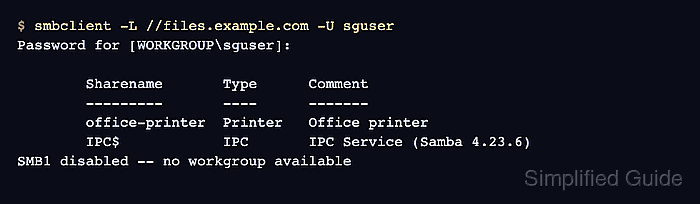
$ smbclient -L //files.example.com -U sguser
Password for [WORKGROUP\sguser]:

        Sharename       Type      Comment
        ---------       ----      -------
        office-printer  Printer   Office printer
        IPC$            IPC       IPC Service (Samba 4.23.6)
SMB1 disabled -- no workgroup available
The row with Type set to Printer proves Samba is advertising the selected queue as a printer share.
- Create a small test page on an SMB client.
$ printf 'Samba printer test\n' > samba-printer-test.txt
- Submit the test page through the printer share.
$ smbclient //files.example.com/office-printer -U sguser -c 'print samba-printer-test.txt'
Password for [WORKGROUP\sguser]:
putting file samba-printer-test.txt as samba-printer-test.txt-18 (0.1 kB/s) (average 0.1 kB/s)
This submits a real print job to Office_Printer. Use a test queue or be ready to retrieve the page from the physical printer.
- Remove the local test page.
$ rm samba-printer-test.txt

Mohd Shakir Zakaria is a cloud architect with deep roots in software development and open-source advocacy. Certified in AWS, Red Hat, VMware, ITIL, and Linux, he specializes in designing and managing robust cloud and on-premises infrastructures.


