A Samba share can look writable in /etc/samba/smb.conf and still deny a user when the Linux directory ACLs do not grant matching filesystem access. Set the POSIX ACL on the shared directory, align the Samba create modes, and verify the result through an actual SMB upload before handing the share to users.
On a Linux-backed share, Samba checks both the share definition and the underlying filesystem permissions. The setfacl command grants access to a Linux user or group, while inherit acls and the create-mode settings keep new SMB-created files from losing the intended group write access.
Use this approach when the Samba host owns the permission model and administrators manage access from the Linux shell. If Windows administrators need fine-grained entries from the Security tab, configure Windows ACL support with acl_xattr instead of mixing two permission models on the same share.
Related: How to create a Samba share on Linux
Related: How to add a Samba user
Related: How to troubleshoot SMB share permission denied
Steps to set Samba share ACL permissions:
- Confirm the Linux group that should receive share access.
$ getent group project-team
project-team:x:1002:alice
The Samba account must map to a Linux user that belongs to this group. Replace project-team and alice with the group and account used on the file server.
- Set the share directory group.
$ sudo chown root:project-team /srv/samba/team
- Set the directory mode with the SGID bit.
$ sudo chmod 2770 /srv/samba/team
The leading 2 keeps new entries in the directory group instead of the creator's primary group.
- Grant the group access on the share root.
$ sudo setfacl -m group:project-team:rwx /srv/samba/team
- Add the inherited group ACL for new files and folders.
$ sudo setfacl -m default:group:project-team:rwx /srv/samba/team
- Keep the inherited ACL mask writable.
$ sudo setfacl -m default:mask:rwx /srv/samba/team
Without a writable default mask, new files can show the group ACL entry but still have an effective read-only permission.
- Check the resulting directory ACL.
$ getfacl --absolute-names /srv/samba/team
# file: /srv/samba/team
# owner: root
# group: project-team
# flags: -s-
user::rwx
group::rwx
group:project-team:rwx
mask::rwx
other::---
default:user::rwx
default:group::rwx
default:group:project-team:rwx
default:mask::rwx
default:other::---
- Open the Samba configuration file.
$ sudoedit /etc/samba/smb.conf
- Add or update the share section.
[team]
    path = /srv/samba/team
    read only = no
    valid users = @project-team
    inherit acls = yes
    create mask = 0660
    force create mode = 0660
    directory mask = 2770
    force directory mode = 2770
valid users limits share access to members of the Linux group. The create and directory mode settings keep SMB-created content aligned with the ACL policy.
- Validate the parsed share configuration.
$ sudo testparm -s --section-name=team
Load smb config files from /etc/samba/smb.conf
Loaded services file OK.

[team]
	create mask = 0660
	directory mask = 02770
	force create mode = 0660
	force directory mode = 02770
	inherit acls = Yes
	path = /srv/samba/team
	read only = No
	valid users = @project-team
- Reload the running Samba daemons.
$ sudo smbcontrol all reload-config
- Create a temporary file for the SMB write check.
$ printf 'acl write test\n' > /tmp/acl-test.txt
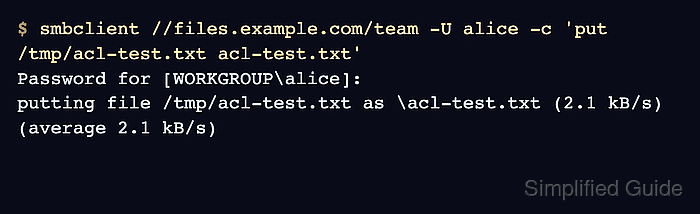
- Upload the file through the share as a group member.
$ smbclient //files.example.com/team -U alice -c 'put /tmp/acl-test.txt acl-test.txt'
Password for [WORKGROUP\alice]:
putting file /tmp/acl-test.txt as \acl-test.txt (2.1 kB/s) (average 2.1 kB/s)
Use the server name and share name clients normally use. A successful upload proves the share definition and filesystem ACL allow the Samba account to write.
- Confirm the uploaded file kept group access.
$ getfacl --absolute-names /srv/samba/team/acl-test.txt
# file: /srv/samba/team/acl-test.txt
# owner: alice
# group: project-team
user::rw-
group::rwx	#effective:rw-
group:project-team:rwx	#effective:rw-
mask::rw-
other::---
- Remove the uploaded test file.
$ smbclient //files.example.com/team -U alice -c 'del acl-test.txt'
- Remove the local test file.
$ rm -f /tmp/acl-test.txt

Mohd Shakir Zakaria is a cloud architect with deep roots in software development and open-source advocacy. Certified in AWS, Red Hat, VMware, ITIL, and Linux, he specializes in designing and managing robust cloud and on-premises infrastructures.


