Python environments keep their installed libraries separate, so a package available in one environment can be missing from another. The No module named sklearn error means the Python interpreter running the code cannot find scikit-learn, and installing the scikit-learn package in the environment that runs the code lets import sklearn work again.
The package name used by pip is scikit-learn, while the name used in Python code is sklearn. The separate sklearn package on PyPI is deprecated and rejects installation; changing an import to import scikit-learn is not a fix.
The repair belongs in the environment running the failing script or notebook. An IDE's Python console and a Jupyter kernel can use different interpreters from a terminal, so the executable path matters more than whether a bare pip command reports the package as installed. A system Python on Ubuntu or Debian refuses pip installs, so the repair there moves the code into a project virtual environment.
Steps to fix the No module named sklearn error in scikit-learn:
- Confirm the missing import in the failing Python console, notebook, or script.
import sklearnExample output:
Traceback (most recent call last):
  File "<stdin>", line 1, in <module>
ModuleNotFoundError: No module named 'sklearn'
Stock Ubuntu starts that console with
python3because it has nopythoncommand. A script reports the same error with its own file name and line number. An error naming a different module needs diagnosis of that module rather than this package-name correction. - Print the executable path from the failing console, notebook, or script.
import sys
print(sys.executable)
Example output:
/usr/bin/python3
In a script, add these two lines above the failing import and run it the way it failed. The path identifies the installation target. A notebook may report a different path from the Python executable in your terminal.
- Create a virtual environment in your project directory, shown as
~/ml-project, if the reported path is a system Python such as/usr/bin/python3.$ python3 -m venv ~/ml-project/.venv
A path already inside a virtual or conda environment needs no new environment. If Ubuntu or Debian reports that
ensurepipis not available, install the missing package and rerun the command.$ sudo apt install python3-venv
/usr/bin/python3itself stays without scikit-learn, so the failing console or script has to run from~/ml-project/.venv/bin/pythonafter this step. On Ubuntu, thepython3-sklearnpackage from apt keeps the original interpreter instead, with an older scikit-learn release.
Related: Create a Python virtual environment
Related: Activate a Python virtual environment - Install the scikit-learn package with the reported executable path, or with the new environment's interpreter after step 3.
Installing into a shared environment can change its dependencies.
--break-system-packagesoverrides pip's protection for a system Python at the risk of breaking it, and this repair does not need it.$ ~/ml-project/.venv/bin/python -m pip install scikit-learn Collecting scikit-learn ##### snipped ##### Successfully installed cloudpickle-3.1.2 joblib-1.6.0 narwhals-2.28.0 numpy-2.5.4 scikit-learn-1.9.1 scipy-1.18.1 threadpoolctl-3.8.0
An existing virtual or conda environment uses its own reported path here.
error: externally-managed-environmentorNo module named pipfrom a system Python means that interpreter cannot take the package, so step 3 applies. An environment created byuv venvalso has no pip, anduv pip install scikit-learnfrom its project directory installs the package there.For a Jupyter notebook using an IPython kernel, the equivalent installation runs directly in a cell with
%pip install scikit-learn
If an earlier attempt reported that the
sklearnPyPI package is deprecated,scikit-learnis the replacement installation name. Python imports still usesklearn.
Related: sklearn package deprecation notice - Inspect the installed distribution's location in the same environment.
$ ~/ml-project/.venv/bin/python -m pip show scikit-learn
Name: scikit-learn
Version: 1.9.1
##### snipped #####
Location: /home/analyst/ml-project/.venv/lib/python3.12/site-packages
Requires: joblib, narwhals, numpy, scipy, threadpoolctl
Required-by:
The
Namefield should bescikit-learn, andLocationshould sit inside the intended environment, here~/ml-project/.venv. A notebook cell can inspect its kernel's installation with%pip show scikit-learn
A package shown only by another interpreter does not resolve the failing import.
Related: scikit-learn installation documentation - Retest the import in the failing session, or in a console started with
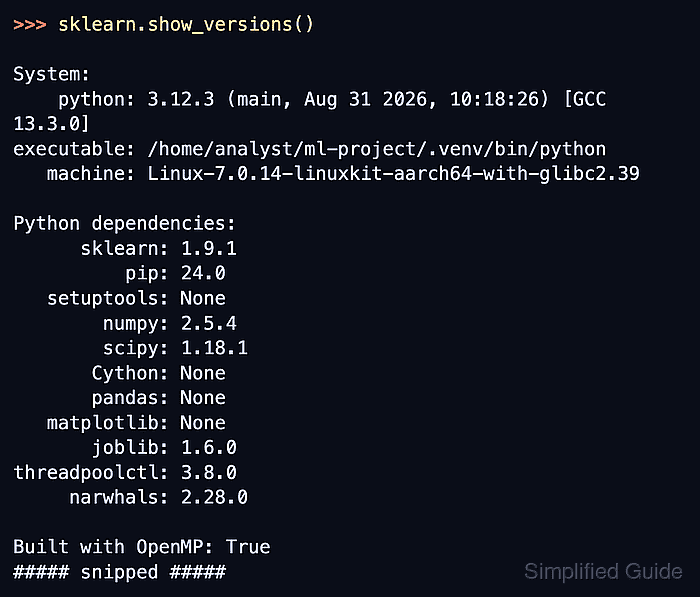
~/ml-project/.venv/bin/pythonafter step 3.import sklearn print(sklearn.__file__) sklearn.show_versions()
Example output:
/home/analyst/ml-project/.venv/lib/python3.12/site-packages/sklearn/__init__.py

System:
    python: 3.12.3 (main, Aug 31 2026, 10:18:26) [GCC 13.3.0]
executable: /home/analyst/ml-project/.venv/bin/python
   machine: Linux-7.0.14-linuxkit-aarch64-with-glibc2.39

Python dependencies:
      sklearn: 1.9.1
          pip: 24.0
##### snipped #####
The import should complete without
ModuleNotFoundError, the module path should point into the same environment, and the report should list scikit-learn and its dependencies. A script passes the same test when it runs with that interpreter, such as~/ml-project/.venv/bin/python train.py. If an IPython notebook still cannot find the newly installed package, a kernel restart refreshes the session before repeating this check.