scikit-learn runs on compiled numerical libraries, so each project needs matching builds of NumPy, SciPy and a BLAS library alongside its Python interpreter. A dedicated conda environment keeps that whole set together in its own directory, where Python can import sklearn and train a model without changing other projects.
The community-run conda-forge channel publishes scikit-learn builds for Windows, macOS and Linux, and the scikit-learn installation instructions give the same conda commands for all three. conda also installs Python into the environment, so no separate Python setup is needed.
conda itself must already be installed from Miniforge or Miniconda. Miniforge uses conda-forge as its only channel, while Miniconda starts with Anaconda's defaults channels and their Terms of Service check. Limiting the install to conda-forge gives both the same package source.
Steps to install scikit-learn with conda:
- Open a terminal where conda is available.
On Windows, open Miniforge Prompt or, for Miniconda, Anaconda Prompt from the Start menu. If conda is not found on Linux or macOS, initialize it for your shell.
Related: How to initialize Conda for a shell - Install scikit-learn from conda-forge into a new ml-env environment.
$ conda create --name ml-env --channel conda-forge \
  --override-channels scikit-learn --yes
Retrieving notices: ...working... done
Channels:
 - conda-forge
Platform: linux-aarch64
##### snipped #####
  environment location: /home/user/miniforge3/envs/ml-env
##### snipped #####
Verifying transaction: ...working... done
##### snipped #####
# To activate this environment, use
##### snipped #####
--override-channels makes conda-forge the only channel for this command. Without it, Miniconda also reads its defaults channels and can stop at an Anaconda Terms of Service prompt. --yes accepts the package plan without asking. On Windows, enter this command on one line without the backslash.
- Activate the environment.
$ conda activate ml-env
(ml-env) $
The (ml-env) prefix marks the active environment, and later steps show the prompt as $ alone. Activation lasts only for the current terminal, so run this command again in each new terminal before you use scikit-learn.
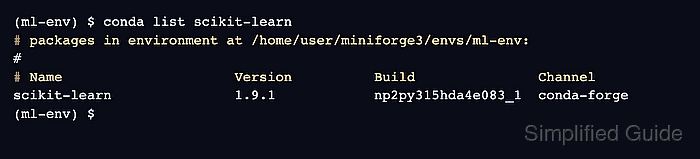
Related: How to activate a Conda environment - Confirm that conda recorded scikit-learn from conda-forge.
$ conda list scikit-learn
# packages in environment at /home/user/miniforge3/envs/ml-env:
#
# Name                     Version          Build
#   Channel
scikit-learn               1.9.1            np2py315hda4e083_1
    conda-forge
The header path should end in ml-env and the Channel column should read conda-forge. The version and build change as conda-forge publishes new packages.
- Print the dependency report from the environment's interpreter.
$ python -c "import sklearn; sklearn.show_versions()"

System:
    python: 3.15.2 | packaged by conda-forge |
            (main, Oct 26 2026, 11:39:03) [GCC 15.3.0]
executable: /home/user/miniforge3/envs/ml-env/bin/python
##### snipped #####

Python dependencies:
      sklearn: 1.9.1
          pip: 26.2.2
   setuptools: None
        numpy: 2.5.4
        scipy: 1.18.1
       Cython: None
       pandas: None
   matplotlib: None
       joblib: 1.6.0
threadpoolctl: 3.7.0
     narwhals: 2.28.0
##### snipped #####
The executable line should point inside ml-env, and the sklearn version should match the previous step. None means that package is not installed in this environment.
- Start Python from the activated environment.
$ python
##### snipped #####
>>>
- Enter these lines to fit a small classifier and predict two new inputs.
from sklearn.linear_model import LogisticRegression
X = [[0], [1], [2], [3]]
y = [0, 0, 1, 1]
model = LogisticRegression().fit(X, y)
model.predict([[0.5], [2.5]])
array([0, 1])
array([0, 1]) places 0.5 in class 0 and 2.5 in class 1, matching the labels the model saw on each side. If pasted lines stop at a ... prompt, press Enter once more. A ModuleNotFoundError means this Python is running outside ml-env. exit() returns to the shell when you finish.
Related: How to fix the No module named sklearn error in scikit-learn