Deploying blackbox exporter monitoring with Prometheus and Grafana gives operators an outside-in view of endpoint availability. Instead of scraping application metrics directly, Prometheus asks blackbox exporter to probe a URL, stores probe metrics such as probe_success and probe_duration_seconds, and feeds those series into a Grafana dashboard.
A small Docker Compose stack can run a demo endpoint, blackbox exporter, Prometheus, and Grafana on one host. Prometheus sends the target URL to /probe as a request parameter, relabels the original URL into the instance label, and scrapes blackbox exporter on its internal service name.
The host ports in this stack are 19090 for Prometheus, 19115 for blackbox exporter, and 13000 for Grafana so they do not collide with common local monitoring services. Replace the demo target with the real URL from the network path that blackbox exporter can reach, and change the Grafana admin password before using the stack beyond a disposable lab.
Steps to deploy blackbox exporter monitoring with Prometheus and Grafana:
- Create the stack directory.
$ mkdir -p bbmon
- Open the stack directory.
$ cd bbmon
- Create the Grafana provisioning directories.
$ mkdir -p \
  grafana/provisioning/datasources \
  grafana/provisioning/dashboards \
  grafana/dashboards
- Save the Docker Compose stack in compose.yml.
name: bbmon

services:
  demo-web:
    image: python:3.12-alpine
    command:
      - python
      - -m
      - http.server
      - "8000"
      - --directory
      - /tmp
    expose:
      - "8000"

  blackbox:
    image: prom/blackbox-exporter:v0.27.0
    command:
      - --config.file=/etc/blackbox_exporter/blackbox.yml
    volumes:
      - ./blackbox.yml:/etc/blackbox_exporter/blackbox.yml:ro
    ports:
      - "19115:9115"

  prometheus:
    image: prom/prometheus:v3.5.4
    command:
      - --config.file=/etc/prometheus/prometheus.yml
      - --web.enable-lifecycle
    volumes:
      - ./prometheus.yml:/etc/prometheus/prometheus.yml:ro
    ports:
      - "19090:9090"
    depends_on:
      - blackbox
      - demo-web

  grafana:
    image: grafana/grafana:12.2.0
    volumes:
      - ./grafana/provisioning:/etc/grafana/provisioning:ro
      - ./grafana/dashboards:/var/lib/grafana/dashboards:ro
    ports:
      - "13000:3000"
    depends_on:
      - prometheus
The admin password is only a disposable lab value. Set a strong secret, restrict the listener, or place Grafana behind an authenticated reverse proxy before exposing it to other users.
- Save the blackbox exporter HTTP probe module in blackbox.yml.
modules:
  http_2xx:
    prober: http
    timeout: 5s
The http_2xx module treats a successful HTTP response as probe success and publishes timing, status-code, redirect, DNS, and duration metrics.
- Save the Prometheus scrape configuration in prometheus.yml.
global:
  scrape_interval: 15s
  evaluation_interval: 15s

scrape_configs:
  - job_name: prometheus
    static_configs:
      - targets:
          - prometheus:9090

  - job_name: blackbox
    metrics_path: /probe
    params:
      module:
        - http_2xx
    static_configs:
      - targets:
          - http://demo-web:8000
        labels:
          environment: lab
          service: demo-web
    relabel_configs:
      - source_labels:
          - __address__
        target_label: __param_target
      - source_labels:
          - __param_target
        target_label: instance
      - target_label: __address__
        replacement: blackbox:9115

  - job_name: blackbox-exporter
    static_configs:
      - targets:
          - blackbox:9115
Replace http://demo-web:8000 with the endpoint blackbox exporter should probe. The relabeling sends that endpoint to /probe as target, stores it as instance, and changes the scrape address to blackbox:9115.
Related: How to add a Prometheus scrape config
Tool: Prometheus Scrape Config Generator - Save prometheus.yml in the data source provisioning directory.
apiVersion: 1

datasources:
  - name: Prometheus
    type: prometheus
    access: proxy
    url: http://prometheus:9090
    uid: prometheus
    isDefault: true
Grafana runs in its own container, so the data source URL uses the Prometheus Compose service name instead of localhost:9090.
- Save blackbox.yml in the dashboard provisioning directory.
apiVersion: 1

providers:
  - name: blackbox
    orgId: 1
    folder: Monitoring
    type: file
    disableDeletion: false
    updateIntervalSeconds: 10
    allowUiUpdates: false
    options:
      path: /var/lib/grafana/dashboards
- Save blackbox-http.json in grafana/dashboards.
{
  "uid": "blackbox-http",
  "title": "Blackbox HTTP monitoring",
  "timezone": "browser",
  "schemaVersion": 41,
  "version": 1,
  "refresh": "15s",
  "panels": [
    {
      "id": 1,
      "title": "Probe success",
      "type": "stat",
      "gridPos": {
        "h": 8,
        "w": 8,
        "x": 0,
        "y": 0
      },
      "datasource": {
        "type": "prometheus",
        "uid": "prometheus"
      },
      "targets": [
        {
          "expr": "probe_success{job=\"blackbox\"}",
          "refId": "A"
        }
      ],
      "fieldConfig": {
        "defaults": {
          "mappings": [
            {
              "type": "value",
              "options": {
                "0": {
                  "text": "Down",
                  "color": "red"
                },
                "1": {
                  "text": "Up",
                  "color": "green"
                }
              }
            }
          ],
          "thresholds": {
            "mode": "absolute",
            "steps": [
              {
                "color": "red",
                "value": null
              },
              {
                "color": "green",
                "value": 1
              }
            ]
          }
        }
      },
      "options": {
        "reduceOptions": {
          "values": false,
          "calcs": [
            "lastNotNull"
          ],
          "fields": ""
        },
        "orientation": "auto",
        "textMode": "auto",
        "colorMode": "value",
        "graphMode": "area",
        "justifyMode": "auto"
      }
    },
    {
      "id": 2,
      "title": "Probe duration",
      "type": "timeseries",
      "gridPos": {
        "h": 8,
        "w": 16,
        "x": 8,
        "y": 0
      },
      "datasource": {
        "type": "prometheus",
        "uid": "prometheus"
      },
      "targets": [
        {
          "expr": "probe_duration_seconds{job=\"blackbox\"}",
          "refId": "A"
        }
      ],
      "fieldConfig": {
        "defaults": {
          "unit": "s"
        }
      },
      "options": {
        "legend": {
          "showLegend": true,
          "displayMode": "list",
          "placement": "bottom"
        },
        "tooltip": {
          "mode": "single",
          "sort": "none"
        }
      }
    }
  ]
}
For a fuller dashboard with status-code and HTTP phase panels, extend the same Prometheus data source queries.
Related: How to build a Grafana dashboard from Prometheus blackbox exporter metrics - Validate the Compose file.
$ docker compose config name: bbmon services: blackbox: image: prom/blackbox-exporter:v0.27.0 ##### snipped ##### prometheus: image: prom/prometheus:v3.5.4 ##### snipped ##### - Start the monitoring stack.
$ docker compose up --detach
Container bbmon-demo-web-1 Started
Container bbmon-blackbox-1 Started
Container bbmon-prometheus-1 Started
Container bbmon-grafana-1 Started
- Check the running services.
$ docker compose ps
NAME                 SERVICE      STATUS
bbmon-blackbox-1     blackbox     Up
bbmon-demo-web-1     demo-web     Up
bbmon-grafana-1      grafana      Up
bbmon-prometheus-1   prometheus   Up
- Probe the demo endpoint through blackbox exporter.
$ curl --silent --show-error \
  'http://localhost:19115/probe?target=http://demo-web:8000&module=http_2xx'
# HELP probe_duration_seconds Returns how long the probe took to complete in seconds
# TYPE probe_duration_seconds gauge
probe_duration_seconds 0.00828225
##### snipped #####
# HELP probe_http_status_code Response HTTP status code
# TYPE probe_http_status_code gauge
probe_http_status_code 200
##### snipped #####
# HELP probe_success Displays whether or not the probe was a success
# TYPE probe_success gauge
probe_success 1
Value 1 for probe_success means the probe completed successfully. For a real endpoint, verify that the target URL is reachable from the blackbox exporter container network path, not only from the host shell.
- Check the Prometheus configuration inside the container.
$ docker compose exec prometheus promtool check config \
  /etc/prometheus/prometheus.yml
Checking /etc/prometheus/prometheus.yml
 SUCCESS: /etc/prometheus/prometheus.yml is valid prometheus config file syntax
Run the same check after changing prometheus.yml, especially when adding more target URLs or modules.
Related: How to test Prometheus configuration - Query Prometheus for scrape target health.
$ docker compose exec prometheus promtool query instant \
  http://localhost:9090 'up{job="blackbox"}'
up{environment="lab", instance="http://demo-web:8000",
job="blackbox", service="demo-web"} => 1 @[1781951833.396]
up confirms Prometheus can scrape blackbox exporter. It does not prove that the probed endpoint succeeded; use probe_success for that state.
Related: How to check Prometheus targets - Query Prometheus for probe success.
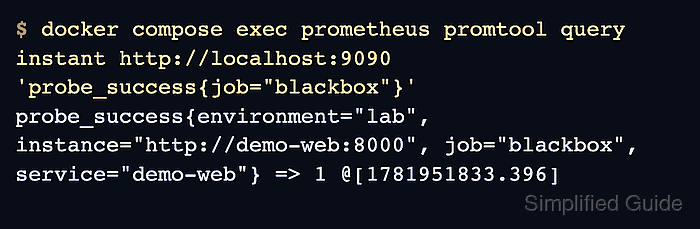
$ docker compose exec prometheus promtool query instant \
  http://localhost:9090 'probe_success{job="blackbox"}'
probe_success{environment="lab", instance="http://demo-web:8000",
job="blackbox", service="demo-web"} => 1 @[1781951818.82]
Value 1 means the latest blackbox probe succeeded. Value 0 means Prometheus scraped blackbox exporter, but the endpoint probe failed.
- Query Prometheus for probe duration.
$ docker compose exec prometheus promtool query instant \ http://localhost:9090 'probe_duration_seconds{job="blackbox"}' probe_duration_seconds{environment="lab", instance="http://demo-web:8000", job="blackbox", service="demo-web"} => 0.003350542 @[1781951833.397] - Check the provisioned Grafana data source.
$ curl --silent --show-error --user admin:admin \
  http://localhost:13000/api/datasources/uid/prometheus
{
  "uid": "prometheus",
  "name": "Prometheus",
  "type": "prometheus",
  "url": "http://prometheus:9090",
  "isDefault": true,
  "readOnly": true
}
readOnly shows the data source came from provisioning. The URL should be http://prometheus:9090 for this Compose network, not http://localhost:9090.
- Query the blackbox series through Grafana.
$ curl --silent --show-error --user admin:admin --get \
  --data-urlencode 'query=probe_success{job="blackbox"}' \
  http://localhost:13000/api/datasources/proxy/uid/prometheus/api/v1/query
{
  "status": "success",
  "data": {
    "result": [
      {
        "metric": {
          "__name__": "probe_success",
          "instance": "http://demo-web:8000"
        },
        "value": [1781951818.638, "1"]
      }
    ]
  }
}
A successful proxy query proves Grafana can reach Prometheus and read the blackbox probe metric through the provisioned data source.
- Confirm the Grafana dashboard was provisioned.
$ curl --silent --show-error --user admin:admin \ 'http://localhost:13000/api/search?query=Blackbox' [ { "uid": "blackbox-http", "title": "Blackbox HTTP monitoring", "url": "/d/blackbox-http", "type": "dash-db", "folderTitle": "Monitoring" } ] - Open Grafana and select Monitoring → Blackbox HTTP monitoring.
http://localhost:13000
The initial local sign-in is admin / admin. Change it before keeping Grafana online.

Mohd Shakir Zakaria is a cloud architect with deep roots in software development and open-source advocacy. Certified in AWS, Red Hat, VMware, ITIL, and Linux, he specializes in designing and managing robust cloud and on-premises infrastructures.


