Checking Prometheus targets shows whether each configured scrape endpoint was discovered and whether the latest scrape succeeded. Use the Target health page after adding a scrape job, reloading configuration, or investigating missing up data in dashboards and alerts.
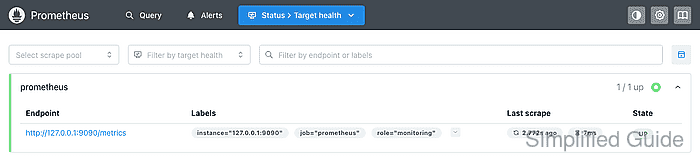
The Status → Target health view groups active targets by scrape pool and shows the endpoint, final labels, last scrape time, scrape duration, and state. A green UP badge means the latest scrape completed, while DOWN means Prometheus still knows about the target but the last scrape failed.
Filters on the page make it safer to inspect one job instead of scanning every discovered endpoint. Pair the visual check with a narrow up query when an alert, dashboard, or automation depends on the same target state.
Steps to check Prometheus targets:
- Open the Prometheus Target health page.
http://prometheus.example.net/targets
Use the same scheme, hostname, port, reverse-proxy path, and authentication that operators use for the Prometheus web UI.
- Select the scrape pool when checking one job.
The Select scrape pool filter uses the configured job_name value, such as prometheus, node, or blackbox.
- Filter by target health when looking for failed scrapes.
Leave Filter by target health unset for a full inventory, or choose the unhealthy state to focus on targets that need inspection.
- Search by endpoint or label when the scrape pool has many rows.
The Filter by endpoint or labels box can match endpoint text and labels such as job, instance, or a custom label added by the scrape config.
- Check the scrape pool header and State badge.
The header count should match the expected number of active targets for the job. A row showing UP means the latest scrape succeeded; a row showing DOWN needs the expanded error details before remediation.
- Check the row labels, endpoint, and Last scrape value.
Labels shows the post-relabeling label set used by queries and alerts. Last scrape should update after the configured scrape interval; a stale value usually means the server has stopped scraping or the page is not showing the expected Prometheus instance.
- Expand a down target row before changing configuration.
Last error usually points to the failing layer, such as DNS lookup, refused TCP connection, TLS validation, HTTP status, timeout, or invalid metrics output.
Related: How to troubleshoot a down Prometheus target - Confirm the target state with a narrow up query when query results matter.
up{job="prometheus"}Value 1 means the target was up at the evaluation time. Value 0 means Prometheus scraped the target but marked it down. No returned series means the label matcher does not identify a stored target series.
Related: How to run a PromQL query in Prometheus

Mohd Shakir Zakaria is a cloud architect with deep roots in software development and open-source advocacy. Certified in AWS, Red Hat, VMware, ITIL, and Linux, he specializes in designing and managing robust cloud and on-premises infrastructures.


