Testing a Prometheus configuration file with promtool catches invalid YAML, unsupported scrape settings, and referenced rule-file errors before a reload reaches the running server. Promtool validation belongs between editing /etc/prometheus/prometheus.yml or the active file passed through --config.file and applying that change to production monitoring.
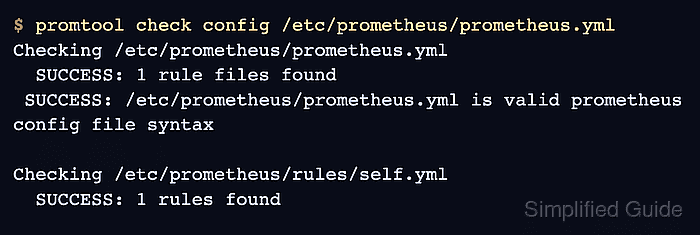
Prometheus keeps storage and web-server startup flags on the command line, while scrape jobs, alerting settings, remote write, and rule-file references live in the YAML configuration file. promtool check config parses that file, validates referenced rule files by default, and reports the blocking error before the running server is touched.
A clean config check does not prove exporters are reachable or that new alert expressions return useful samples. Reload only after the parser check passes, then confirm Prometheus is ready or inspect the affected target, rule, or alert state.
Related: How to reload Prometheus configuration
Related: How to test Prometheus rule files
Steps to test Prometheus configuration:
- Identify the active Prometheus configuration file.
$ ps -o args= -C prometheus
/usr/bin/prometheus --config.file=/etc/prometheus/prometheus.yml --storage.tsdb.path=/var/lib/prometheus --web.listen-address=127.0.0.1:9090
Use the path from --config.file. If the flag is absent, use the file path from the service unit, container command, or package defaults for that installation.
- Run the config check before applying the change.
$ promtool check config /etc/prometheus/prometheus.yml
Checking /etc/prometheus/prometheus.yml

  FAILED: parsing YAML file /etc/prometheus/prometheus.yml: scrape timeout greater than scrape interval for scrape config with job name "broken"
promtool check config validates the main config and referenced rule files. Use --syntax-only only for an early YAML parse check because it skips file and content validation referenced by the config.
- Fix the first reported config error.
Parser failures usually name the file, setting, or scrape job that blocked validation. Fix that item first, then rerun the same check before chasing later effects.
- Re-run the config check until promtool reports success.
$ promtool check config /etc/prometheus/prometheus.yml
Checking /etc/prometheus/prometheus.yml
  SUCCESS: 1 rule files found
 SUCCESS: /etc/prometheus/prometheus.yml is valid prometheus config file syntax

Checking /etc/prometheus/rules/self.yml
  SUCCESS: 1 rules found
The rule-file section appears only when the config has matching rule_files entries. Use promtool check rules and rule unit tests when rule behavior matters, not only syntax.
Related: How to test Prometheus rule files - Make lint findings fatal in CI when config warnings should fail a deployment.
$ promtool check config --lint=all --lint-fatal /etc/prometheus/prometheus.yml
Checking /etc/prometheus/prometheus.yml
  SUCCESS: 1 rule files found
 SUCCESS: /etc/prometheus/prometheus.yml is valid prometheus config file syntax

Checking /etc/prometheus/rules/self.yml
  SUCCESS: 1 rules found
The default config lint mode checks duplicate rules. --lint=all adds every available config lint check, and --lint-fatal makes lint findings return a failing exit code.
- Reload Prometheus after the config check passes.
$ sudo systemctl reload prometheus
Use a lifecycle POST to /-/reload only when Prometheus was started with --web.enable-lifecycle. Otherwise use the service manager or SIGHUP path used by that host.
Related: How to reload Prometheus configuration
Related: How to manage the Prometheus service with systemctl - Confirm Prometheus is ready after the reload.
$ curl --silent --show-error http://127.0.0.1:9090/-/ready
Prometheus Server is Ready.
When the change affects scrape targets or rules, also check the affected target page, recording rule, or alert state after the next scrape or evaluation interval.
Related: How to check Prometheus targets
Related: How to run a PromQL query in Prometheus

Mohd Shakir Zakaria is a cloud architect with deep roots in software development and open-source advocacy. Certified in AWS, Red Hat, VMware, ITIL, and Linux, he specializes in designing and managing robust cloud and on-premises infrastructures.


